
Responding to a Violation
When the board issues a violation against your property, you get a notice by email with a View violation button. If your community mails its notices, a printed letter comes too.
View a violation
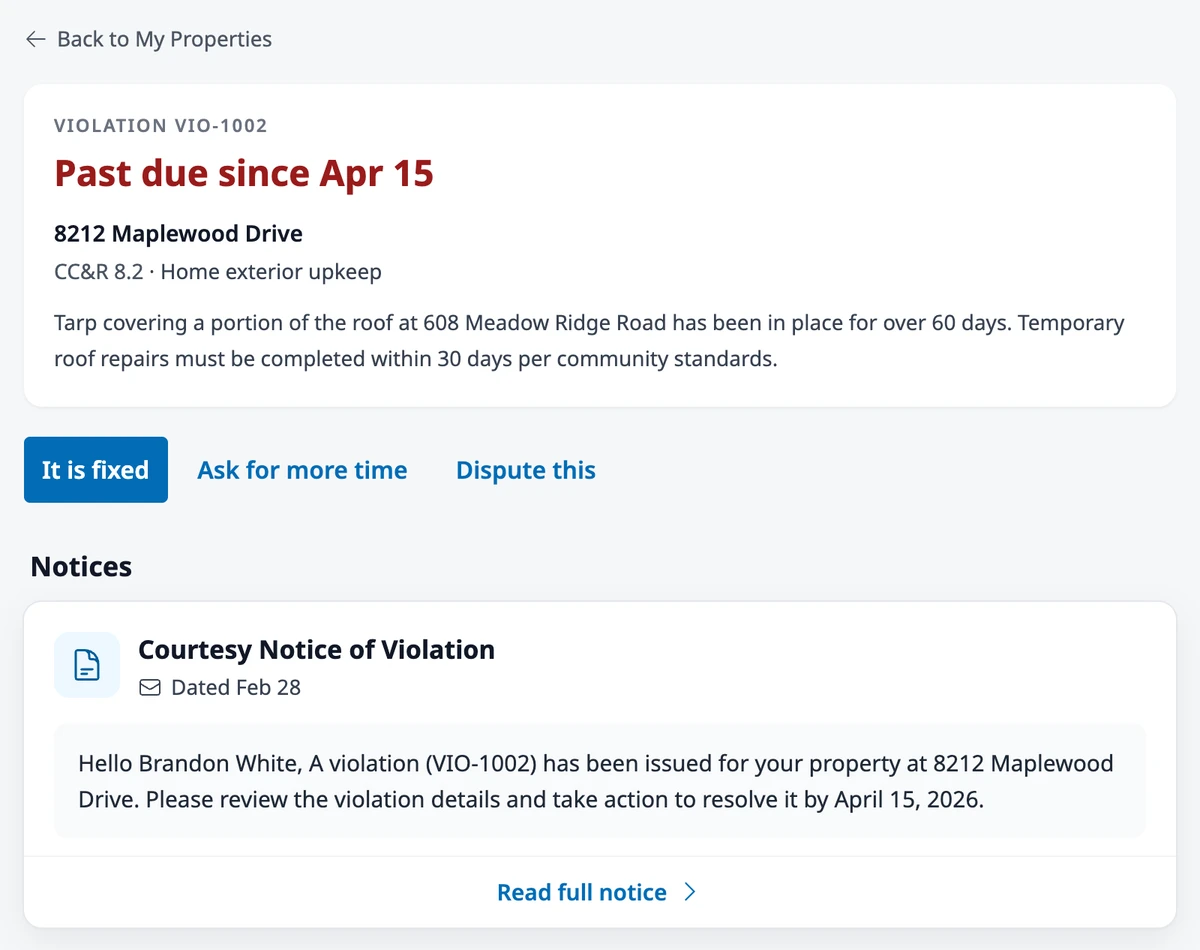
Section titled “View a violation”Open the violation from the View violation button in your email, or go to My Properties, open your property, and choose the Violations tab. The violation’s page shows the rule you were cited for, what the board observed, any photos, and your deadline: the date you need to fix the problem by.
Under Notices you’ll find every notice the board has sent about this violation, newest first. Click Read full notice to read a notice in full or print it.
Respond to a violation
Section titled “Respond to a violation”You can respond while the violation is open and nothing you’ve sent is waiting for the board.
It is fixed
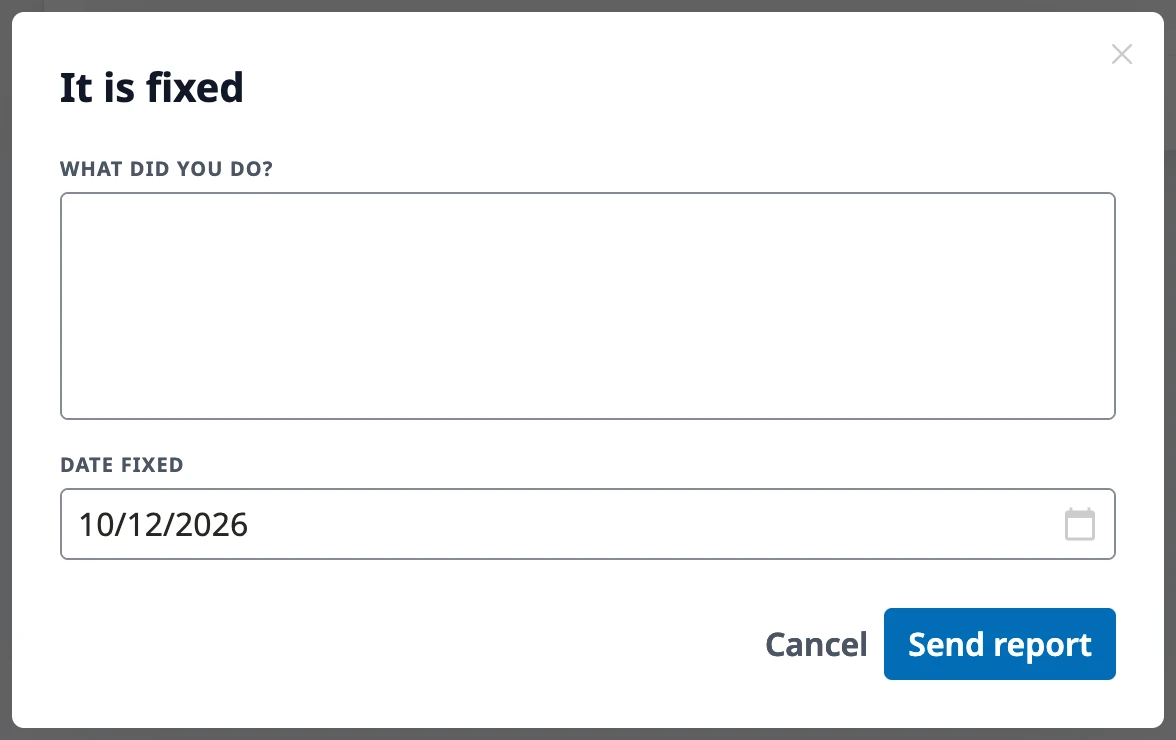
Section titled “It is fixed”Fixed the problem? Click It is fixed, describe what you did, enter the date you fixed it, and click Send report. The board reviews your report, and no further notices go out while it waits. If the board finds the problem isn’t fixed, you’ll get a note explaining why, and you can send a new report.
Ask for more time
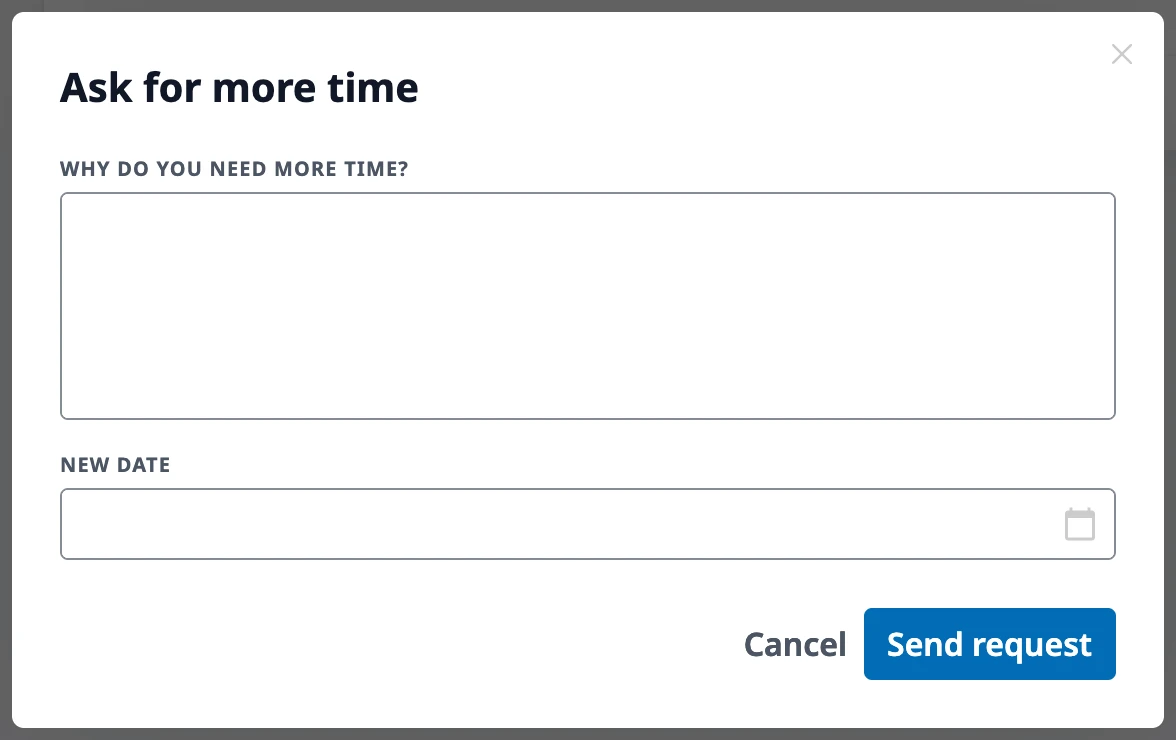
Section titled “Ask for more time”Need longer? Click Ask for more time, explain why, propose a new date, and click Send request. Notices pause while the board decides. If the board approves, the new date becomes your deadline. If it denies the request, you get a new deadline, and you can’t ask for more time on this violation again.
Dispute this
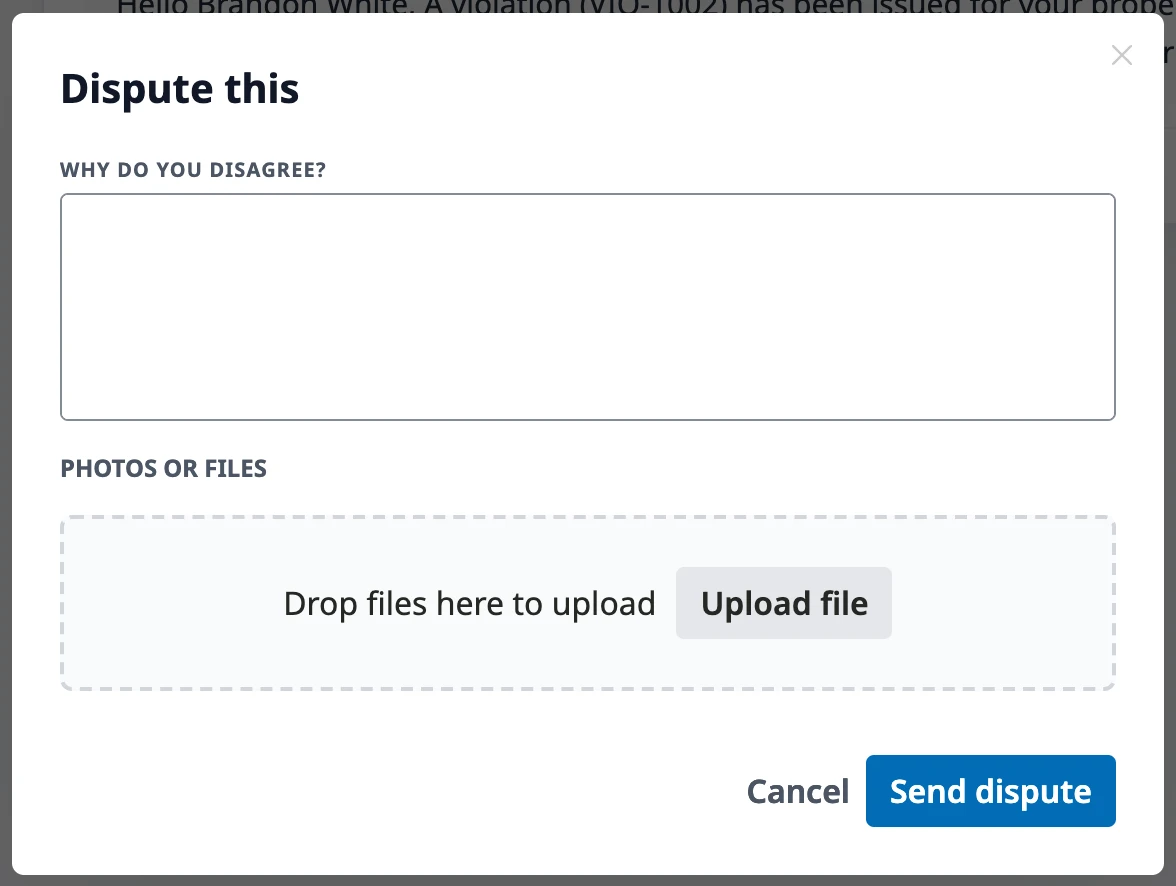
Section titled “Dispute this”Think the violation is wrong? Click Dispute this, explain why you disagree, add any photos or files that support your case, and click Send dispute. Notices pause while the board reviews your dispute, and the board may schedule a hearing. Your community sets how many times you can dispute one violation; usually it’s once.
After you respond
Section titled “After you respond”The violation’s page shows where things stand: for example, that your report was sent, that your request for more time is waiting for an answer, or the date and place of a hearing. You get an email each time the board responds, and every new notice appears on the page.
Where to go next
Section titled “Where to go next”- Wondering how the violation process works? See Understanding Violations.
- Asked for more time or a hearing? See Extensions & Hearings.
- Asking for approval before you make a change? See Submitting a Request.