
Finding Your Neighbors
The Directory lists the people, properties, and common spaces in your community. Go to Directory in the sidebar.
People
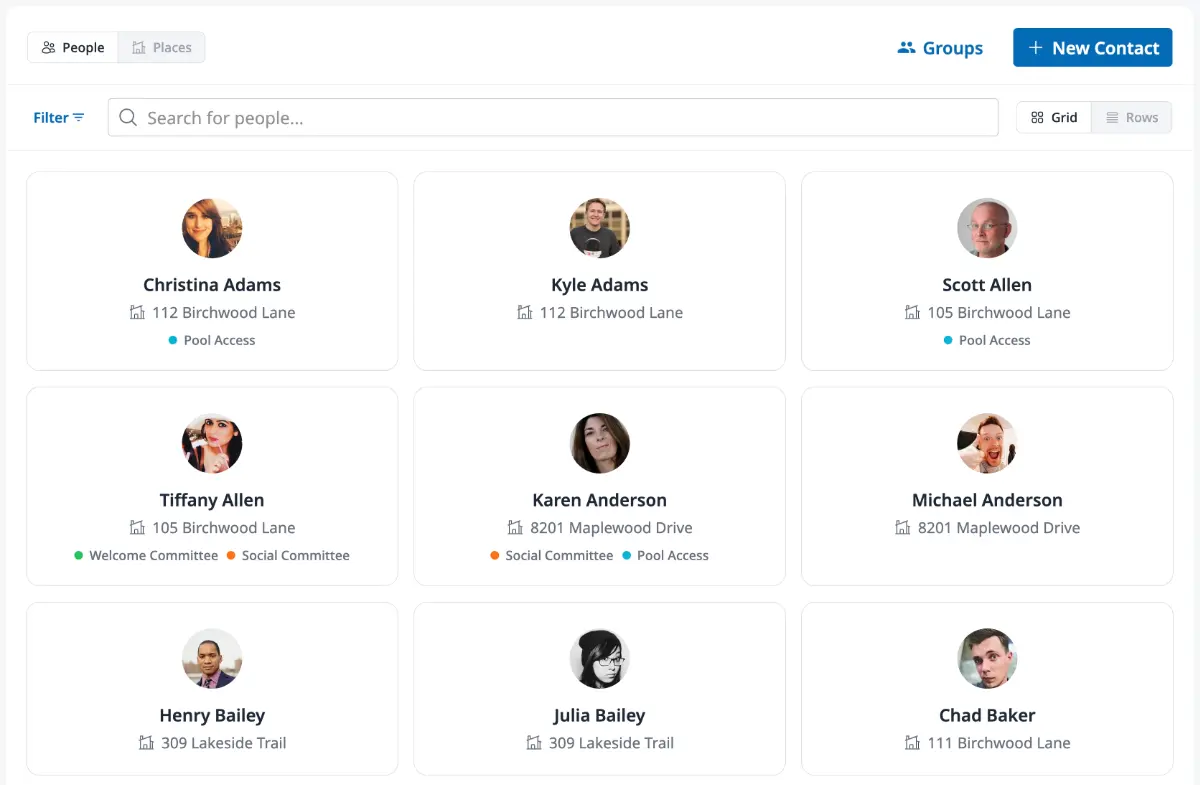
Section titled “People”The Directory opens on the People tab. Each row shows a resident’s photo, name, current property, and the groups they belong to, like “Welcome Committee”. Use the Grid and Rows toggle next to the search bar to switch layouts.
Type in the search bar to find someone by name. To list one group, open Filter and pick it under Groups.
The People tab lists current residents. People who have moved out or haven’t moved in yet don’t appear, and neither does anyone who chose to leave the Directory.
Open a contact card
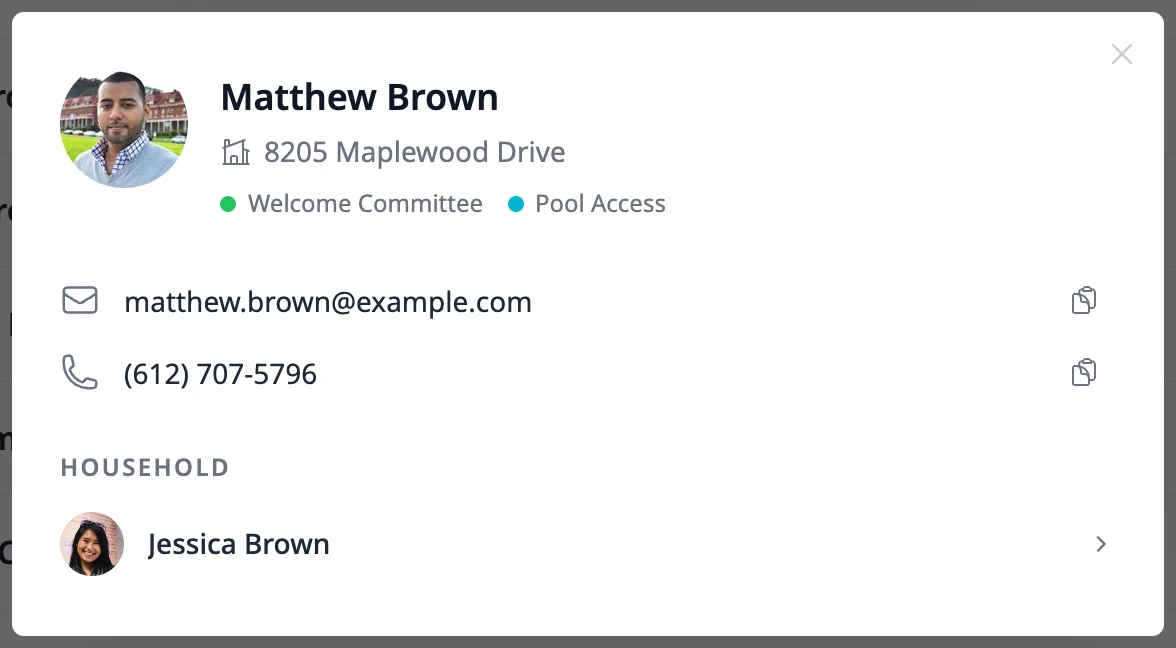
Section titled “Open a contact card”Click a name to open that person’s contact card. It shows their photo, name, current property, groups, and the email address and phone number they share with neighbors. Click the email address to write to them, or the phone number to call. The copy icon next to each one copies it.
Under Household, click another member of the household to switch to their card.
Each person decides what their card shows, and your association sets the starting point, so some cards show an email address but no phone number, or no contact details at all. If names in the Directory can’t be clicked, your association has turned contact details off.
You can open up to 15 cards a minute. Past that, the card says Too many lookups. Try again in a minute. Opening a card you already opened on the page doesn’t count.
Owners, Admins, and Board Members don’t see the card: clicking a name opens the person’s full contact page instead. See Managing the Directory.
Choose what neighbors see about you
Section titled “Choose what neighbors see about you”You decide whether you appear in the Directory and which of your email addresses and phone numbers go on your card. Set this under Directory on the Preferences tab of your profile. See Your Profile.
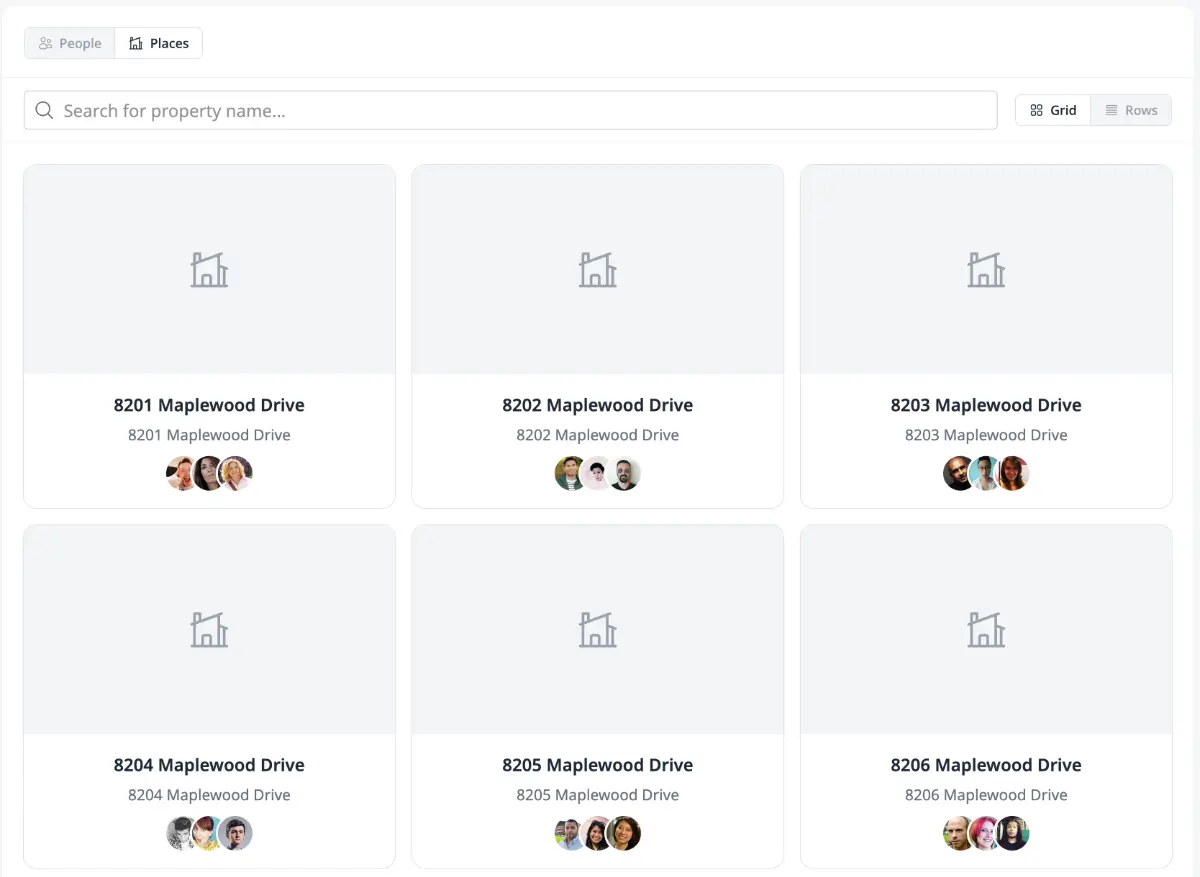
Switch to the Units tab to browse properties. Each property shows its name, address, and photos of its current residents. Search by property name to find a specific home. Click a resident’s photo to open their contact card.
Owners and Admins can click a property to open its page.
Common spaces
Section titled “Common spaces”Switch to the Common tab to browse shared spaces, like the clubhouse, pool, or park. Search by name to find a specific space.
Click a common space to open its page — its description, address or location notes (if set), a photo gallery, and any events being held there. See Managing Common Spaces for how these are set up.
Where to go next
Section titled “Where to go next”- Want to change what neighbors see about you? See Your Profile.
- Managing contacts for your association? See Managing the Directory.
- Setting up the clubhouse or pool? See Managing Common Spaces.