
Recording Income and Deposits
Record money that doesn’t arrive through billing here, and batch cash and checks into bank deposits.
How much of your income lands here depends on how your community collects assessments:
- If you use billing for assessments, this page covers everything else — pool key sales, a clubhouse rental, a vendor refund, interest income.
- If you don’t use billing, this page is where all of your income gets recorded, assessments and fees included. You don’t need the Billing module to keep a complete set of books.
Go to Accounting → Income. There are two tabs: Income, a log of what you’ve recorded, and Deposits, where cash and checks get batched. If anything in either fund is waiting to go to the bank, the Deposits tab shows a count. Board Members can view both tabs but can’t record or void anything.
Record income
Section titled “Record income”Click Record income from either tab. The panel is in two parts: What you received (amount, date received, payer, payment method, reference, memo) and Where it goes (income account, fund, and destination).
Destination is the one worth pausing on:
- Post directly to cash — the money is already at the bank, so it posts straight to that fund’s bank account. Use this for anything that arrives electronically.
- Hold in Undeposited Funds — you’re holding cash or a check that hasn’t physically made it to the bank yet. It waits until you batch it into a deposit.
The panel opens with Post directly to cash selected. For cash or a check you still have to take to the bank, switch it to Hold in Undeposited Funds.
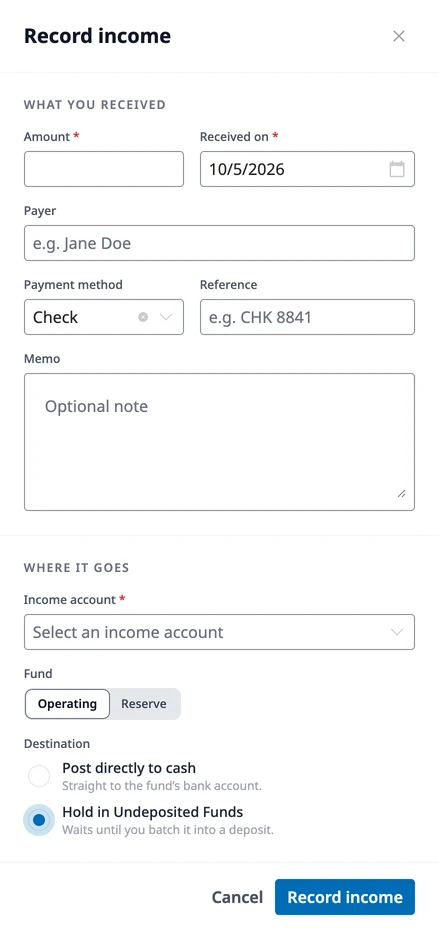
If you pick Post directly to cash and the fund banks in more than one place, a Deposit to field appears underneath so you can say which account the money landed in. Communities with a single account per fund never see it — there’s nothing to choose.
Where your money is
Section titled “Where your money is”The Income tab lists everything you’ve recorded, newest first, with a status on each row:
- Direct — posted straight to the bank account
- Held — waiting in Undeposited Funds, not yet deposited
- Deposited — was held, and has since gone to the bank in a deposit
- Voided — reversed. Voided rows stay listed but greyed out, so recorded money never silently disappears
The Deposited to column shows the fund. When a fund banks in more than one place, Direct rows name the bank account the money went to instead.
You can void income from this tab if you recorded it in error — see Void income.
Undeposited Funds
Section titled “Undeposited Funds”When money is held, it doesn’t sit in a drawer somewhere invisible to the books — it lands in an account called Undeposited Funds. Think of it as a waiting room for cash and checks that are real, recorded, and owed to your community, but haven’t physically made it to the bank yet.
Make a deposit
Section titled “Make a deposit”Open the Deposits tab. The top section, Waiting to deposit, is everything sitting in Undeposited Funds for the fund you’re viewing.
- Pick the fund. A single deposit can’t mix Operating and Reserve, so switching funds clears whatever you’d selected.
- Check off the items going to the bank. Select all takes everything, Clear all starts over, and shift-click selects a run of rows at once.
- Once you’ve selected something, a bar appears at the bottom with your running total. Set the deposit date, plus an optional reference (a deposit slip number) and memo. If the fund has more than one bank account, Deposit to appears here as well — pick the one you’re taking this batch to.
- Click Post deposit.
The selected items move out of Undeposited Funds and into your bank account balance in one transaction. You’ll stay on the Deposits tab — the items you deposited drop off the queue, and the new deposit appears under Posted deposits below. Click any deposit there to see exactly what went into it.
Void income
Section titled “Void income”Recorded income can’t be edited, so when something was entered wrong, the fix is to void it and record it again.
On the Income tab, click the ✕ icon (Void) at the end of the row. There’s no confirmation step — the void happens immediately.
Voiding posts a reversing journal entry that backs the money out of whichever account it landed in. The row isn’t deleted: it stays in the log, greyed out and marked Voided, so recorded money never silently disappears.
One thing will stop you: income that’s already been deposited can’t be voided on its own. It left Undeposited Funds as part of a larger deposit, so HOA Hub tells you to void that deposit first. Once you do, the item returns to the pool and you can void it.
Void a deposit
Section titled “Void a deposit”Open the Deposits tab, find the deposit under Posted deposits, and click it. Click Void deposit in the top right, then confirm.
A reversing entry moves the money back out of the bank account, and every item that was in the deposit returns to Undeposited Funds as Held — ready to be deposited again correctly, or voided individually.
Where to go next
Section titled “Where to go next”- Banking in more than one place? See Setting Up Your Chart of Accounts to add a bank account.
- Reconciling your bank statement next? See Reconciling Your Bank Accounts.
- Looking for expenses instead? See Managing Bills and Vendors.