
Uploading Documents
Owners and admins can upload documents to make them available to the community. Uploaded files are processed, indexed for search, and made available to EasyAsk AI.
Uploading a document
Section titled “Uploading a document”Go to the Documents page and click Add Document. The upload form walks you through a few steps:
1. Add files — Drag and drop files onto the upload area, or click to browse. You can upload multiple files at once — they’ll be combined into a single document. If you upload more than one file, you can drag them to reorder the pages. Supported types: PDF, Word, Excel, PowerPoint, and images.
2. Choose a document type — This is the most important decision during upload because it can’t be changed later.
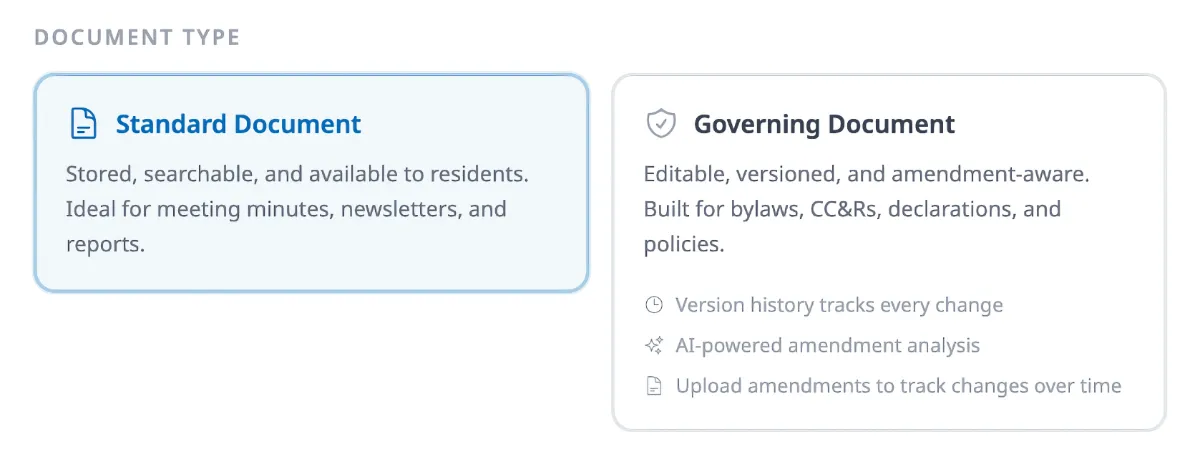
Standard Document is the right choice for most uploads — meeting minutes, newsletters, financial reports, and anything that doesn’t need version tracking. The document is stored, searchable, and available to residents.
Governing Document is purpose-built for bylaws, CC&Rs, declarations, and policies. It adds version history that tracks every published change, the ability to upload amendments and have AI compare them to the current document, and a review workflow for applying changes. See Governing Documents & Amendments for the full workflow.
3. Name and date — The document name auto-fills from your filename. Edit it to something clear if the filename isn’t readable. The date defaults to today — change it to the publication or effective date, especially for meeting minutes and budgets.
4. Collections (optional) — Click collection pills to tag the document. You can assign multiple collections. Use Manage Collections to create new ones.
5. Upload — Click Upload Document. You’ll receive an email when processing is complete.
Bulk upload
Section titled “Bulk upload”To upload multiple independent documents at once, click the dropdown arrow next to Add Document and choose Bulk Upload.
What happens after upload
Section titled “What happens after upload”The document enters Processing status while its content is extracted and indexed. Once processing finishes, it moves to Draft — visible only to admins. To make it available to residents, open the editor and set the status to Active and visibility to Public.
Document statuses
Section titled “Document statuses”| Status | Meaning |
|---|---|
| Draft | Being prepared. Only visible to admins. |
| Processing | Content is being extracted and indexed. |
| Active | Live and visible to residents (if public). |
| Archived | No longer current, but preserved for records. |
| Failed | Processing encountered an error. Open the document to retry. |