
Creating Request Forms
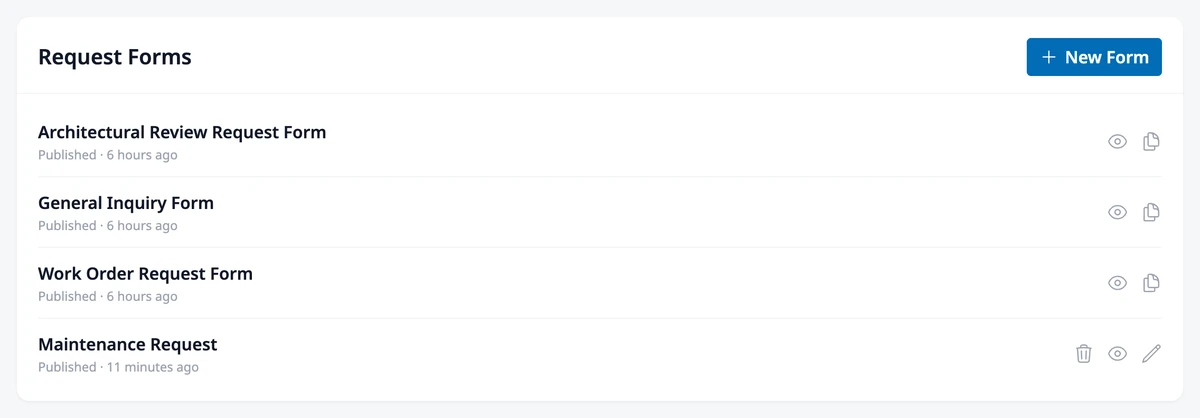
Request forms decide what residents fill in when they file a request, and whether the request needs a board decision. Go to Requests → Forms.
Customize a default form
Section titled “Customize a default form”The three default forms — General Inquiry, Work Order Request, and Architectural Review Request — can’t be edited directly. Click the copy icon (Copy and edit) next to one: HOA Hub creates “form name (copy)” with the same fields, approval setting, and status, and opens it in the editor. From then on, the copy replaces the default in the Forms list and in the resident’s form picker. Requests already filed on the default form stay on it.
Build a new form
Section titled “Build a new form”Click New Form, enter a Name, and click Build Form →. The form opens in the editor.
Add fields
Section titled “Add fields”Under Fields, click the + button where the new field should go, and choose a type:
- Short Answer — one line, such as a location
- Long Answer — several lines
- Select Single — one choice from a list you write
- Select Multiple — any number of choices from your list
- Date Field — a date picker
- Text Block — instructions shown on the form; it collects nothing
Every request already has a subject, a summary, attachments, properties, and followers, so you don’t need fields for those. Tick Make this field required when a resident must answer.
In Template Details, the Name is what residents see. Tick Requests made with this form will be subject to approval when the board must approve or decline these requests, as with architectural reviews.
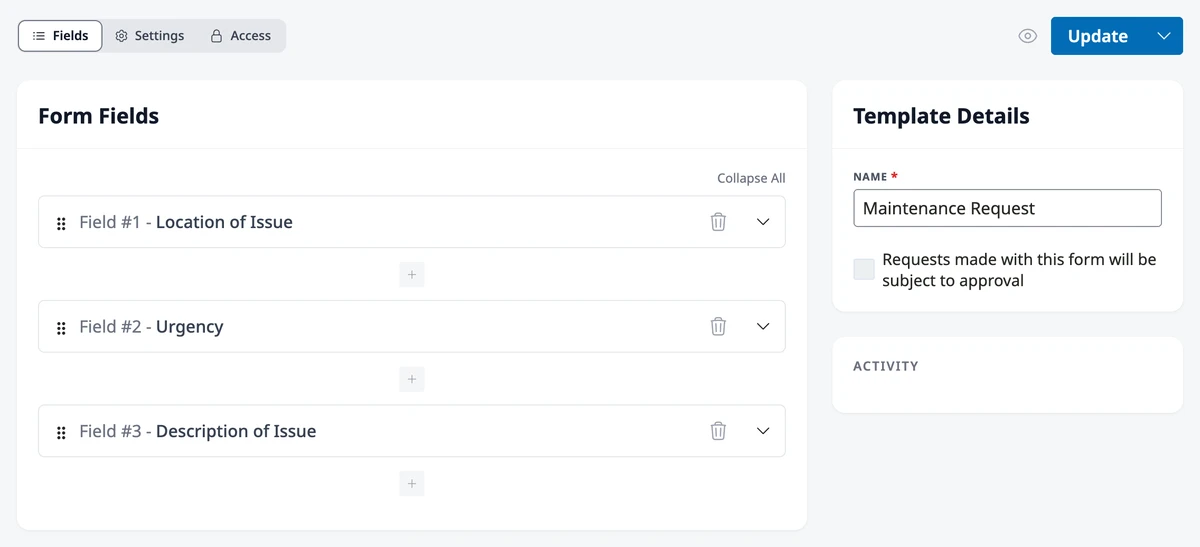
Click the eye icon to preview the form as residents will see it.
Publish
Section titled “Publish”Residents see a form once it’s published, and a form needs at least one field before you can publish it. The save button changes with the form’s status:
- Draft — Save as Draft; choose Publish from its menu when the form is ready
- Published — Update saves your changes; Archive takes the form out of the resident’s picker
- Archived — Publish offers it again
Set the form’s timers
Section titled “Set the form’s timers”Under Settings, three timers keep requests moving. Each takes a number and Hours, Days, Weeks, or Months:
- Automatically Approve Requests After — a request still Submitted after this long is approved. Shown only on forms that need approval.
- Automatically Close Requests After — a request waiting on the requester closes when they don’t reply in this time
- Expected Response Time — the team gets a daily reminder about a request still Submitted after this long
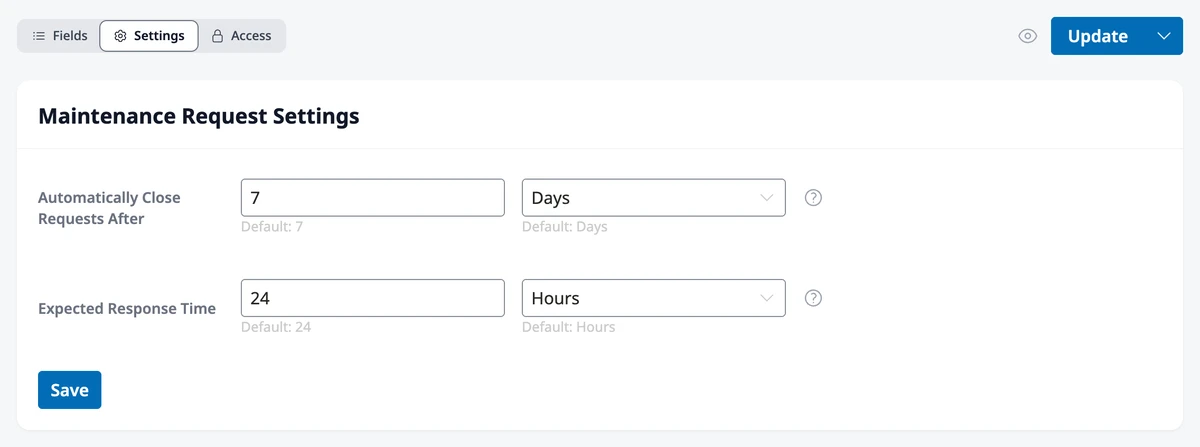
A form uses your association’s request settings until you save its own. Owners and Admins set those under HOA → Settings, on the Requests tab. See HOA Settings.
Choose who sees its requests
Section titled “Choose who sees its requests”Under Access, you can keep a custom form’s requests to selected team roles. See Choosing Who Sees a Form’s Requests.
Delete a form
Section titled “Delete a form”Click the trash icon next to a custom form and confirm with Yes, delete it. Deleting a form can’t be undone.
Where to go next
Section titled “Where to go next”- Keeping a form’s requests to a committee? See Choosing Who Sees a Form’s Requests.
- Need the meaning of a status, or who gets emailed? See Understanding Requests.
- Working the requests that come in? See Managing the Request Inbox.