
Managing Users
Users are the login accounts that people use to access HOA Hub. Every user account is linked to a contact record.
Users vs. contacts
Section titled “Users vs. contacts”A contact is a person in your community’s Directory. A user is a login account. Not every contact needs a user account — you might have contacts on file for absentee owners or past residents without giving them access to log in. When you invite someone, they create a login (or use one they already have) that’s linked to their contact record.
Invite a user
Section titled “Invite a user”Start from the person’s contact record:
- Open the person’s contact page from the Directory.
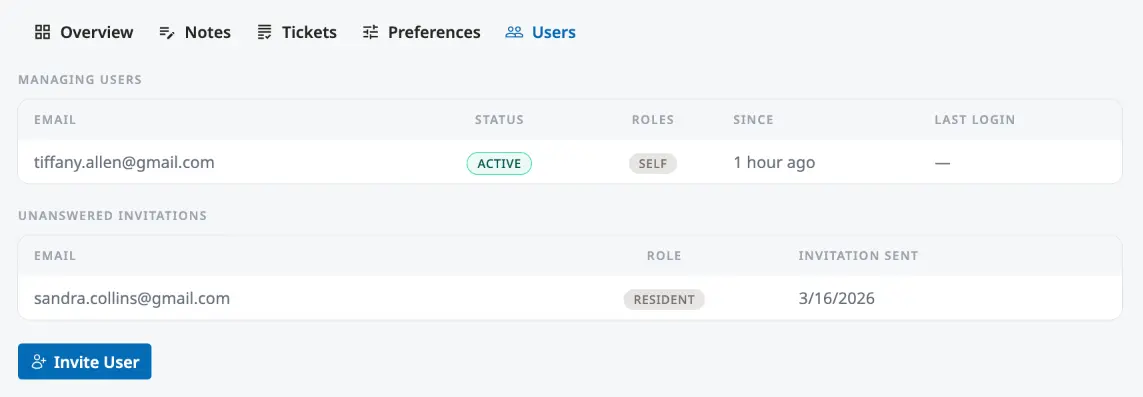
- Switch to the Users tab and click Invite User.
- In Invite Users to Manage Contact, pick a role from the menu next to the email field. It starts at Resident.
- Type their email address and press Enter to add it to the list. Repeat steps 3 and 4 to invite more than one person.
- Click Send Invite.
Each person gets an email, “Invitation to join [your association] on HOA Hub”, with an Accept Your Invitation button. They create a login, or sign in if they already have one, and say whether they are the contact or represent them. Until they accept, the invitation shows under Unanswered Invitations on the contact’s Users tab.
People can also ask for access themselves; see Reviewing Access Requests.
User roles
Section titled “User roles”A user’s roles decide what they see and what they can change. Users can hold more than one role — permissions combine, so someone with two roles can do everything either role allows. You pick a role when you send the invitation, and everyone who accepts one also gets Resident.
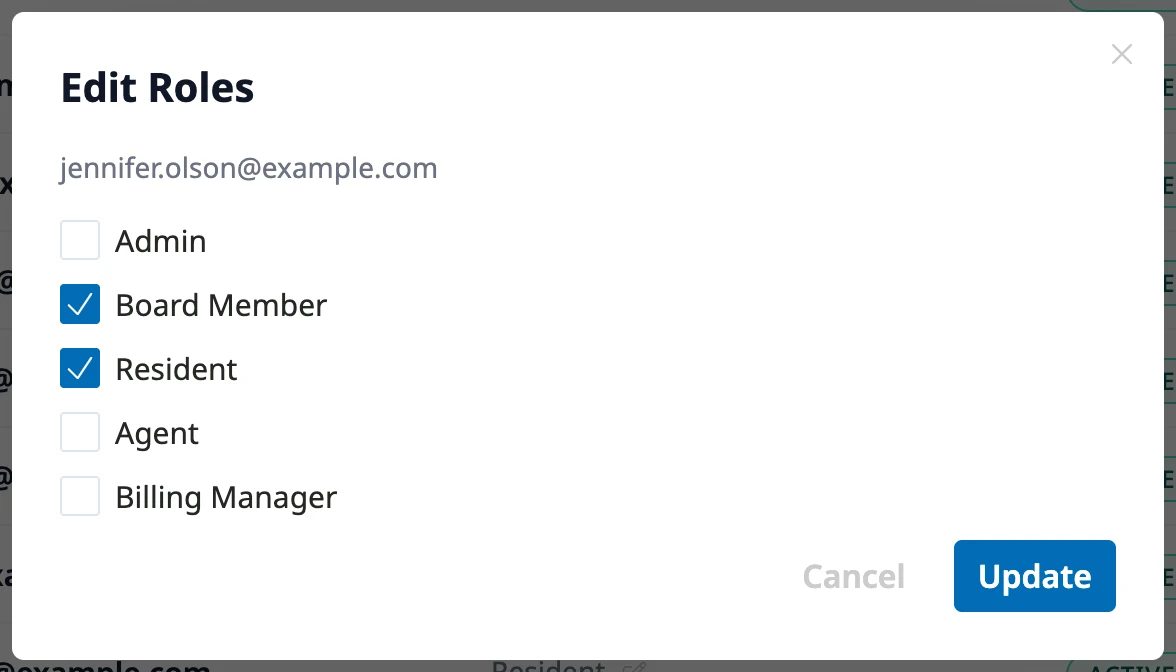
To change someone’s roles, go to HOA → Users and click the roles listed next to their name. In Edit Roles, check the roles they should have and click Update. The Owner role isn’t in the list; it changes hands only through an ownership transfer.
HOA Hub ships with six built-in roles:
| Role | Access |
|---|---|
| Owner | Everything an Admin can do, plus the HOA Hub subscription and handing ownership to someone else. Each community has exactly one Owner — the person who created the account — and the Owner can’t be deactivated. Transfer ownership from HOA → Settings → Account; see HOA Settings. |
| Admin | Day-to-day control of the community: HOA Settings, users, invitations, and roles, properties, the Directory, documents, billing, accounting, communications, requests and request forms, events, violations, variances, surveys, the website, data imports, and the community feed. Can’t manage the HOA Hub subscription or transfer ownership. |
| Board Member | Built for volunteer board members — broad visibility, limited control. Board Members run events, review bank reconciliations, and open contact pages, where they can read and add notes. They can view budgets, financial reports, bills, vendors, invoices, transactions, properties, broadcasts, and the email log without being able to change them. They can’t work the Requests inbox, manage violations or variances, edit documents, invite users, or open HOA Settings. |
| Resident | The everyday role for homeowners and residents. Browse the Directory, read documents, view and RSVP to events, submit and track requests, see their own property and billing, and post in the community feed. |
| Billing Manager | A finance role. Manages invoices, payments and transactions, each property’s billing, the billing settings, and the HOA Hub subscription — the only role besides the Owner that can manage the subscription. |
| Agent | Works requests in the Requests inbox, and nothing else. |
If none of the built-in roles fits a job — a maintenance coordinator, a newsletter editor — Owners and Admins can build their own. See Custom Roles.
View all users
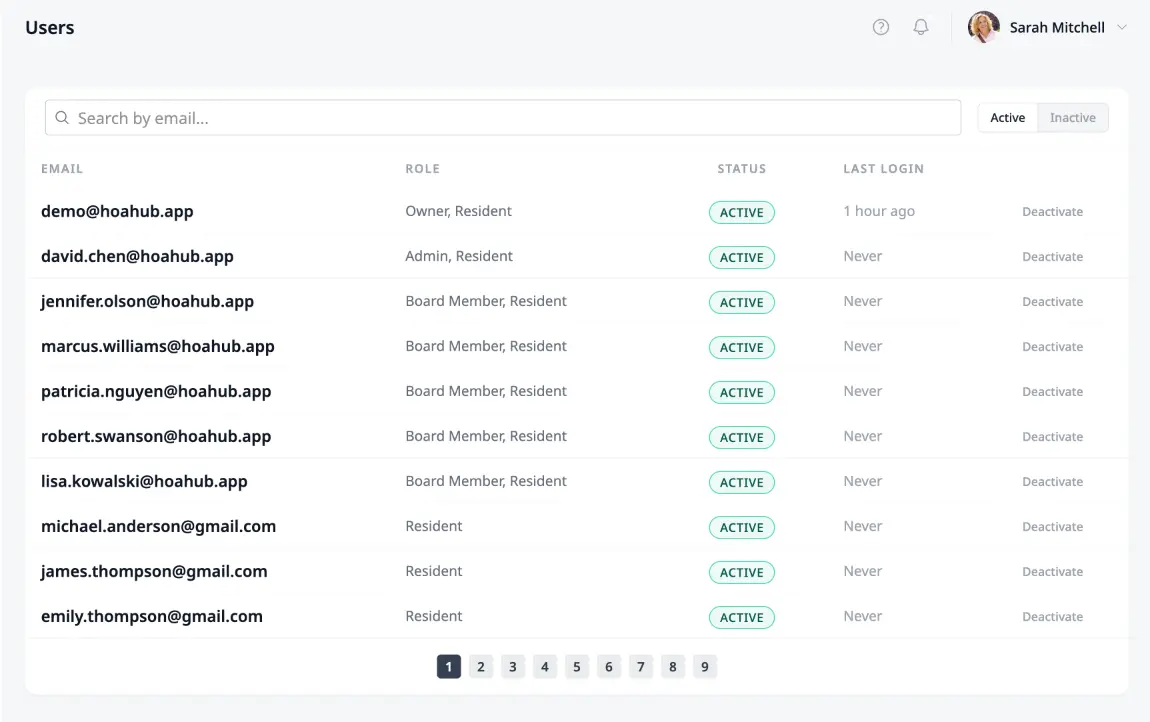
Section titled “View all users”Go to HOA → Users to see every login in your community with its Email, Role, Status, and Last login. Search by email, and use the Active and Inactive toggle to switch lists.
Deactivate a user
Section titled “Deactivate a user”When someone should no longer have access — a board member whose term has ended, a resident who has moved — click Deactivate in their row on HOA → Users. They lose access to your community: if they sign in, they’re told their access is inactive. One login can belong to several communities, so they keep access to any others. Their contact record and history stay, unanswered invitations to their email are deleted, and requests assigned to them become unassigned.
You can’t deactivate yourself or the Owner. To give someone access again, switch to Inactive and click Activate in their row.
Where to go next
Section titled “Where to go next”- Someone asked to join on their own? See Reviewing Access Requests.
- Handing the Owner role to someone else? See HOA Settings.
- Updating the contact behind a login? See Managing the Directory.
- Need a role the built-in ones don’t cover? See Custom Roles.