
Tracking Your Requests
Go to My Requests to follow every request you’ve filed, and every request someone added you to.
Find a request
Section titled “Find a request”The list shows your drafts and your open requests, newest first. Requests that are closed — approved, declined, completed, or withdrawn — are hidden until you pick them under Filter → Statuses. The same menu narrows the list by Form Types and Month submitted.

Click a draft to keep editing it. Click any other request to open its page.
See where it stands
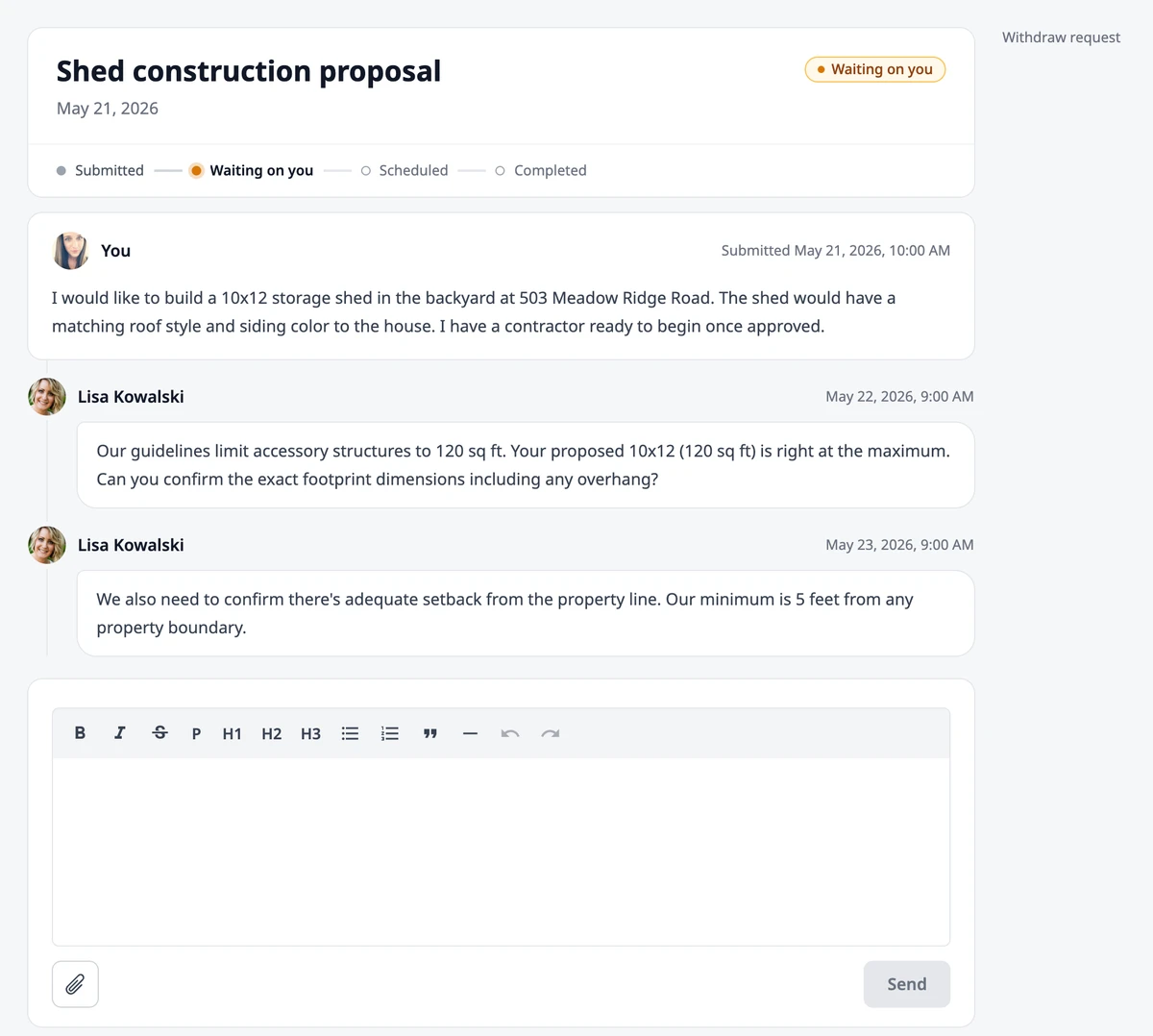
Section titled “See where it stands”The top of the request shows its steps, with the current one highlighted: Submitted, Under review (or Waiting on you while the team needs something from you), and then Scheduled and Completed, or Board decision on a request that needs approval. See Understanding Requests for what each status means.
When the team needs something from you, the status reads Waiting on you. You get an email, and a reminder each day until you answer. Your reply sends the request back to Under review. If you don’t reply in time, the request closes on its own.
Reply to the team
Section titled “Reply to the team”The conversation shows your original request with your answers to the form, then every message in order. Your own messages are labeled You.
Type in the box at the bottom and click Send. To add photos or documents, click the paperclip: up to 20 files at a time, 10 MB in total. Every file on the request also appears under Files at the side; click one to view it, or Go to message to jump to where it was added.
Once a request is approved, declined, completed, or withdrawn, the reply box is gone. File a new request if you need anything else.
Withdraw a request
Section titled “Withdraw a request”If you no longer need it, click Withdraw request at the side of the request page, then Withdraw. Only the person who filed the request can withdraw it, and only while it is Submitted, Under review, or Waiting on you. The team is notified.
Don’t miss a response
Section titled “Don’t miss a response”Requests that are Waiting on you, and drafts you haven’t sent, also appear under Attention Needed on your Home page.
Where to go next
Section titled “Where to go next”- Need something else from the board? See Submitting a Request.
- Wondering what a status means? See Understanding Requests.