
Managing Properties
Properties are the homes, lots, and units in your community. Contacts are linked to them as owners or renters, and requests, variances, violations, and billing all attach to a property. Setting up your property list is one of the first things to do when getting your community started on HOA Hub.
Browse properties
Section titled “Browse properties”In the Directory, switch to the Units tab. Each property shows its name, street address, and photos of its current residents; the Grid view also shows the property’s image. Search by property name to find one.
Click a property to open its page. The Details tab shows its contacts (with a toggle for former contacts), its variances with an Add Variance button, and its violations when it has any. When billing is turned on, the Billing tab shows the property’s balance, charges, invoices, credit memos, and transactions; see Managing a Property’s Billing.
Add a property
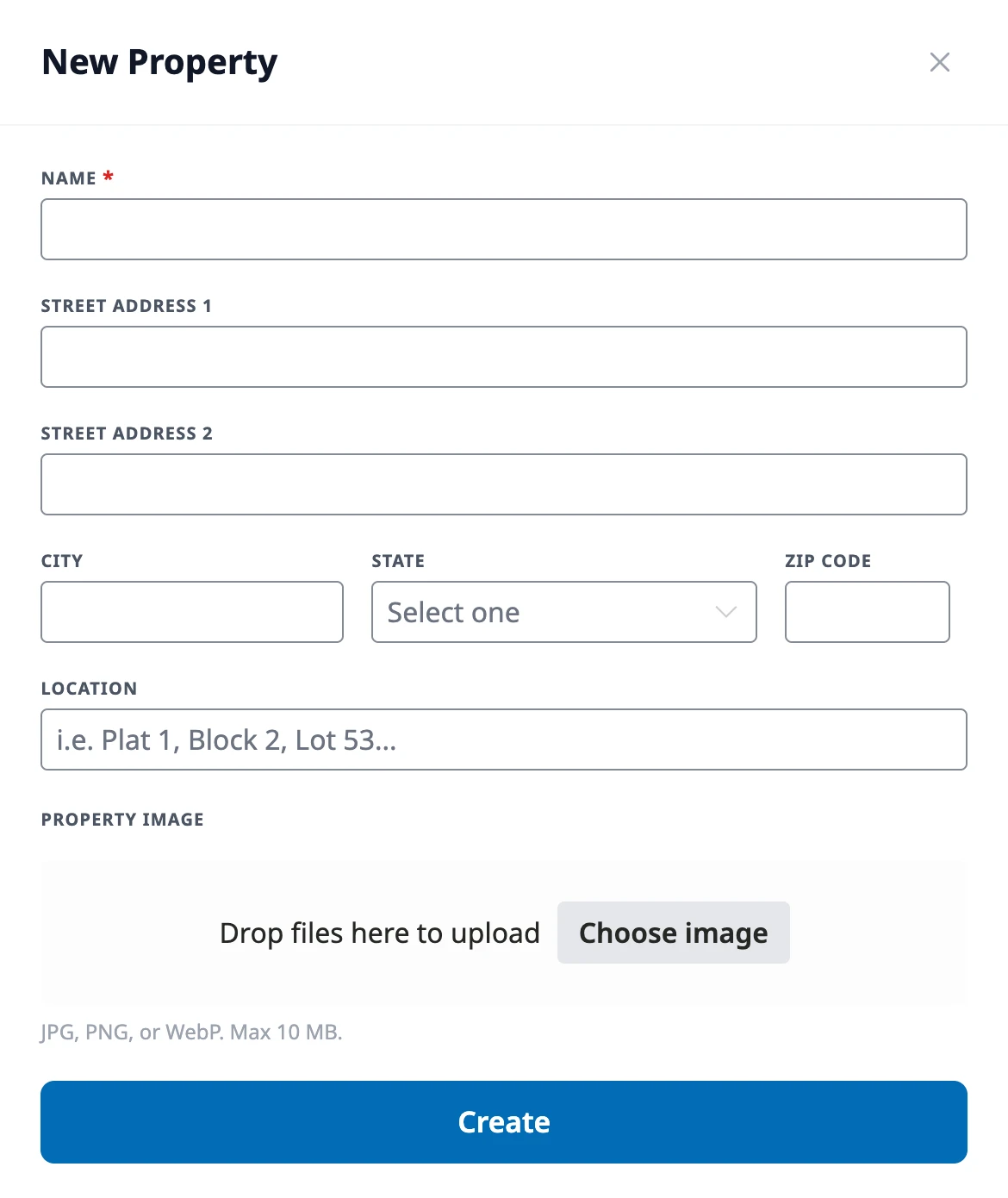
Section titled “Add a property”Go to HOA → Properties and click New Property. Enter the property’s Name — something residents will recognize, like “123 Oak Street”. Each name can be used only once in your community. The rest is optional: the street address, city, state, and ZIP code; a Location for plat or lot references (for example “Plat 1, Block 2, Lot 53”); and a Property Image (JPG, PNG, or WebP, up to 10 MB). Click Create.
Your plan sets how many properties your community can have. When you reach the limit, HOA Hub shows The maximum number of properties has been reached. and doesn’t create the property.
Edit a property
Section titled “Edit a property”Click the property in the Properties list to open its page, then click Edit. The Edit Property drawer has the same fields; click Update to save.
Import properties
Section titled “Import properties”To add many properties at once, go to HOA → Import Data, click New Import, and click Upload on the Properties row. See Importing Your Data.
Link contacts to properties
Section titled “Link contacts to properties”Contacts are linked to properties from the contact’s page, not the property’s. Open the contact, choose Edit Properties from the ⋮ menu, and move them in as an owner or renter. See Managing the Directory.
Where to go next
Section titled “Where to go next”- Moving a resident in or out? See Managing the Directory.
- Setting up assessments for each property? See Managing a Property’s Billing.
- Reviewing a homeowner’s change request? See Managing Variances.