
Custom Roles
The built-in roles cover most communities, but sometimes you need something in between — a maintenance coordinator who works requests without seeing finances, a newsletter editor who manages the community feed, or a committee volunteer who plans events. Custom roles let you grant exactly the capabilities a job needs, nothing more.
To work with roles, navigate to HOA → Users and click Manage roles.
The roles page
Section titled “The roles page”The roles page lists the built-in roles first, then your custom roles alphabetically. Each row shows the role’s description, how many capabilities it grants, and how many people hold it.
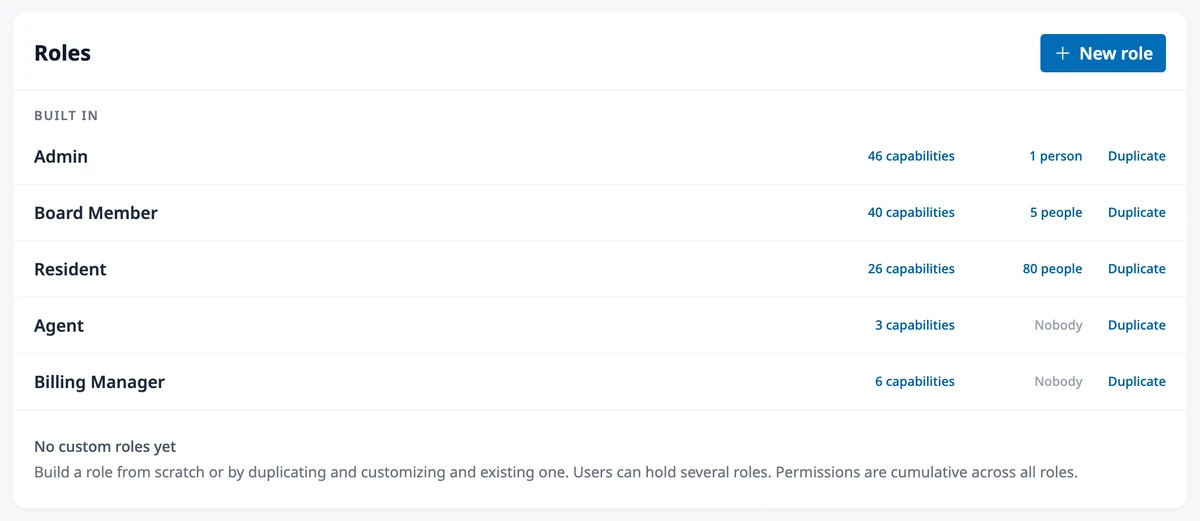
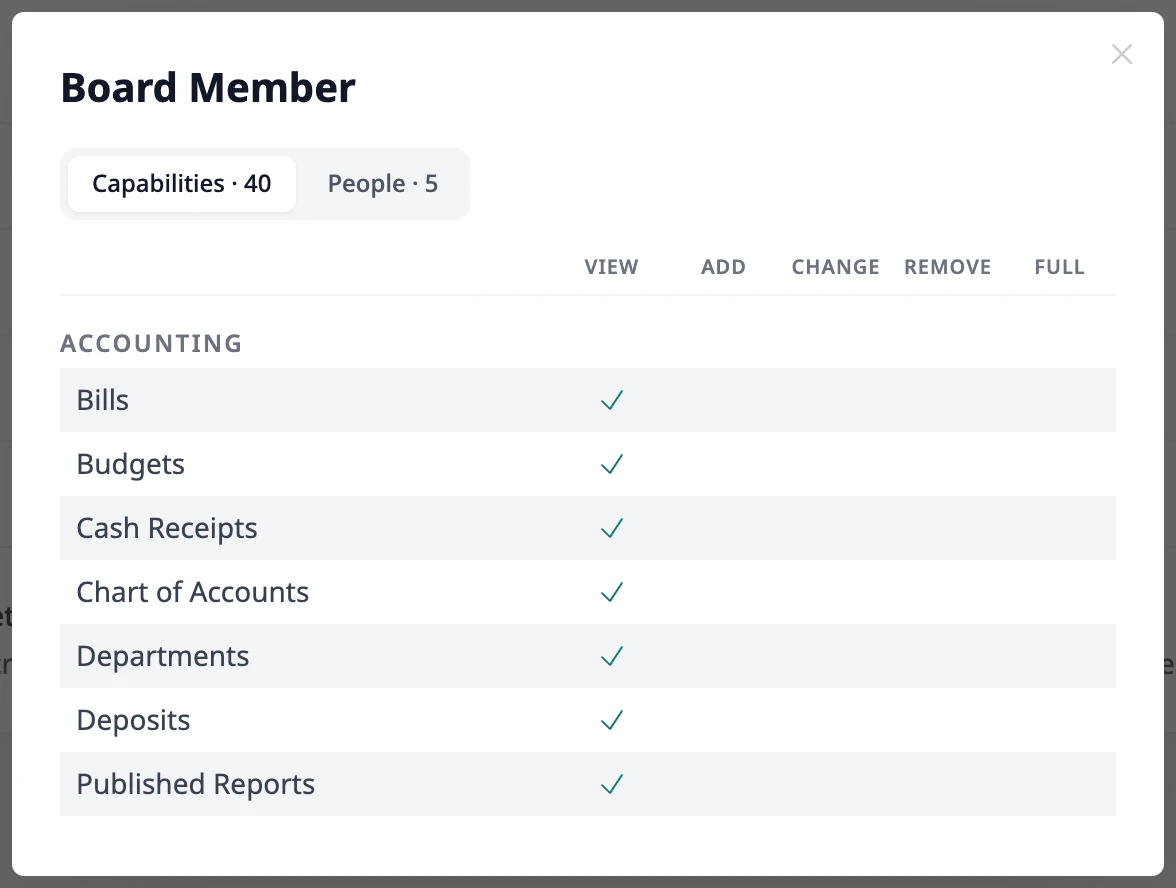
Click either count to open a summary window with two tabs:
- Capabilities — a checkmark matrix of what the role can do, grouped by area. On rows where the role has Full control, the other checkmarks appear lighter to show they come along with it.
- People — everyone who holds the role, alphabetical by last name. Keep scrolling to load the full list, which makes this the quickest way to confirm whether a specific person has a role.
Built-in roles can be viewed and duplicated, but never edited or deleted — they’re the stable foundation every community shares.
Create a role
Section titled “Create a role”There are two ways to start:
- From scratch — click New role, give it a name and an optional description, and click Create role. You’ll land in the capability editor with nothing granted yet.
- Duplicate an existing role — click Duplicate on any role that’s close to what you want, then adjust. The copy is named after the original (for example, “Board Member (copy)”), is assigned to nobody, and opens straight into the editor.
Duplicating is usually the faster path: start from the built-in role that’s closest to the job and remove or add capabilities from there.
The capability editor
Section titled “The capability editor”The role’s name and description sit at the top — click either one to edit it in place. Below is the capability matrix, grouped by area of HOA Hub, with a column for each kind of access:
| Column | What it allows |
|---|---|
| View | See this area and its records |
| Add | Create new records |
| Change | Edit existing records |
| Remove | Permanently delete records |
| Full control | Everything in the row, including deletion |
Ticking Full control collapses the row — the other boxes check themselves and lock, since full control covers them. An amber warning triangle marks sensitive capabilities: ones that allow deleting data or taking full control of an area. Hover the triangle for details.
Use the filter box to jump to a specific capability by name. When you make changes, a bar appears at the bottom showing how many are pending — click Save changes to apply them or Discard to undo. Saved changes take effect for everyone holding the role right away.
Switched-off modules
Section titled “Switched-off modules”If your community has switched a module off, its group appears dimmed in the editor and can’t be changed. Any capabilities the role already holds there are kept — they simply resume working if the module is switched back on.
Reserved capabilities
Section titled “Reserved capabilities”Administration of the HOA Hub account itself — the HOA settings and subscription, user accounts, invitations, and roles — can never be granted to a custom role. Those stay with the Owner and Admin roles (and the subscription with the Billing Manager). This is why duplicating a built-in role sometimes skips a capability or two, and why the summary window lists them separately under Administration.
Assign a custom role
Section titled “Assign a custom role”Custom roles are assigned the same way as built-in ones:
- Existing users — on HOA → Users, click the roles listed next to a person to open the role checkboxes. A user can hold any combination of roles.
- New invitations — custom roles appear in the role picker when you invite someone.
To check who holds a role, use the people count on the roles page.
Delete a role
Section titled “Delete a role”Click Delete on a custom role. If people hold it, you choose what happens to them:
- Pick a replacement role — everyone holding the deleted role moves to the replacement.
- No replacement — people keep their other roles. Anyone whose only role was the deleted one becomes a Resident, so nobody is left without access.
Pending invitations that referenced the deleted role move to the replacement, or to Resident. Deleting a role never deactivates anyone’s account.
Where to go next
Section titled “Where to go next”- Comparing the built-in roles? See Managing Users.
- Giving someone a login first? See Managing Users.