
Reports
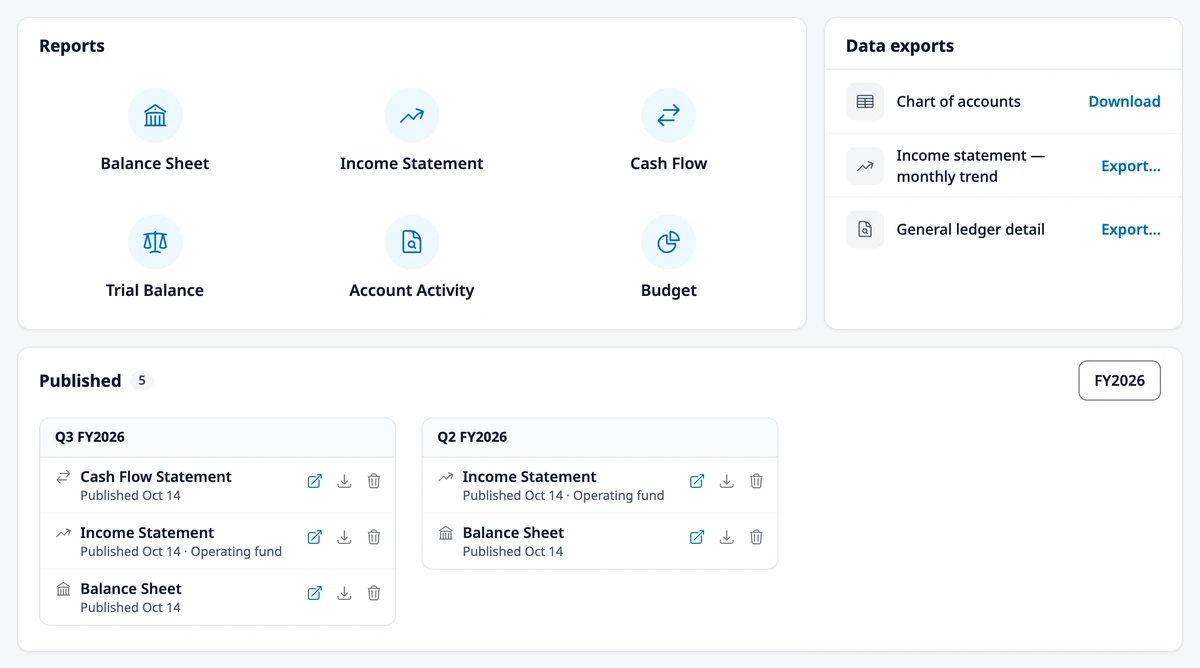
Go to Accounting → Reports for a full set of financial statements built straight from your ledger. Board Members can open, print, and export every report, but can’t publish.
Report types
Section titled “Report types”- Balance Sheet — what your community owns and owes as of a point in time
- Income Statement — income and expenses over a period
- Cash Flow Statement — how cash moved in and out over a period
- Trial Balance — a working list of every account’s balance, used to check that everything’s in order. This one is for internal use only and can’t be published to residents
- Account Activity — every posted line for one account; see Account Activity
- Budget — the published budget by account, with a column per budgeted department. It appears once a budget is published
Choose the period and view
Section titled “Choose the period and view”Every report opens on the full current fiscal year. Use Month, Quarter, YTD, or Year, plus the fiscal year picker, to change the period.
- The Balance Sheet and Cash Flow Statement show Operating, Reserve, and Total columns
- The Income Statement shows one fund at a time; switch with Operating and Reserve
- The Trial Balance combines both funds
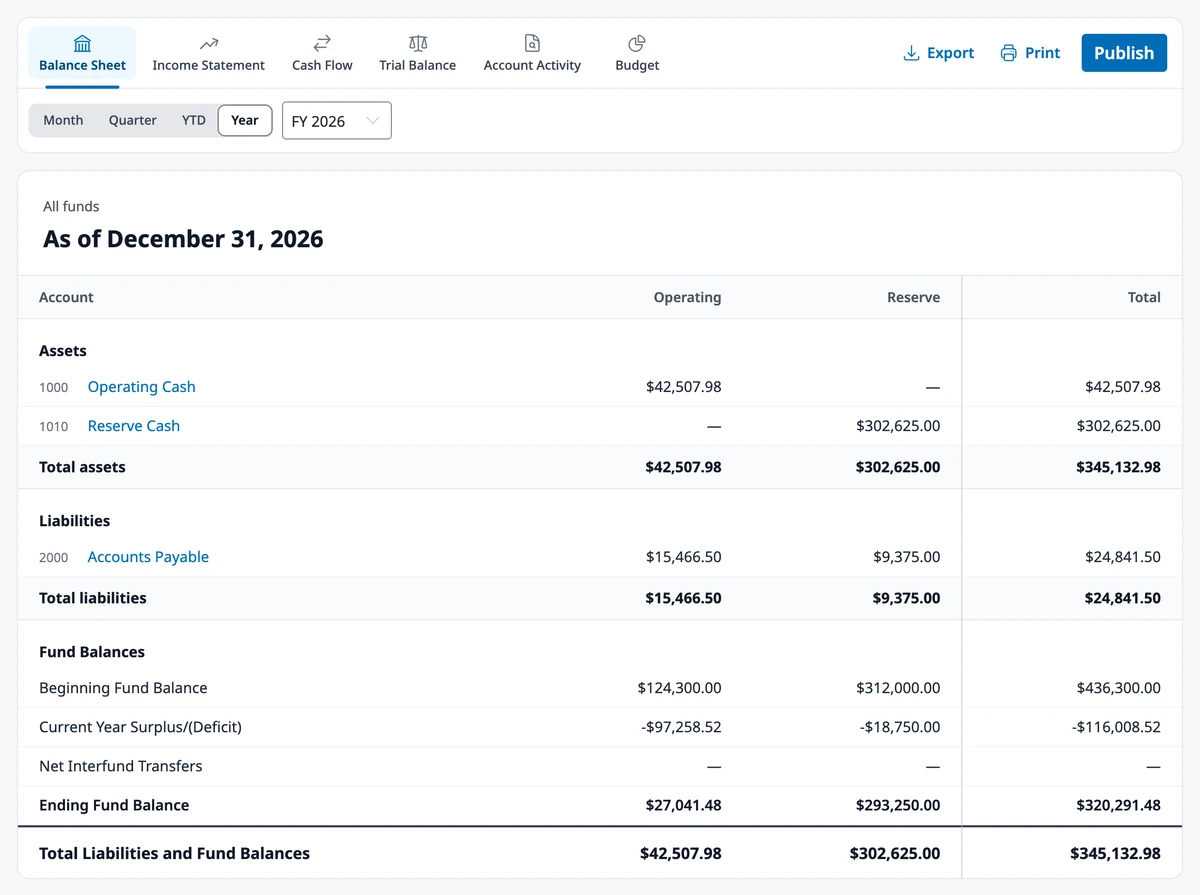
The Income Statement can also be compared against Prior Period, Prior Year, or Budget. Budget needs a published budget for that fund and fiscal year, and shows the budget and the variance beside each account.
If you use departments, the Income Statement and Balance Sheet can also be broken out by department or narrowed to one. See Departments.
Click any account on a report to open its Account Activity.
Print and export
Section titled “Print and export”Click Export to download the report as an unformatted Excel file. For a formatted copy or a PDF, use Print and save it as a PDF from your browser’s print dialog.
Publish a report
Section titled “Publish a report”Click Publish on a Balance Sheet, Income Statement, or Cash Flow Statement you want to share with residents. This takes a snapshot — a frozen copy of the report exactly as it looked at that moment, with the period, fund, and department view you chose — rather than a live link. That means it stays accurate even as new activity continues to post to the ledger afterward. Publishing the same report for the same period again adds a second snapshot; it doesn’t replace the first.
Published reports show up under Published on this same page, and residents see them on their Finances page. Homeowner view shows a snapshot the way residents see it.
Deleting removes a published report permanently.
Account Activity
Section titled “Account Activity”Need to see exactly what’s behind a number on a report? Account Activity is a drill-down into a single GL account — every posted line over a period, split out by fund, with an opening balance and a running total. Open it from the Reports page, from its tab on any report, or by clicking an account on a report. Choose the account, the period, and Operating, Reserve, or Both. Click a line to see the journal entry behind it.
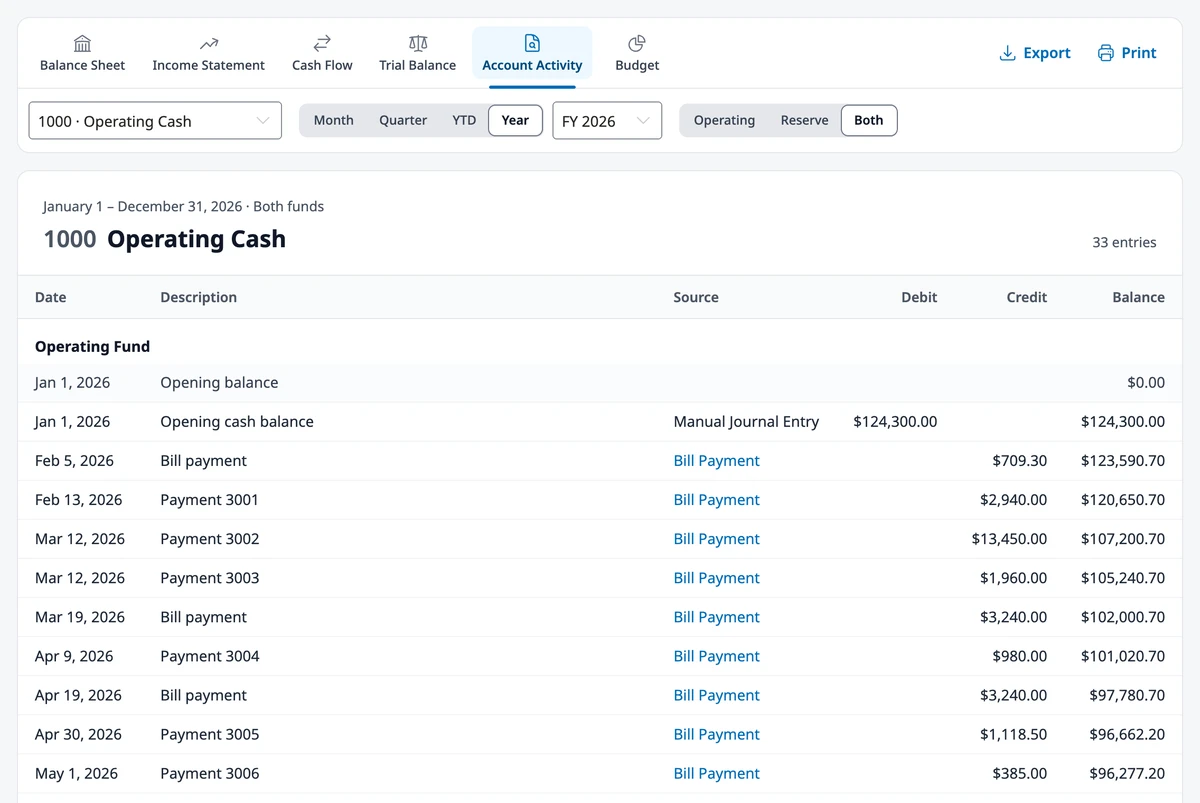
Unlike the published statements, it’s always live (not something you publish) and it’s for your own internal use, not something residents see.
Data exports
Section titled “Data exports”The Data exports section downloads raw data for your accountant or a spreadsheet: the Chart of accounts, an Income statement — monthly trend with twelve monthly columns, and the General ledger detail with every posted line over a date range. With departments, a Balance sheet by department export appears too.
Where to go next
Section titled “Where to go next”- Want a statement broken down by department? See Departments.
- Want the resident-facing version? See Viewing Your Community’s Finances.
- Looking for the numbers behind a budget? See Budgets.
- Matching a balance against the bank? See Reconciling Your Bank Accounts.