
Managing Bills and Vendors
The Bills area tracks what your community owes vendors and contractors, from the moment a bill arrives to the moment it’s paid. Board Members can view bills and vendors but can’t change them.
The Bills page
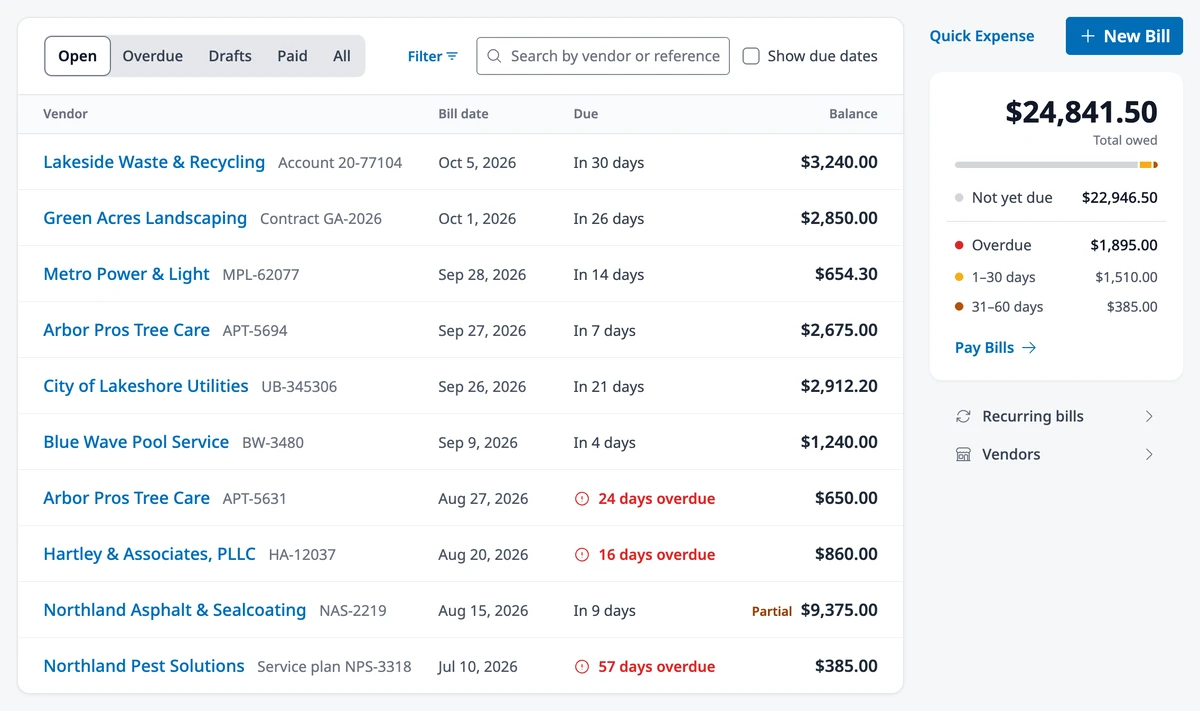
Section titled “The Bills page”Go to Accounting → Bills. The tabs across the list — Open, Overdue, Drafts, Paid, and All — sort bills by where they stand. Beside the list, a summary card shows the total you owe, how much of it is overdue, and a Pay Bills link. Quick Expense and New Bill sit above the card, and the links to Recurring bills and Vendors sit below it.
Vendors
Section titled “Vendors”On the Bills page, click Vendors, then Add Vendor. To start from an existing contact, search for them under Link to a contact: HOA Hub fills in the name and email, and on save copies the contact’s phone, address, and tax ID into any of those you left blank.
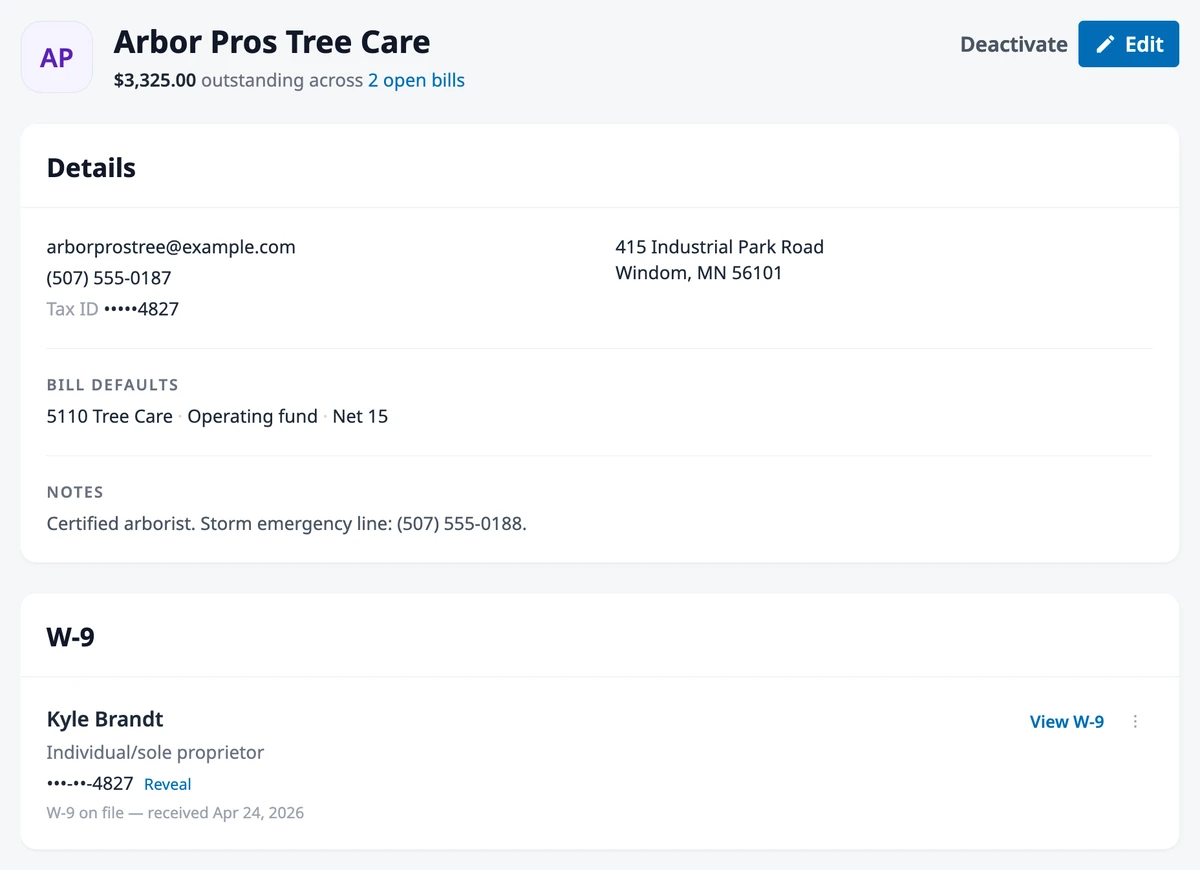
Under AP defaults, set a default expense account, Default fund, and Default due days. New bills pre-fill from them. The expense default can be split across several accounts by percentage (Split across another account) — bills then open with one line per account, and the total you enter is distributed across them. Each line can carry its own department.
Turn on Needs a 1099 for anyone you expect to report at year end. Recording their W-9 can set it for you.
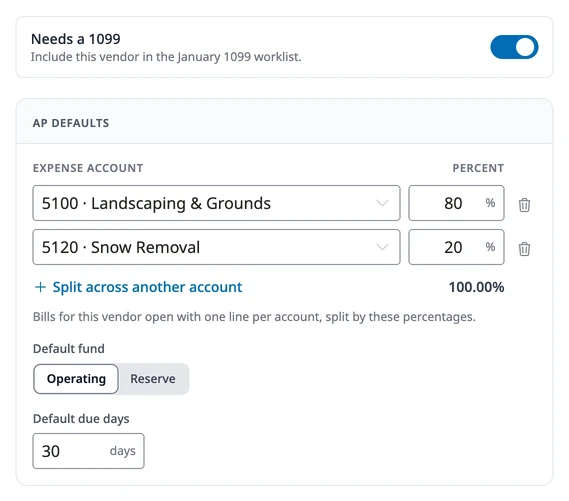
The list shows each vendor’s expense default, W-9 status, and outstanding balance. The tabs across the top narrow it, each with a count: All, Owed, W-9 issues, 1099 vendors, and Inactive. W-9 issues collects vendors whose W-9 needs details, has a request out or expired, or is missing for someone who needs a 1099.
The vendor page
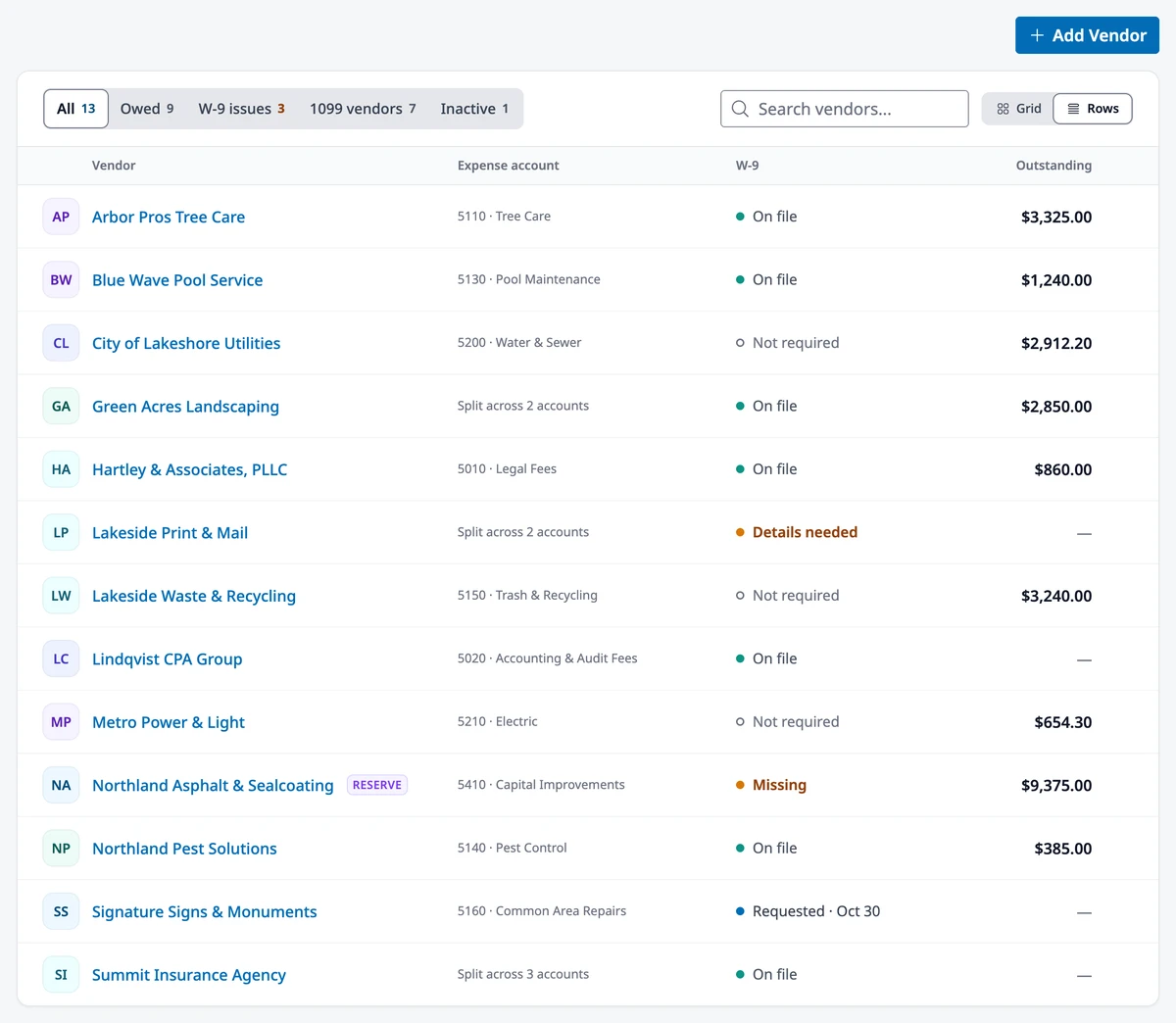
Section titled “The vendor page”Click a vendor’s name to open its page. Edit reopens the form you created it with. Deactivate hides the vendor from new bills and payments and moves it to the Inactive tab; existing bills are unaffected. Below that:
- Details — contact info, tax ID, and bill defaults
- W-9 — the form and where it stands
- Files — their other paperwork
- Recent bills — history, each entry linking to the bill
- Activity — who changed what, and when
The open bills link beside the outstanding balance at the top opens that vendor’s open bills. Any bill’s header links back to the vendor.
Vendor files
Section titled “Vendor files”Keep certificates of insurance, signed contracts, and anything else you’d otherwise bury in a shared drive. W-9s have their own section.
Drag files onto the Files card or click Upload. Several at once is fine; JPG, PNG, TXT, and PDF are accepted, up to 10 MB each. Click a name to open a file, the arrow to download it, the trash icon to delete it permanently.
Anyone who can edit the vendor can add and remove files; anyone who can see the vendor can open them. Every upload and removal shows in Activity.
W-9s and 1099 tracking
Section titled “W-9s and 1099 tracking”Ask for a vendor’s W-9 before the first payment goes out. The W-9 section on the vendor page is where you request one, upload one that arrived by mail, enter its details, and see where things stand — nothing on file, a request out with the vendor, a request that expired unanswered, a document waiting to be keyed, or a finished record.
Request a W-9
Section titled “Request a W-9”Click Request a W-9. When the vendor has an email address, HOA Hub sends a secure link. They complete the form online in about two minutes, sign the certification, and submit — the record arrives complete, and everyone who manages vendors gets a W-9 received notification.
Links expire after 30 days. While a request is open, HOA Hub sends reminders on days 3, 10, 20, and 27, and you can Resend, Copy link, or Cancel request.
With no email on record, nothing sends automatically: HOA Hub creates a link for you to deliver by text or from your own inbox, and no reminders go out. When a link expires, use Send a new request. A vendor who clicks a dead link can ask for a fresh one, provided you have their email.
Upload one you already have
Section titled “Upload one you already have”Click Upload a W-9 and pick the file — PDF, JPG, or PNG, up to 10 MB. HOA Hub stores it and takes you straight to the details screen; a stored PDF is not usable for reporting until the fields are keyed. Until they are, the vendor page reads PDF on file — details not yet entered.
Enter the details
Section titled “Enter the details”The details screen puts the document beside the fields so you can key straight from it. Enter everything as the vendor signed it:
- Name of entity/individual, plus the business or disregarded entity name if different
- Federal tax classification — LLC asks for the sub-classification, other asks you to describe it
- Address, and account numbers if the vendor listed any
- SSN or EIN, plus exempt payee and FATCA codes under Exemptions (optional) if the form carries them
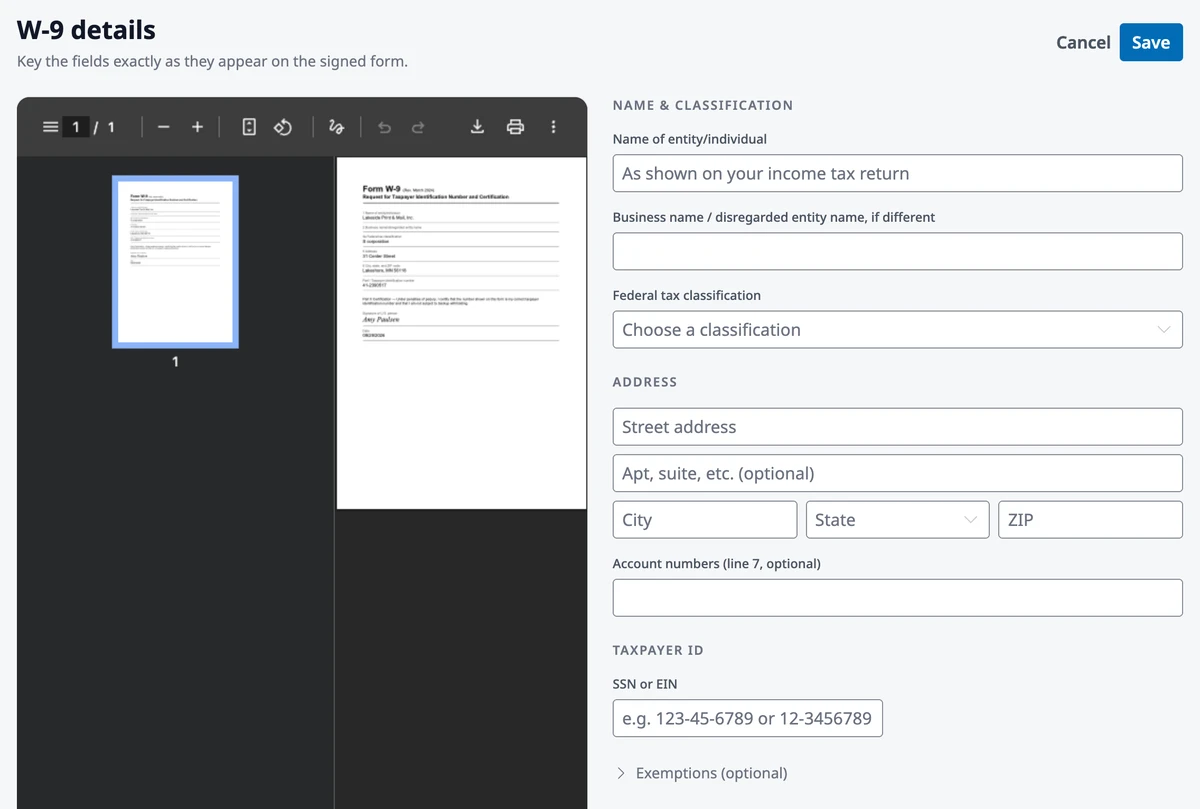
Legal name, classification, and taxpayer ID make the record complete. HOA Hub then copies all three onto the vendor’s profile.
Saving may prompt you about the 1099 flag: classifications that are usually reportable offer to turn Needs a 1099 on, and a flagged vendor whose classification usually isn’t — a C or S corporation, an LLC taxed as one, or other — is offered to clear it. Your answer wins either way — a suggestion never overrides a flag you set.
Leave the taxpayer ID blank when re-keying to keep the number on file. The full number never reaches your browser, so blank means “no change,” not “erase.”
View, print, and reveal
Section titled “View, print, and reveal”View W-9 opens a replica of the IRS form in a new tab. Print it from the toolbar, or use Download original for the file the vendor sent.
The taxpayer ID shows as the last four digits. Reveal shows it in full, and HOA Hub records who revealed it and when.
Replace or delete
Section titled “Replace or delete”Use the ⋮ menu in the W-9 section to Upload a replacement, Request an updated W-9, or Delete.
Replacing keeps the old form: it is marked superseded, and an earlier versions link appears. Deleting destroys the record and its document permanently — if it superseded an earlier W-9, that one becomes current again.
Record a bill
Section titled “Record a bill”Click New Bill. Choose the vendor — lines pre-fill from its AP defaults — then the bill date and, optionally, the vendor’s reference number. Add line items, each coded to an expense account and, if you use them, a department. All lines share one fund. Click Create draft.
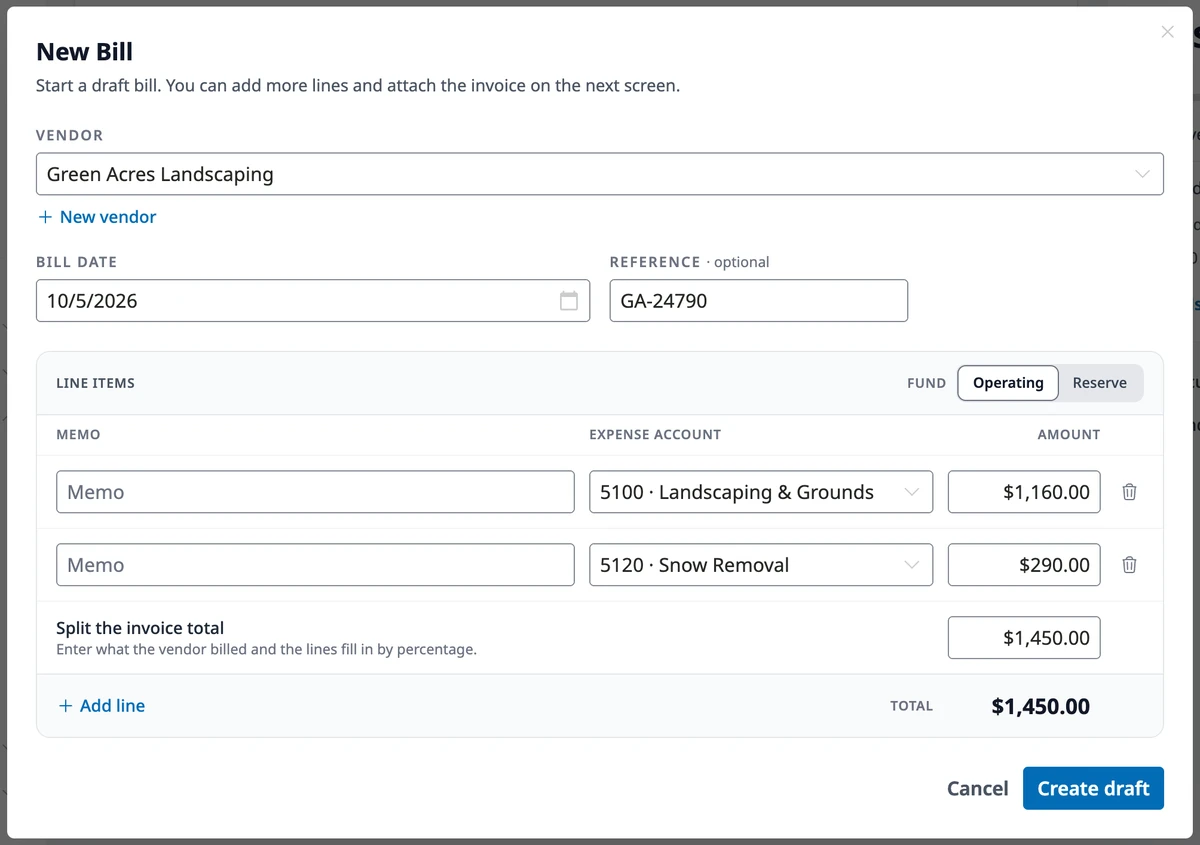
The draft opens on its own page. Check the Due date — it pre-fills from the vendor’s default due days — and drop the invoice file onto Files if you have one.
A bill starts as a Draft and stays editable. To post it, click the arrow on Save draft, choose Finalize bill, and confirm. Finalizing posts the expense to the ledger and locks the bill; after that, fixing a mistake means voiding it and re-entering.
- Draft — editable, not yet posted
- Open — posted, awaiting payment
- Partially Paid — some, but not all, has been paid
- Paid — fully paid
- Voided — reversed out of the ledger (see Void a bill). Voided bills appear only on the All tab
Pay bills
Section titled “Pay bills”Pay Bills in the summary card covers several bills in one payment: pick the cash account you are paying from under Pay from — which determines the fund, and so which bills you see — pick the method, and check off the bills. Each checked bill’s Payment amount starts at its full balance; lower it to pay part of a bill. Click Record Payment.
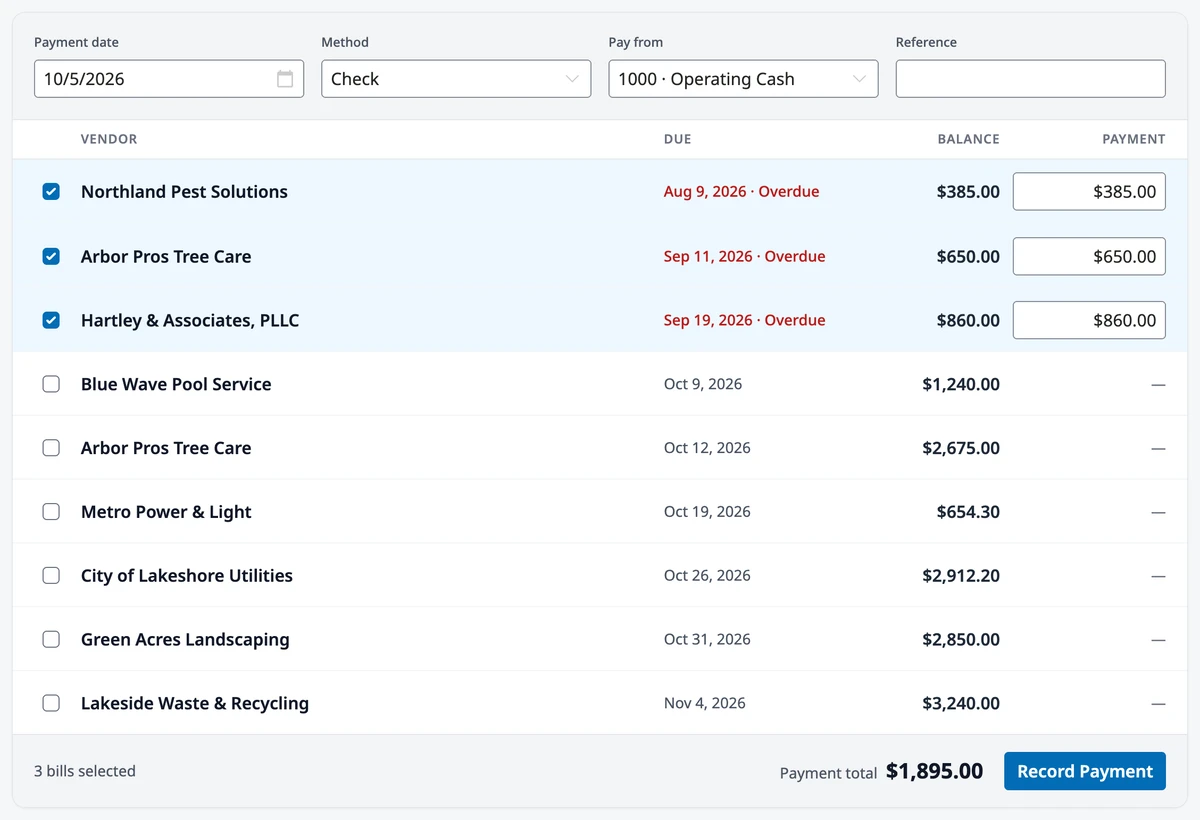
Record Payment on a single bill does the same for one.
Void a bill
Section titled “Void a bill”Open the bill, click the gear icon to open Bill settings, and scroll to the Danger zone. Click Void bill and confirm.
Voiding posts a reversing journal entry, backing the expense and the payable out of your books. The bill stays in your list marked Voided, and the void is recorded in its audit log.
Only Open bills can be voided:
- Draft bills have posted nothing yet — use Delete draft in the same Danger zone
- Bills with payments applied need the payments voided first; once none remain, Void bill becomes available
Void a payment
Section titled “Void a payment”Open the bill, find the Payments section, click the ✕ beside the payment, and confirm with Void payment.
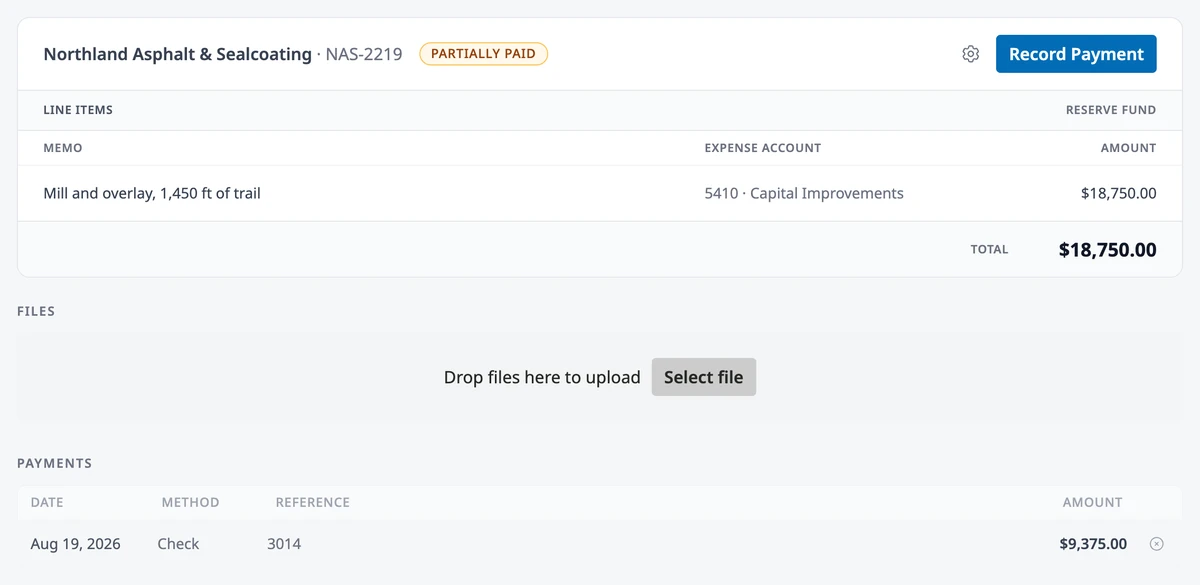
This posts its own reversing entry: the cash returns to the account it came from and the bill’s balance goes back up. The payment stays listed as (voided), and the bill returns to Partially Paid or Open. A payment made through Pay Bills is voided as a whole, so every bill it paid goes back up.
Quick Expense
Section titled “Quick Expense”For something already paid — a card swipe, a same-day reimbursement — click Quick Expense next to New Bill. Enter the vendor and line items, then the payment date, method, and the account you paid from, and attach a receipt if you have one. Record expense creates the bill, finalizes it, and records the payment in one step.
Recurring bills
Section titled “Recurring bills”For predictable expenses like a management fee or a utility bill, click Recurring bills on the Bills page, then Add Recurring Bill. Set the vendor, line items, Interval (Monthly, Quarterly, or Annually), and Next run date, and click Add template.
On each run date, HOA Hub creates the bill and finalizes it, so it arrives as Open and ready to pay. Its due date comes from the vendor’s default due days.
Where to go next
Section titled “Where to go next”- Need to set up expense or GL accounts first? See Setting Up Your Chart of Accounts.
- Recording income instead of expenses? See Recording Income and Deposits.
- Checking the payments against your bank statement? See Reconciling Your Bank Accounts.
- Tracking spending by cost center? See Departments.