
Reviewing Access Requests
People who aren’t members yet can ask to join your community from your sign-in page, your public website, or an access letter. You review each request and decide who gets in. Go to HOA → Access requests.
New requests
Section titled “New requests”The number next to Access requests in the sidebar counts the requests waiting for you. Owners and Admins also get a New access request from notification with the applicant’s name. It belongs to the Action required notifications, which arrive by email and in HOA Hub unless you’ve changed that in Your Profile.
The requests list
Section titled “The requests list”The page sorts requests into Pending, Approved, and Denied. Pending lists the oldest request first; the other two list the newest decision first. Each row shows the applicant, the address (or Address not matched), whether they own or rent, how many household members they added, and the date.
Approved and denied requests are deleted 60 days after the decision. The contacts, property links, and access an approval created stay.
Review a request
Section titled “Review a request”Open a request. Under the applicant’s name you see its status, the date it was sent, and how the address was found:
- Access code — the applicant entered the code from your access letter, so the property is confirmed
- From hints — the applicant picked the address from the suggestions on the form
- Not matched — the typed address doesn’t match a property. Click Choose property to pick the right one.
People
Section titled “People”For the applicant and each household member, HOA Hub looks for a contact already in your directory:
- Matches contact — a strong match. Choose Use this contact or Create a new contact.
- Matches N contacts or Possible match — pick the right contact, or create a new one.
- No matching contact — a new contact will be created.
When the request and the contact on file disagree, each difference shows as On file and Sent. Approving doesn’t overwrite the contact: it keeps the values on file. A contact that’s already connected to someone else’s account can’t be chosen.
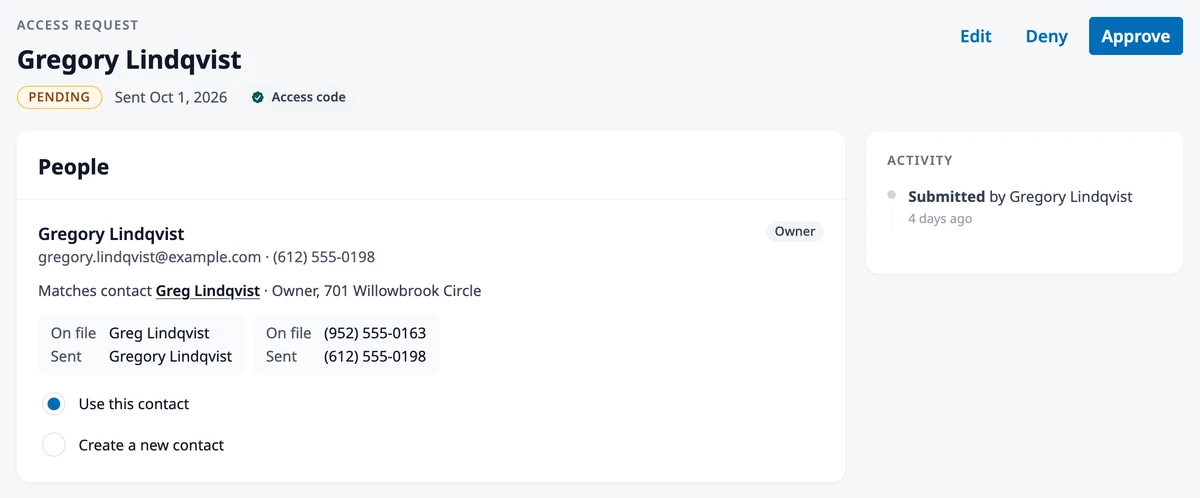
The Activity card beside the request records when it was sent, edited, approved, or denied, and by whom.
Property and conflicts
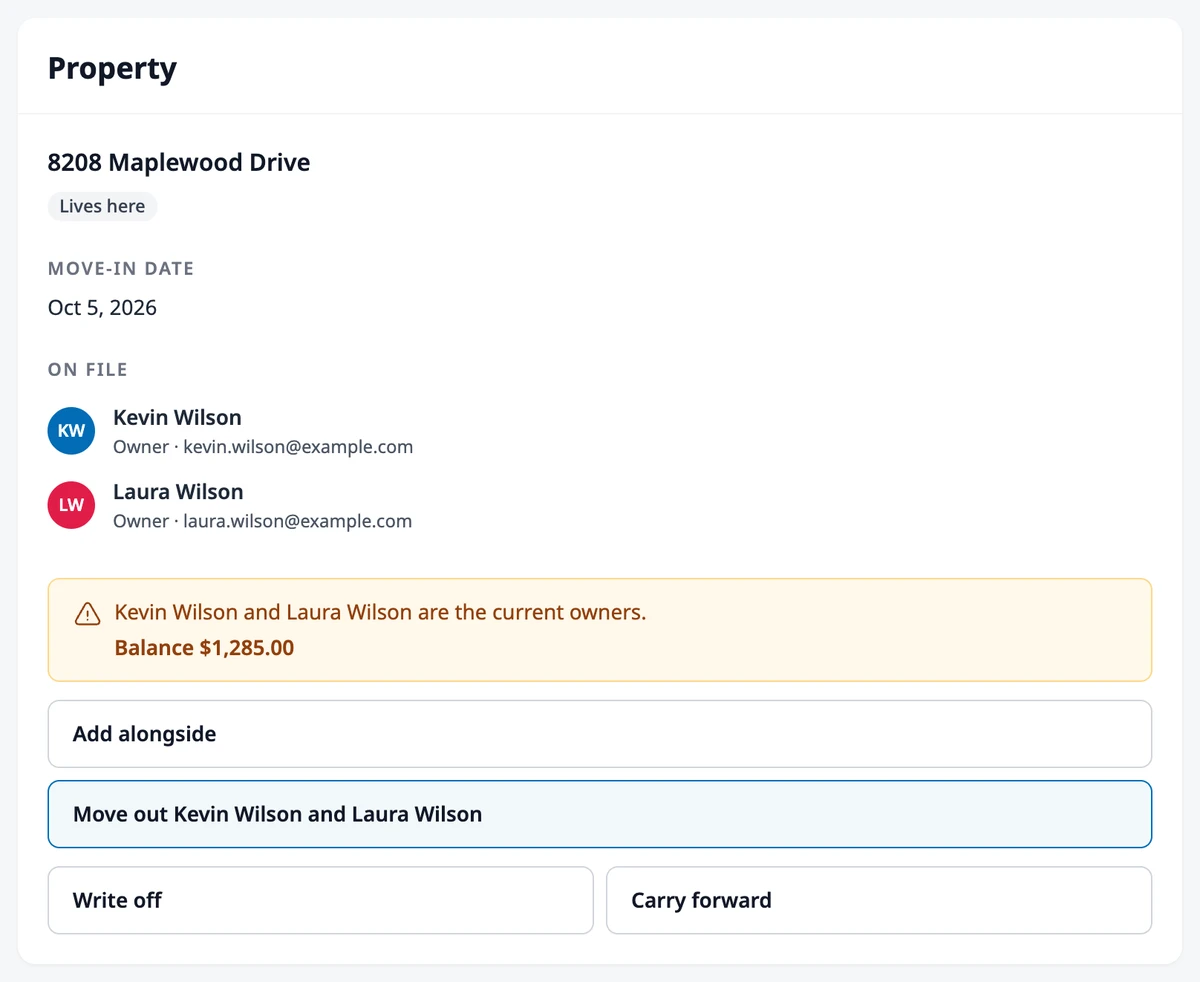
Section titled “Property and conflicts”The property section shows the address, the unit, whether the applicant lives there, a mailing address if they live elsewhere, the move-in date, and the people On file for the property today.
If the property already has a current owner (for an owner’s request) or renter (for a renter’s), a warning names them. Choose how to handle it:
- Add alongside — keep them, and add the applicant next to them
- Move out — owner requests only. Every current owner moves out on the applicant’s move-in date. If the owners’ account has a balance or a credit, also choose Write off, Carry forward, or Refund (offered only when there’s a credit). To move out more than one owner while there’s a balance, the move-in date must be today.
Household
Section titled “Household”Choose the household the new contacts join: the household of the applicant’s matched contact or of a current resident of the property, or New household, named after the applicant’s last name unless you change it. A matched contact who already belongs to a household stays in it.
Edit a request
Section titled “Edit a request”Click Edit to correct the request before you approve it. The Edit request drawer covers the applicant’s details, owner or renter, the property and unit, Lives here, the move-in date, the household members, and the note. Click Save.
Approve
Section titled “Approve”Click Approve. The button reads Approving… while HOA Hub:
- creates the new contacts and uses the existing ones you chose
- links the applicant to the property as an owner or renter from the move-in date, with any co-owners or people on the lease (a future date schedules the move-in for that day). Other household members who live there are linked to the property too; family who live elsewhere aren’t
- adds everyone to the household
- gives the applicant access with the Resident role and emails them
- invites each household member with an email, also as a Resident
When it’s done, the page lists the Contacts and the Property it used, and anyone Not invited, with the reason: they share the applicant’s email or another member’s, they already have an invitation, they already have access, or their access is inactive.
If something goes wrong, the page shows Approval failed. Nothing was changed. and the request goes back to Pending, so you can try again.
To give someone a role other than Resident, change it afterwards from their contact’s Users tab. See Managing Users.
Click Deny. In Deny request, add an optional Reason (up to 1,000 characters) and decide whether to Email the applicant, which is on by default. Click Deny.
If you email them, they get your reason by email and see it when they sign in. If you don’t, they only see that the request wasn’t approved. Either way, they can send a new request. The denied request shows the date, Emailed or Not emailed, and your reason; when the same person sends a new request, it lists the earlier denials under Earlier requests.
Turn access requests off
Section titled “Turn access requests off”Access requests are on unless you switch them off. Go to HOA → Settings, and on the Account tab use the Features card. Turning it off removes the Request access page and every link to it, and hides the Access requests page. Pending requests are kept for when you turn it back on. See HOA Settings.
Where to go next
Section titled “Where to go next”- Want to invite every household? See Sending Access Letters.
- Changing someone’s role after approval? See Managing Users.
- What do applicants see? See Requesting Access to Your Community.
- Cleaning up contacts and households? See Managing the Directory.