
Importing Your Data
HOA Hub imports your existing records from CSV files. This is the fastest way to populate your community during setup.
What you can import
Section titled “What you can import”- Properties — the addresses in your community
- Contacts — the people in your directory
- Vendors — the companies you pay, into Accounts Payable
- Trial Balance — opening balances into your general ledger
Vendors and Trial Balance appear under Accounting, and only if your community uses Accounting and you have permission to manage vendors or journal entries.
Before you start
Section titled “Before you start”Finish your chart of accounts before a Trial Balance import. Every account code in your file must already match an account you have created. See Setting Up Your Chart of Accounts.
Run an import
Section titled “Run an import”Go to HOA → Import Data and click New Import. Each type has its own row, with a Template link and an Upload button.
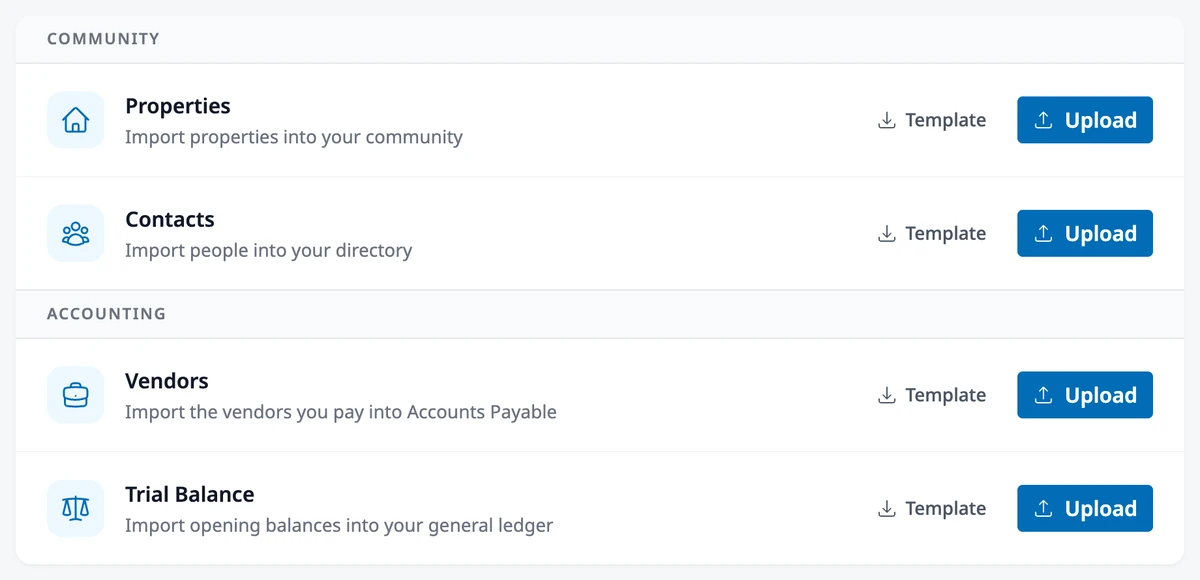
- Click Template on the row you need to download a CSV with that type’s columns, or use your own CSV.
- Click Upload on the same row and pick your file, or drag the file onto the row. Then click Continue.
- Map your columns — the wizard will ask you to match columns in your file to HOA Hub fields. Columns with matching names are mapped automatically.
- Review the preview — check the data that will be imported and address any warnings (like potential duplicates) before proceeding.
- Confirm the import to begin processing.
The Vendors and Trial Balance templates include two example rows. Replace them with your own before you upload.
Contacts stays locked until your community has at least one property. Its Template link works while it’s locked.
Import vendors
Section titled “Import vendors”Only the vendor name is required. The template also covers email, phone, address, tax ID, notes, and the three AP defaults a new bill pre-fills from:
- Expense Account — an account code or name, and it must be an expense account. A code always wins; a name matching more than one account is an error.
- Fund — Operating or Reserve. Blank defaults to Operating.
- Payment Terms (days) — a whole number of days.
The preview flags rows matching a vendor you already have — by name, email, or tax ID — and rows repeating another row in the file. Choose Skip, Overwrite existing, or Import as new. Overwrite merges: a blank column keeps the vendor’s current value. A match that already has bills gets its own row.
The import sets one expense account per vendor — split that default afterward on the vendor page, see Managing Bills and Vendors.
Import a trial balance
Section titled “Import a trial balance”After you pick your file, the Trial Balance row asks you to turn on My chart of accounts is final. and check the As-of date. HOA Hub fills in the day before your fiscal year starts. Continue stays off until the switch is on.
Account Code and Fund are required. Account Name, Debit, Credit, and your department column are optional.
- Put an amount in the debit or credit column, never both, and always positive
- Rows with no amount in either column are ignored
- An account can appear once per fund, and once per department if you use them — repeats flag every row in the group
- A blank department lands on General
The review step totals each fund and department and shows what balances. Fix errors inline; totals recalculate.
- Post the difference to Opening Balance Equity balances an out-of-balance group and writes nothing for one that already balances. Leave it on unless you’d rather fix the file.
- A balance on Accounts Receivable or Accounts Payable sets your general ledger total only — load owner and vendor balances separately to bill or collect from individuals.
- If your ledger already holds other activity, confirm that posting may double-count it.
Everything posts as one journal entry. Re-importing reverses the previous entry first, so you can fix your file and run it again without duplicating anything.
After the import
Section titled “After the import”You’ll see a summary of what was imported, including skipped or flagged rows. A trial balance links to the journal entry it posted; other types link to the records they created. Use Download skipped rows to correct and re-import them.
Undo import reverses the whole thing, but only within an hour. It keeps any vendor that already has bills — deleting one would orphan them.
Then repeat for your next import type.
Where to go next
Section titled “Where to go next”- Setting up accounts before a trial balance? See Setting Up Your Chart of Accounts.
- Splitting a vendor’s default expense account? See Managing Bills and Vendors.
- Adding one property at a time? See Managing Properties.
- Adding one contact at a time? See Managing the Directory.