
Sending Access Letters
To get residents who aren’t on HOA Hub yet to join, print a letter for each home or share your community’s request link. Go to HOA → Access requests and click Outreach.
Access codes
Section titled “Access codes”Each property gets its own access code. When a resident enters the code on the request form, HOA Hub knows which home they live at, and the request shows Access code when you review it.
Opening Outreach gives a code to every property that doesn’t have one yet, including properties added since your last visit.
To replace a property’s code, click Generate new code on its row and confirm. The code on letters you already printed for that address stops working, so do this when a letter went to the wrong person or the home changed hands.
Print letters
Section titled “Print letters”Check the properties you want letters for, or use Select all. Search addresses narrows the list; with a search in place, Select all selects only the rows you can see. No account shows only the homes where no current resident has an account of their own yet, which is usually who needs a letter.
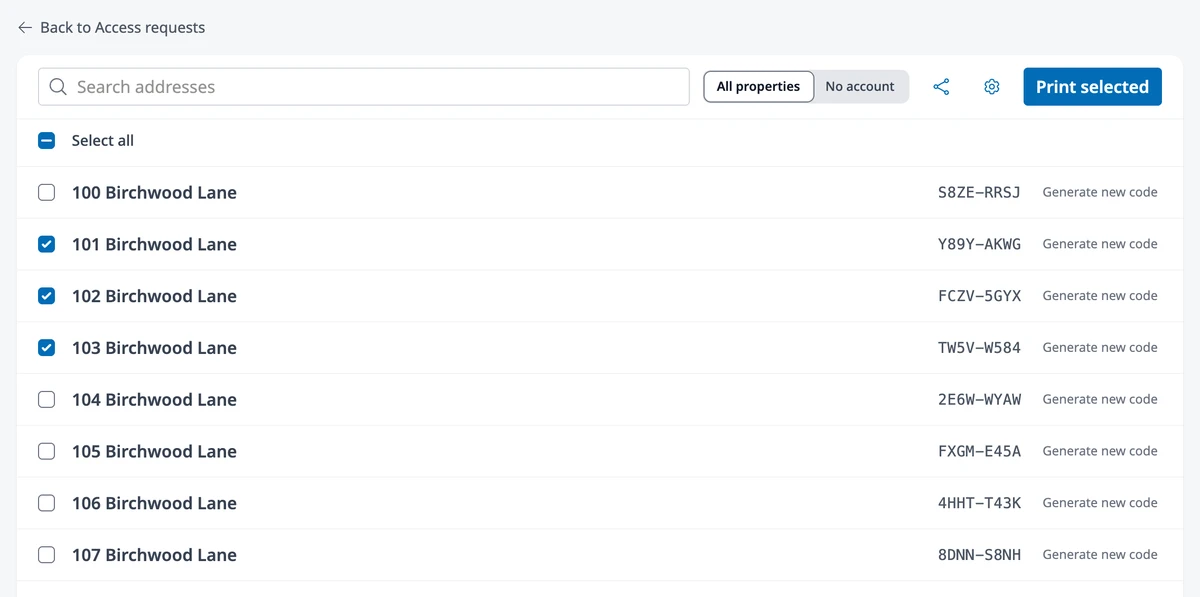
Click Print selected; it’s available once at least one property is checked. The letters open in a new tab, one page per home. Click Print there, or use your browser’s print command.
Each letter has:
- your association’s name and address at the top
- “To the residents of” and the home’s address
- your message
- the steps to get access: go to your community’s request address or scan the QR code, create an account, choose I have an access code, and enter the code
- the request address, the QR code, and the home’s access code
Edit the letter’s message
Section titled “Edit the letter’s message”Click the gear icon (Edit message). In Letter message, write what residents should read first, using the editor’s formatting buttons. A message can have up to 600 characters, which keeps each letter on one page; the counter under the editor shows how many you’ve used. Click Save.
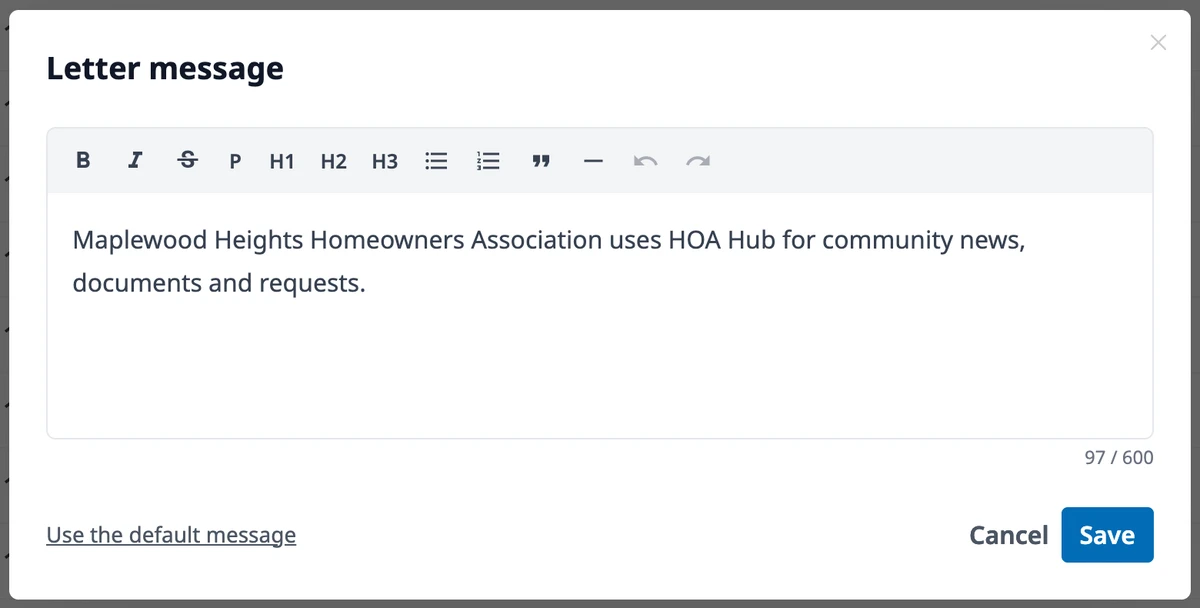
Until you save a message, letters say that your community uses HOA Hub for community news, documents and requests. Use the default message puts that text back in the editor. The steps, the address, the QR code, and the access code always print below your message, whatever it says.
Share the request link
Section titled “Share the request link”Click the share icon to open Request access link. Copy puts the link on your clipboard, ready for an email or a newsletter. Download SVG and Download PNG save the QR code for flyers and signs. The link and the QR code are the same for everyone; anyone who opens them can ask to join, and you still review every request.
Where to go next
Section titled “Where to go next”- Requests coming in? See Reviewing Access Requests.
- What will residents see? See Requesting Access to Your Community.
- Missing a property? See Managing Properties.