
Your Home Page
Home is the first thing you see when you log in, and the first item in the sidebar. It greets you by name, shows what’s happening in your community, and puts the things you’re most likely to need within reach.
The community feed
Section titled “The community feed”If your association has the Community feature turned on and you’re a current resident, the middle of Home is the community feed — posts from people in your community, newest first, with pinned posts at the top.
You can start a post from the Start a post box, react and comment on what others have shared, search the feed, and switch between the standard and compact views. See Posting and Commenting for the details.
If your association doesn’t use the feed, Home simply fills that space with the community cards described below — nothing else changes.
Announcements
Section titled “Announcements”Any announcement your board has published appears as a banner at the top of Home for as long as it’s active. If the board marked it dismissible, you can hide it for yourself. See Managing Announcements.
Surveys waiting for your input
Section titled “Surveys waiting for your input”If you’ve been invited to a survey that’s still open, a Surveys waiting for your input card appears near the top with a quick way to respond. It stays until you answer or the survey closes. See Responding to a Survey.
Attention Needed
Section titled “Attention Needed”If any of your requests need action — a board response you haven’t read, or a draft you never submitted — they’re listed in an Attention Needed section so they don’t fall through the cracks. Click any one to jump straight to it. See Tracking Your Requests for what each status means.
The cards alongside the feed
Section titled “The cards alongside the feed”Down the right-hand side (or stacked below the feed on a phone) you’ll find:
- My Property — if your profile is linked to a property, its name and address with a link to the full property page
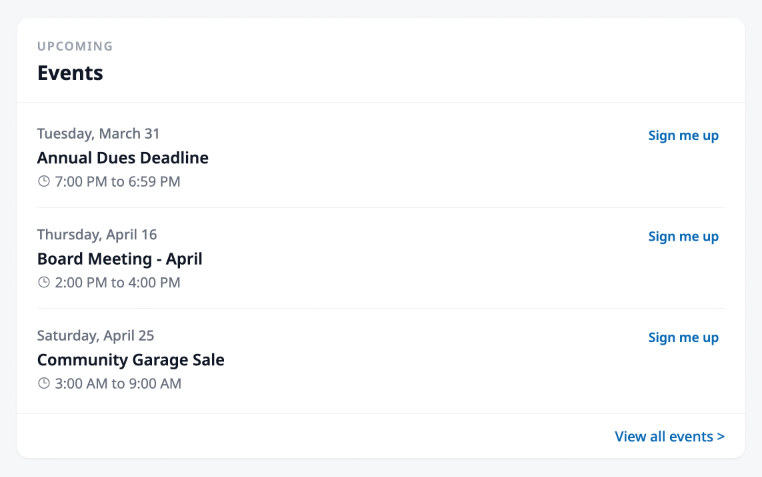
- Upcoming Events — the next three community events, with RSVP buttons right on the card, plus a link to the full calendar
- EasyAsk — ask a question about your community and get an instant answer from the AI assistant, drawn from your community’s uploaded documents
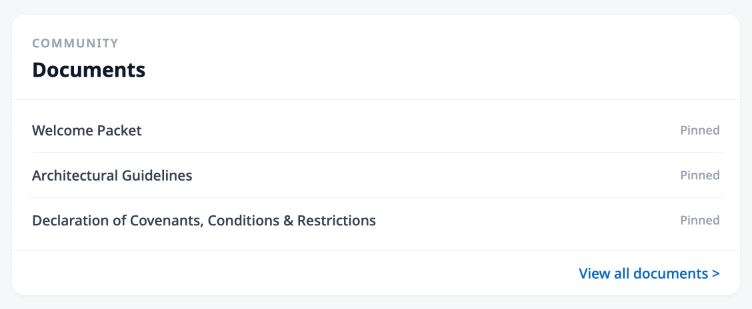
- Community Documents — the documents your board has pinned, or the most recently published ones if nothing is pinned, with a link to the full library
- Submit a Request — jump straight into creating a new request for the board
The Explore checklist
Section titled “The Explore checklist”If you’re new, a small Explore badge sits in the top navigation bar showing your progress. Click it to open a short Get to know HOA Hub checklist. As each step is completed, the item is checked. Once all six steps are done it disappears on its own.
Admins doing first-time setup see a separate Setup badge in the same spot — that one is covered in Setup and Launch.