
Setting Up Your Chart of Accounts
HOA Hub starts you with a default chart of accounts. You can add, rename, deactivate, or delete accounts at any time.
What’s already there
Section titled “What’s already there”HOA Hub seeds every new community with a default chart of 60 accounts, covering the basics for Asset, Liability, Fund Balance, Income, and Expense categories. Use it as-is if it fits, or customize it: add accounts for anything you track separately, rename or renumber existing ones, add more bank accounts, and deactivate what you don’t use.
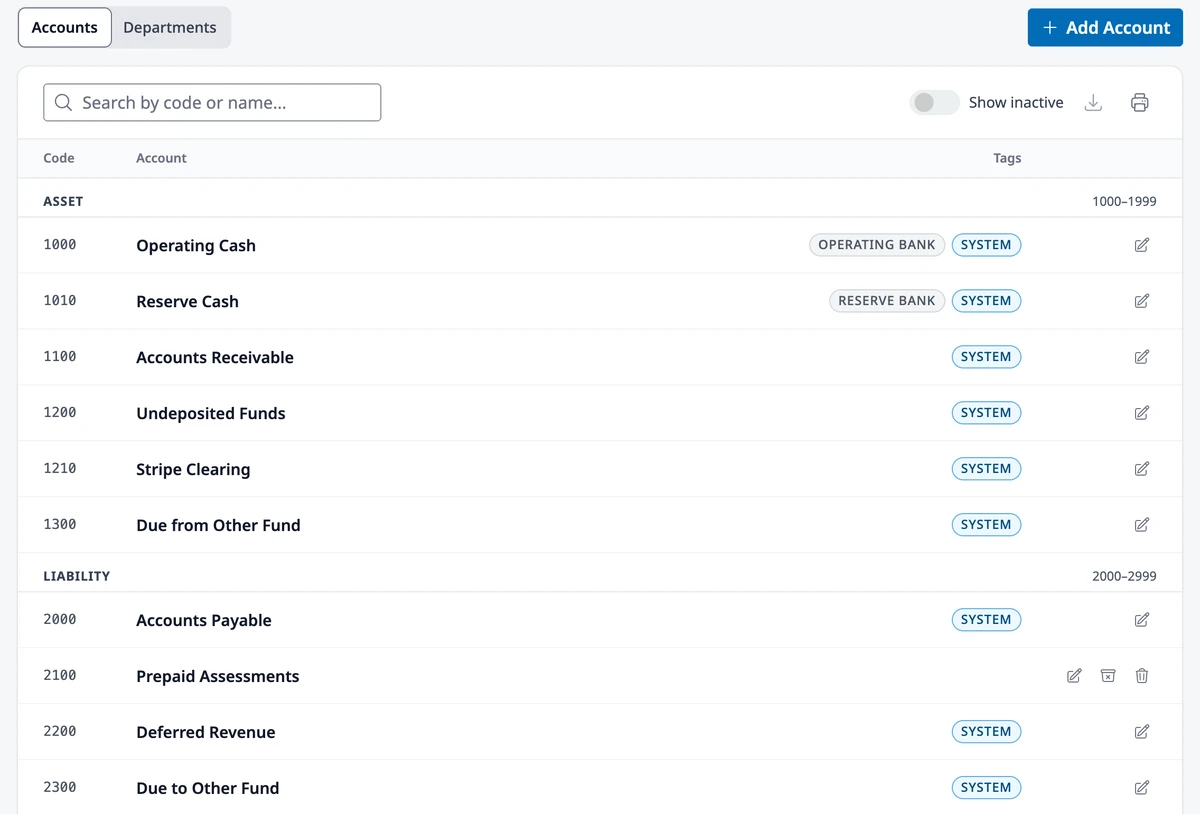
Go to Accounting → Chart of Accounts to see the full list, grouped by type. Accounts marked System are ones HOA Hub’s own workflows post to, such as Accounts Receivable and Undeposited Funds.
Add an account
Section titled “Add an account”Click Add Account. A New account form opens at the top of the list.
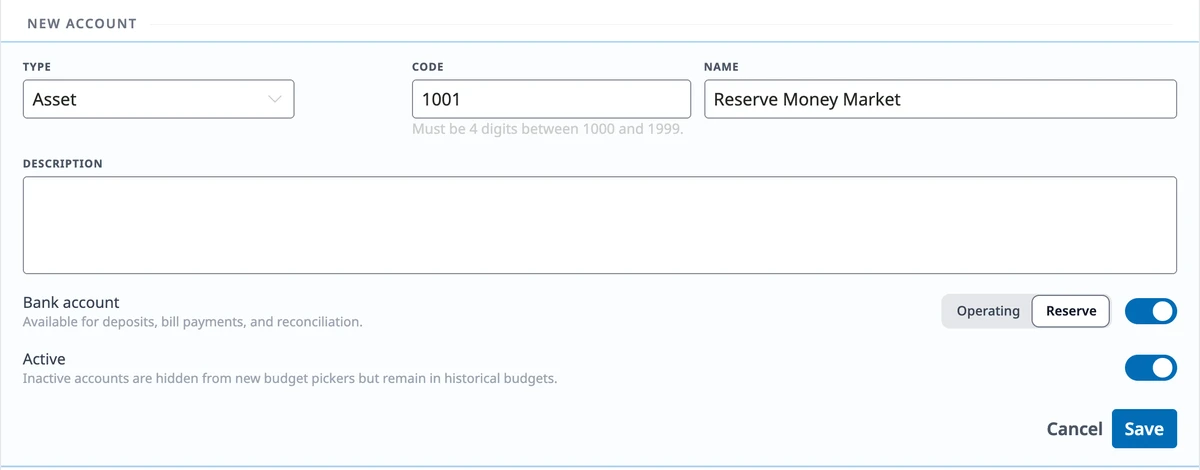
Choose the Type first. HOA Hub suggests the next unused Code for that type, so you don’t have to track numbering yourself. Codes are four digits within the type’s range:
- Asset — 1000–1999
- Liability — 2000–2999
- Fund Balance — 3000–3999
- Income — 4000–4999
- Expense — 5000–9999
Enter a Name and click Save.
To group related accounts, pick a parent under Subaccount of. Subaccounts go one level deep and have the same type as their parent. Once an account has subaccounts, it stops accepting new transactions: post to its subaccounts instead.
Bank accounts
Section titled “Bank accounts”Every community starts with two: Operating Cash and Reserve Cash. If you bank in more than two places — a money market for reserves, a second checking account, a savings account — you can add your own.
Create the account with a type of Asset, then turn on Bank account and pick the fund it belongs to. That switch is what makes an account:
- selectable when you record income or post a deposit
- available in the Pay from list when you pay bills
- reconcilable against a monthly statement
Accounts marked this way carry an Operating bank or Reserve bank badge in the list, so you can see at a glance which of your asset accounts hold real money at a real bank.
Once an account has activity behind it — a posted transaction or a reconciliation — the switch locks and the fund can’t be changed. Turning it off would strand the account’s reconciliations, and moving it would mislabel everything already posted to it. If you’ve started banking somewhere else, add a new account rather than repurposing an old one.
Operating Cash and Reserve Cash are system accounts. They’re always bank accounts, and their funds are fixed.
Edit, deactivate, and delete
Section titled “Edit, deactivate, and delete”- Click the pencil icon next to any account to edit it inline. System accounts can be renamed and renumbered, but their type can’t change
- Deactivate an account you no longer use with the archive icon. It disappears from the pickers for new bills, journal entries, income, and budgets, but stays on everything already recorded, and you can reactivate it later. System accounts can’t be deactivated, and an account with active subaccounts can’t be deactivated until they are
- Delete works only for an account with no history: no posted entries, bills, payments, income, deposits, reconciliations, budgets, or invoices, and no subaccounts. System accounts can’t be deleted. Deactivate an account with history instead
When a vendor default, a recurring bill or journal entry, or a billing charge still uses an account you deactivate or delete, HOA Hub asks you to pick a replacement account and moves them over.
Use Show inactive to bring deactivated accounts back into view.
Import an opening trial balance
Section titled “Import an opening trial balance”If your community already has books elsewhere and you’re moving to HOA Hub mid-year, import your opening balances instead of entering them one at a time.
Finish your chart of accounts first: every row in the file must match an account that already exists. Then go to HOA → Import Data, click New Import, and choose Trial Balance. Turn on My chart of accounts is final., check the As-of date (it defaults to the day before your fiscal year starts), and upload a CSV file with these columns:
- Account Code — required. It must match an active account that has no subaccounts
- Account Name — optional
- Debit and Credit — fill one or the other on each row, never both
- Fund — required: Operating or Reserve
- Department — optional. Leave it blank for General
Each account can appear once per fund and department. Rows with no amount are skipped.
Click Upload & Continue, match your file’s columns, and check the Review opening balances screen. If a fund doesn’t balance, turn on Post the difference to Opening Balance Equity and HOA Hub plugs the gap. Click Post opening balances: everything posts as one single balanced journal entry.
Re-running the import reverses the previous opening balance entry first, so you never end up with duplicates — it’s always safe to fix and re-import.
Where to go next
Section titled “Where to go next”- Want to track spending by cost center? The Departments tab on this same page is where that starts — see Departments.
- Ready to record activity? See Managing Bills and Vendors or Recording Income and Deposits.
- Want to post something directly? See Journal Entries and Transfers.