
Departments
Departments break income and spending down by cost center — the pool, the clubhouse, landscaping — without adding accounts to your chart. Funds tell you where the money is held; departments tell you what it was for.
Departments are optional. Until you add one, no department fields appear anywhere in HOA Hub.
Set up departments
Section titled “Set up departments”Go to Accounting → Chart of Accounts and open the Departments tab.
Every community starts with one department, General. Transactions you don’t assign to a specific department land there. While General is your only active department, HOA Hub shows no department fields. Add a second department and pickers and report columns appear across Accounting.
Click Add Department, then enter a two-digit code and a name. HOA Hub suggests the next free code.
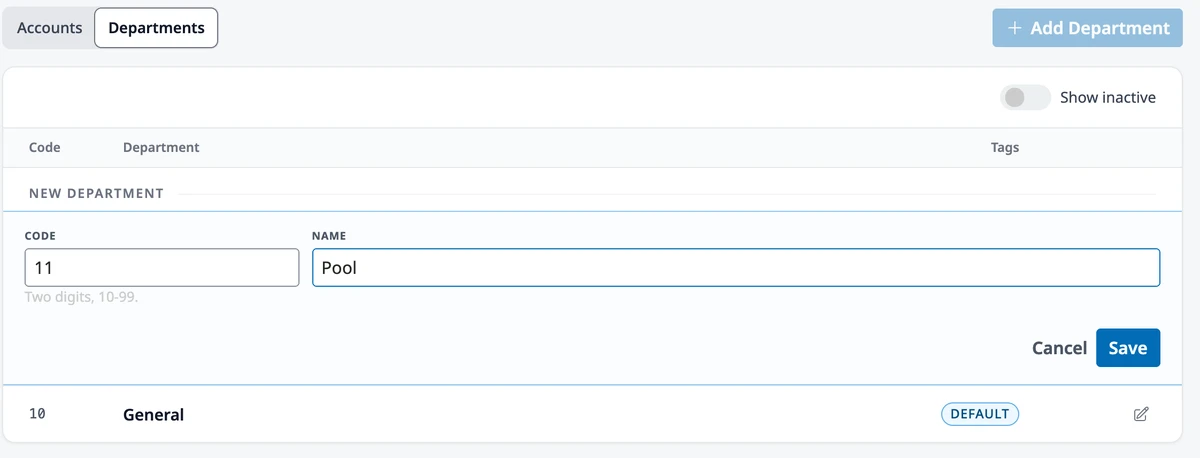
- Use the pencil icon to rename or recode a department. Its history follows the new name.
- General can be renamed, but it keeps its code and can’t be deactivated or deleted.
Use your own terminology
Section titled “Use your own terminology”If your community says cost centers, properties, or amenities instead of departments, go to HOA → Settings → Accounting and set the singular and plural under Reporting. Every picker, column heading, and report uses the words you choose.
Tag transactions
Section titled “Tag transactions”With two or more active departments, each line on a bill, journal entry, income receipt, or charge has a department field. Every line gets exactly one department. HOA Hub pre-fills it, so most of the time you won’t touch the field:
- The department on the vendor’s default, if the vendor has one
- Otherwise the account’s default department, if the account has one
- Otherwise General
Set vendor defaults in the vendor form and account defaults on the account in the chart. Give your landscaper a default of “Grounds” and their bills are tagged automatically. A vendor whose default is split across several expense accounts carries a department on each allocation, so new bills start with one pre-tagged line per allocation.
A department you pick by hand sticks. Changing the line’s account afterward won’t overwrite it.
HOA Hub tags the other side of a transaction for you. A bill’s payable takes the bill’s department when all its lines share one, and General when they don’t. Cash from recorded income follows the income line’s department. Resident receivables stay in General. Only funds have to balance, so departments never add anything to balance.
Charges
Section titled “Charges”When you create a charge, pick its department. The revenue on every invoice it generates reports under that department. Tag an amenity fee “Clubhouse” once, and it shows as Clubhouse income from then on.
Reports
Section titled “Reports”With two or more departments, the Income Statement and Balance Sheet can show the whole association (Consolidated), each department in its own columns (By department), or a single department. The Income Statement opens By department, and its department columns always sum to the fund-level figure, to the cent.
On the Balance Sheet, a department gets columns once it has a transaction on or before the balance sheet date, even if it’s inactive now.
A department’s own transactions rarely balance, because the association’s shared bank accounts pay its bills. So a department’s balance sheet adds a Due to/(from) Other Departments line under Liabilities for the difference. Across all departments these lines add up to zero, so the association’s columns leave it blank.
Prior Period and Prior Year comparisons work on the consolidated statement or a single department, but not By department. Budget works in every view.
A published report keeps the department view you chose, so residents see the same columns.
Departments also appear in:
- Account Activity — a department filter, and a department on every line
- The Budget report — on the Reports page once a budget is published, with a column per budgeted department
- Balance sheet by department — a data export on the Reports page
Budget by department
Section titled “Budget by department”When departments exist, the budget editor shows a pill for each one above the grid. Click a pill to work on that department’s numbers. Each pill shows the department’s annual net, and the footer totals the net across every department. The same account can be budgeted separately in each department.
Retire a department
Section titled “Retire a department”When a cost center closes, deactivate its department from the Departments tab. It disappears from the pickers on new transactions. Its history stays:
- Existing bills, journal entries, and charges keep showing it
- It stays selectable in report filters, marked Inactive
- You can reactivate it any time
If deactivating leaves General as your only active department, the department fields disappear again.
Delete works only for departments that were never used. Anything with history should be deactivated instead.
Where to go next
Section titled “Where to go next”- Setting up accounts and defaults? See Setting Up Your Chart of Accounts.
- Building the annual budget? See Budgets.
- Reading the reports? See Reports.
- Creating charges for residents? See Setting Up Billing.