
Requesting Access to Your Community
If your community uses HOA Hub and you don’t have access yet, you can ask to join. The association’s Owners and Admins review each request, and you get an email when they decide.
Find the Request access link
Section titled “Find the Request access link”- Your community’s sign-in page — under the sign-in form: Not a member yet? Request access
- Your community’s public website — Request access in the header and footer
- A letter from your association — go to the address printed on it, or scan its QR code
- Another community’s account — if you already use HOA Hub somewhere else and open this community, the page that says you’re not a member has a Request access to button with the community’s name
If you can’t find the link, your association has turned access requests off. Ask the board for an invitation instead.
Confirm your email
Section titled “Confirm your email”Enter your email on the Request access page and click Continue. HOA Hub emails you a link. It works for one hour; after that, the page says This link has expired. and Start again takes you back to the email step.
What the link opens depends on your account:
- No HOA Hub account yet — Create your account asks for your first name, last name, and a password. Click Create account.
- An account with that email already — the sign-in page asks you to sign in as that email to continue your request.
- Signed in with a different account — the page says the link is for the other email. Click Sign out, then open the link again.
Creating an account doesn’t give you access to the community. Only the association’s approval does.
Fill in the request
Section titled “Fill in the request”The form has four numbered sections.
About you. Your name comes from your account. A phone number is optional. If you enter one, you can also agree to receive text messages from your community, including emergency alerts and account notifications.
Your home. Choose I own this home or I rent this home. Then type your street address, starting with the house number; matching addresses from your community appear under the field as you type. Pick yours, and add a Unit if you have one.
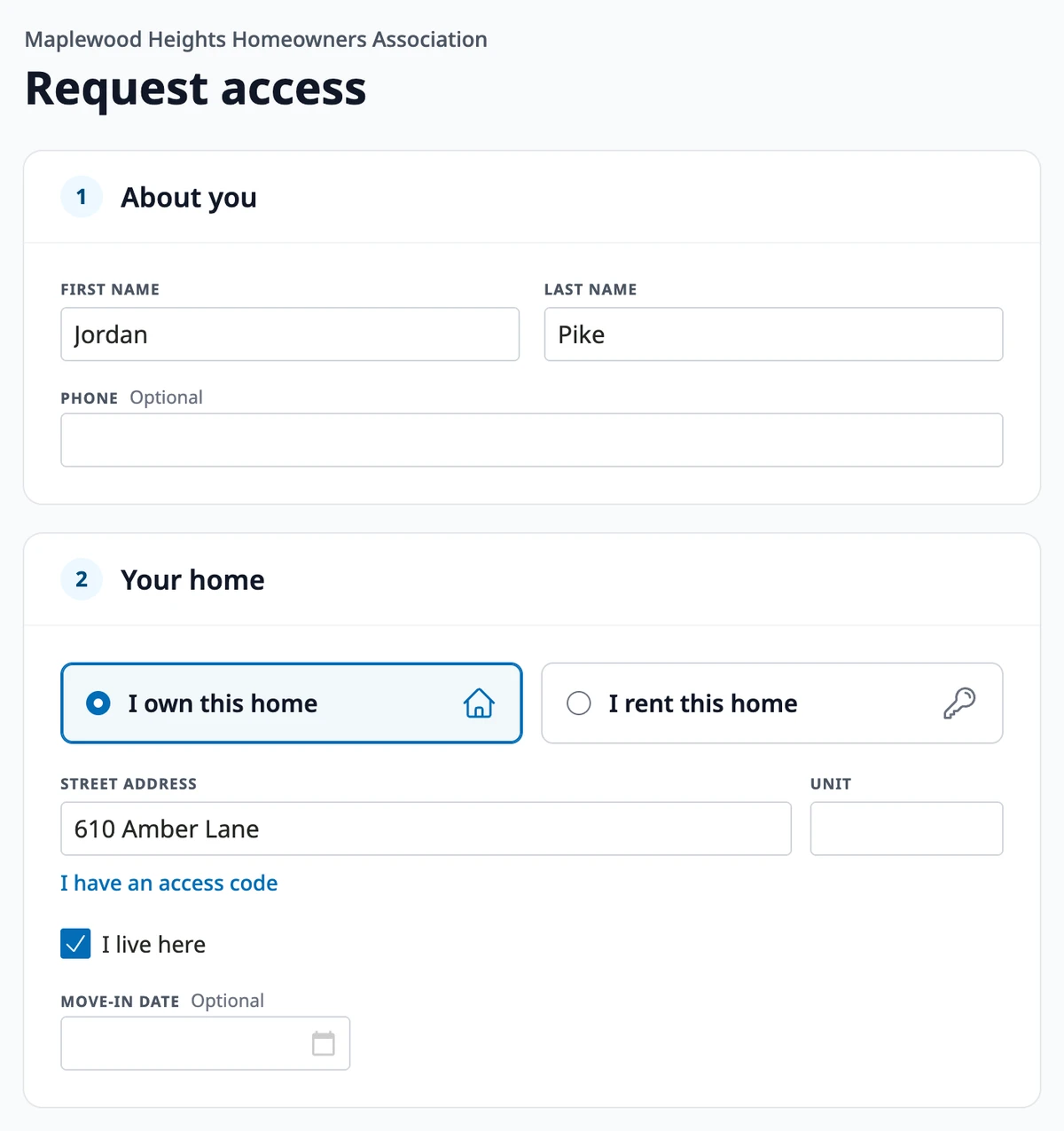
If your association sent you a letter, click I have an access code instead, enter the code from the letter, and click Check. The address the code belongs to appears under the field. After five wrong codes in an hour, the form stops checking codes until the hour has passed.
Owners who live somewhere else uncheck I live here and enter the address where their mail should go. Move-in date is optional.
Household. Click Add a person for each person in your home, up to six. Each person needs a first name, a last name, and a Relationship to you; an email is optional. Check Co-owner (or On the lease, if you rent) for someone who shares ownership or the lease, and uncheck Lives here for someone who doesn’t live at the address. Everyone with an email gets their own invitation when your request is approved.
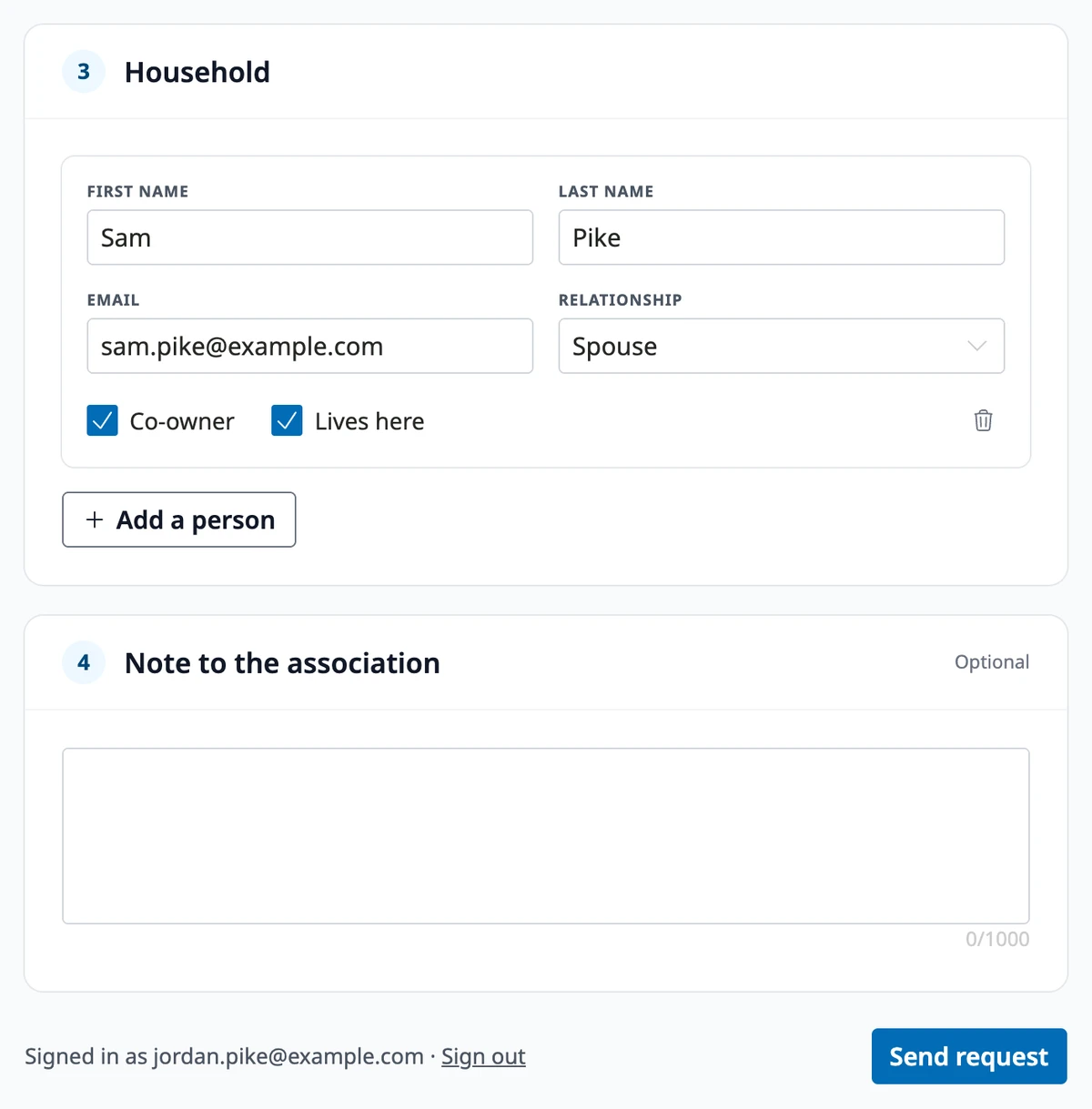
Note to the association. Anything the reviewer should know, up to 1,000 characters. Optional.
Click Send request. You get an email that your request was received.
After you send it
Section titled “After you send it”The page shows Your request is pending with the date you sent it. While it’s pending, you can’t send another one. Sign in at any time to see where it stands.
- Approved — you get an email that your access is approved. Sign in to use HOA Hub as a resident of your community. Household members with an email get their own invitations.
- Not approved — if the association chose to email you, you get an email with their reason, if they gave one. When you sign in, the page shows Your request was not approved, and Send a new request lets you try again.
Where to go next
Section titled “Where to go next”- Just got access? See Your Home Page.
- Want to choose which emails you get? See Your Profile.
- Looking for your neighbors? See Finding Your Neighbors.