
Submitting a Request
Send a request when you need something from the people who run your community: a repair, approval for a home project, or an answer to a question.
Start a request
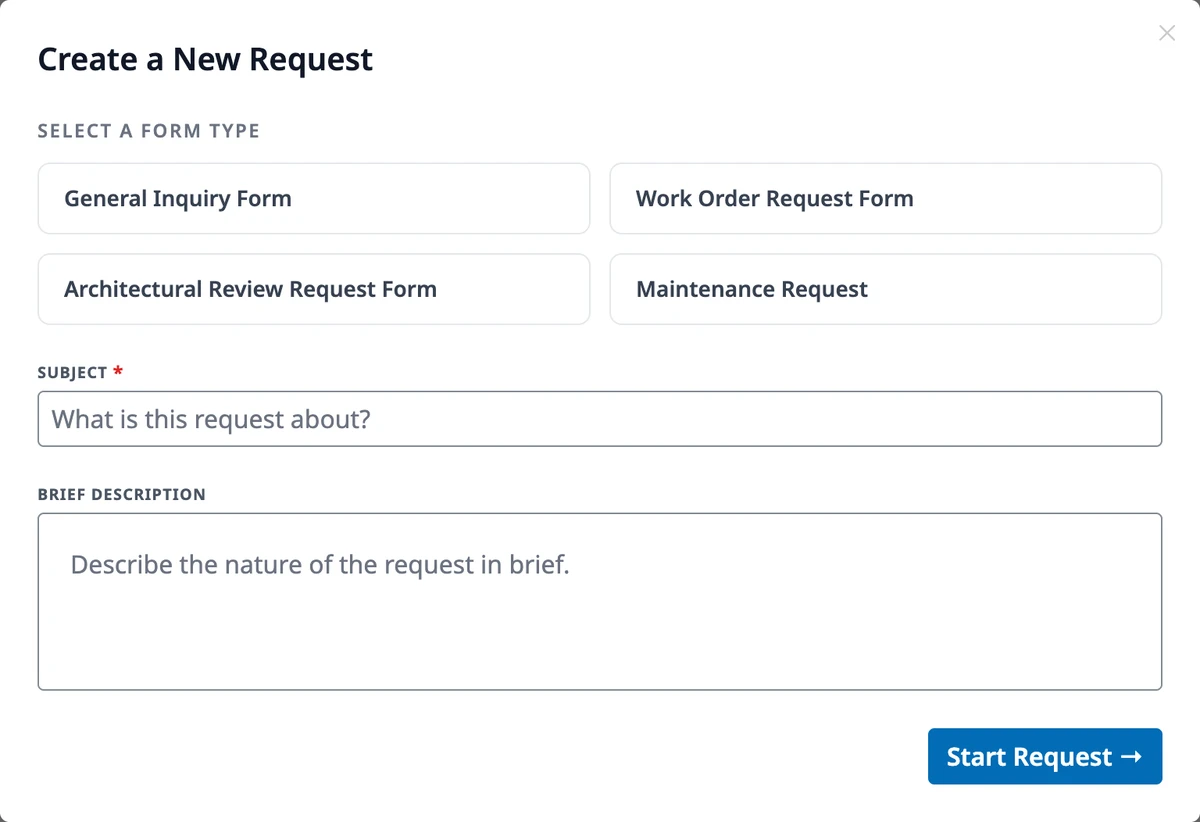
Section titled “Start a request”Go to My Requests and click New Request. In Create a New Request, pick the form that fits under Select a form type, for example the work order form for a repair. Enter a Subject and a Brief description, then click Start Request →.
Fill in the details
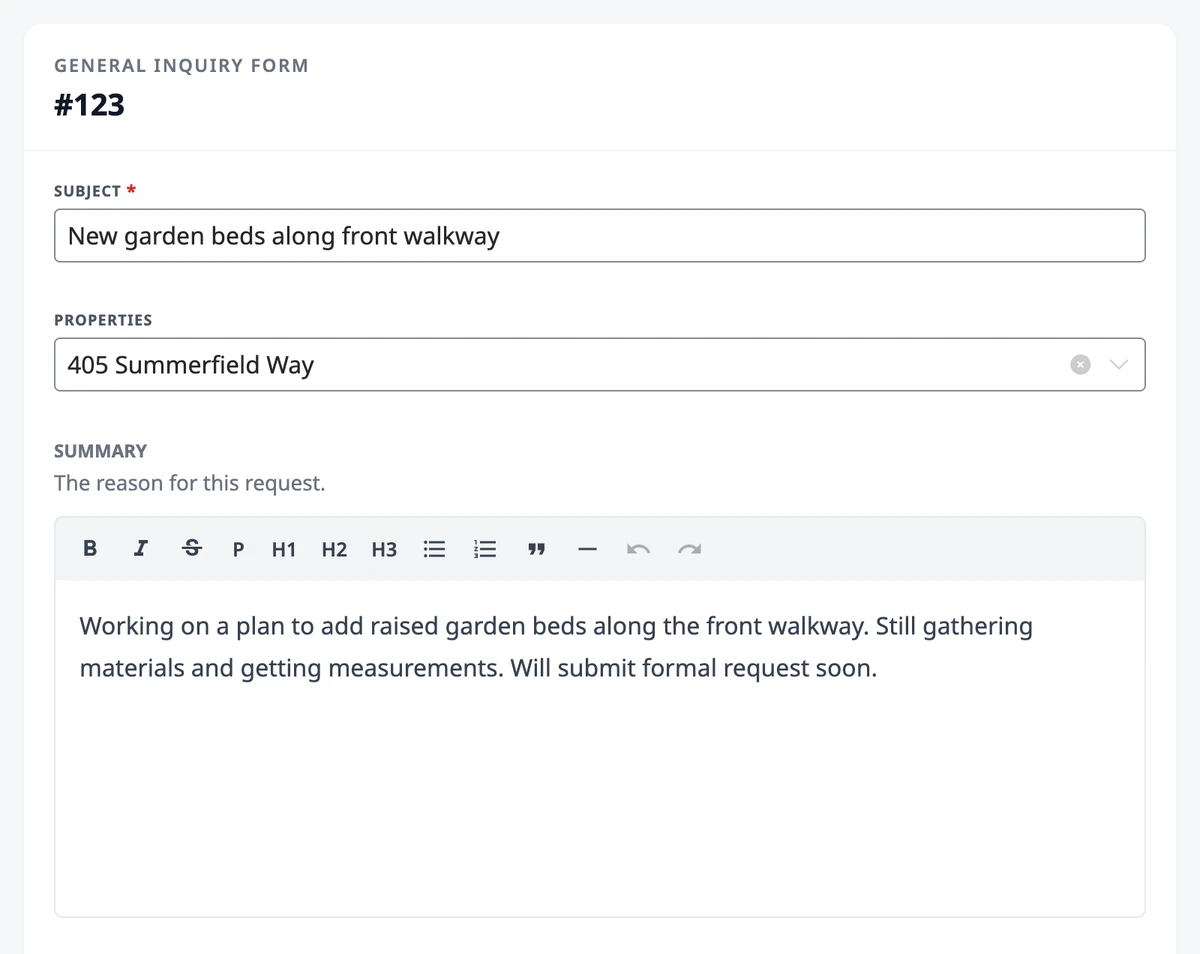
Section titled “Fill in the details”Your request opens as a draft. The Summary holds the description you just wrote; add to it as much as you need. Below it come the fields your community added to this form, such as a project start date on an architectural review.
- Properties — link the request to your home or another property it concerns
- Attachments — photos and documents that support the request: .jpg, .png, .txt, and .pdf files, up to 10 MB in total each time you save
- Followers — other people who should get the same updates, such as a co-owner
Save a draft or submit
Section titled “Save a draft or submit”Click Save Draft to keep working on it later. A draft is visible only to you; it stays in My Requests and in Attention Needed on your Home page until you send it. To discard a draft, click the trash icon next to it in My Requests. Deleting a draft can’t be undone.
Click Submit Request to send it. You get a confirmation email, the team is notified, and the request’s page opens so you can follow it.
Where to go next
Section titled “Where to go next”- Waiting for an answer? See Tracking Your Requests.
- Wondering what a status means? See Understanding Requests.