
Governing Documents & Amendments
Governing documents — bylaws, CC&Rs, declarations, rules and regulations — are foundational to your community. They change through a formal amendment process, need to stay accurate over time, and require a clear record of what changed and when. HOA Hub treats them differently from standard documents to support that workflow.
What makes a governing document different
Section titled “What makes a governing document different”When you upload a document as a Governing Document (see Uploading Documents), you get three capabilities that standard documents don’t have:
- Version history — every time you publish, a new version is created with a change summary
- Source document tracking — the original uploaded file and any amendments are preserved alongside the editable content
- Amendment analysis — upload an amendment and AI compares it against the current document, identifying exactly what changed so you can review before applying
Working with amendments
Section titled “Working with amendments”When your board votes to amend the bylaws or CC&Rs, upload the amendment rather than manually editing the content. The AI-powered analysis workflow ensures nothing gets missed.
Uploading an amendment
Section titled “Uploading an amendment”- Open the governing document’s editor page
- Click the gear icon to open the settings drawer
- In the Source Documents section, click Upload Amendment
- Select the amendment PDF
The amendment enters the processing pipeline. Once text extraction finishes, you’ll see an Analyze button next to it.
Running the analysis
Section titled “Running the analysis”Click Analyze to have AI compare the amendment against the current governing document. This typically takes under a minute. While analysis is running, a subtle banner on the editor page shows progress.
Reviewing and applying changes
Section titled “Reviewing and applying changes”When analysis finishes, a notification banner appears at the top of the editor:
“1 amendment ready for review — AI has analyzed the proposed changes. Review and apply them to update this document.”
Click Review Changes to open the review modal.
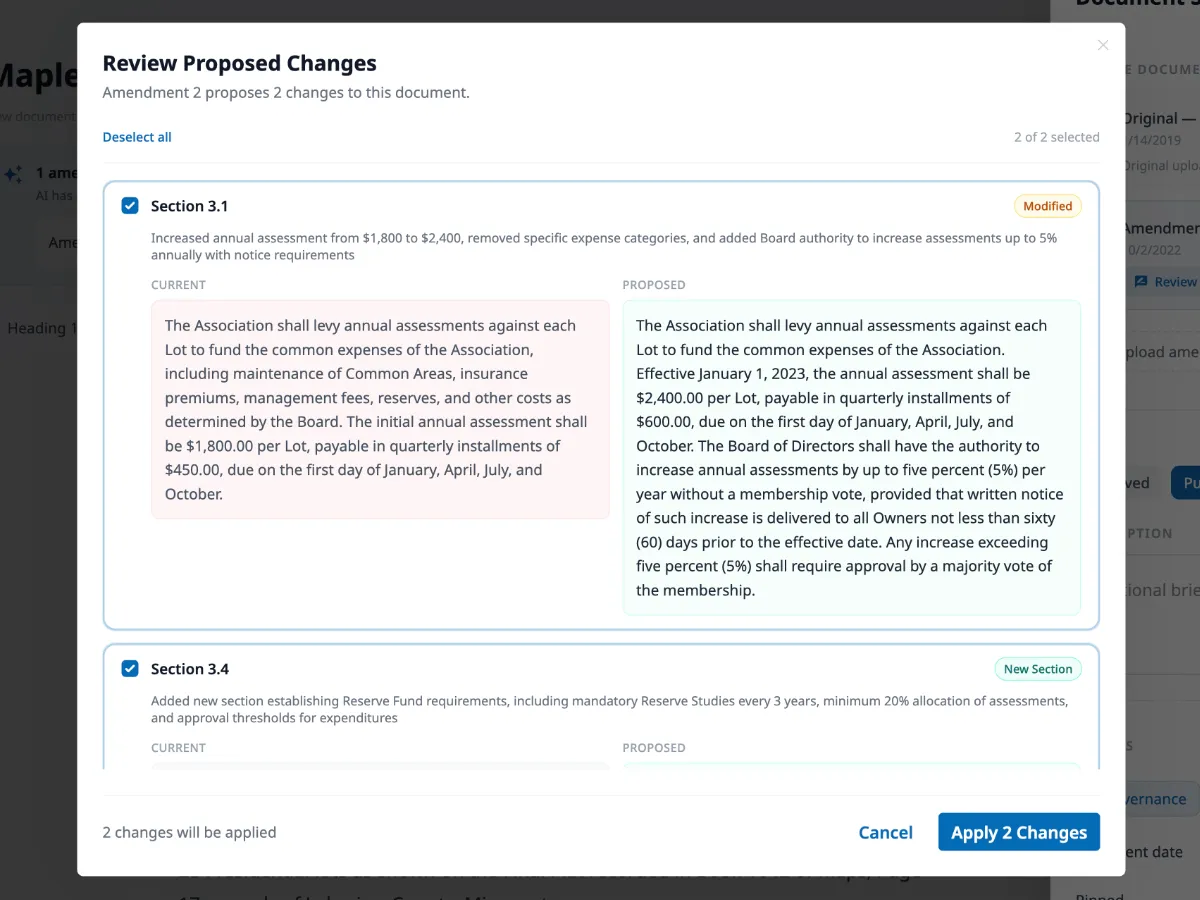
The modal lists every proposed change with:
- Section name — which part of the document is affected
- Change type — Modified (amber), New Section (teal), or Removed (red)
- Side-by-side diff — current text on the left, proposed text on the right
All changes are selected by default. Use Select all / Deselect all to toggle, or uncheck individual changes you don’t want to apply. This lets you accept most of an amendment while skipping anything that doesn’t apply.
Click Apply Selected Changes to write the changes into the document. A new version is created automatically.
Amendment states
Section titled “Amendment states”| State | What it means |
|---|---|
| Processing | Text is being extracted from the uploaded file |
| Ready to analyze | Extraction complete — click Analyze to compare |
| Analyzing | AI is comparing the amendment to the governing document |
| Changes ready | Analysis complete — review the proposed changes |
| Applied | Changes have been applied and a new version was created |
| No changes detected | AI found no substantive differences |
Version history
Section titled “Version history”Every published change to a governing document is saved as a version. Open the document view page and click Version history to see the timeline.
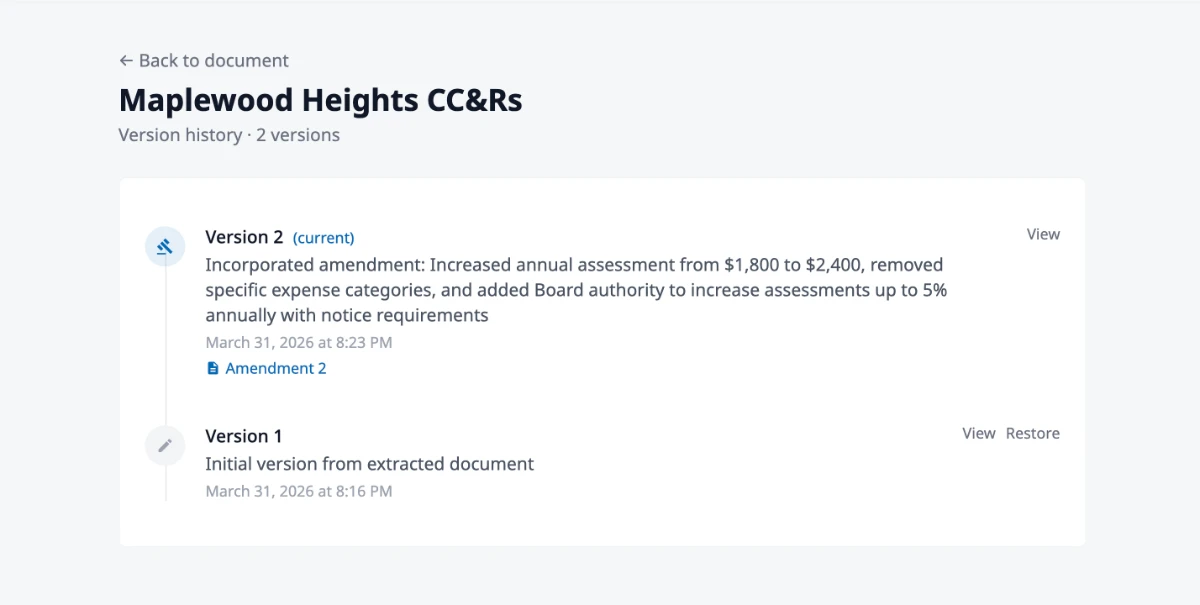
Each version records the version number, the change summary you wrote when publishing, who published it and when, and a link to the source document if the change came from an amendment.
Click View on any version to see the document as it appeared at that point. Click Restore to roll back — this creates a new version with the old content, so no history is lost.