
Journal Entries and Transfers
Most of the activity in your ledger happens automatically — from bills, deposits, and reconciliations. A journal entry is how you post to the ledger directly.
Create a journal entry
Section titled “Create a journal entry”Go to Accounting → Journal Entries and click New Journal Entry.
- Give it a date, pick the fund (Operating or Reserve), and write a memo describing what it’s for. The fund applies to the whole entry
- Add two or more lines, each with an account and either a debit or a credit amount
- The two sides need to add up to the same total before you can post
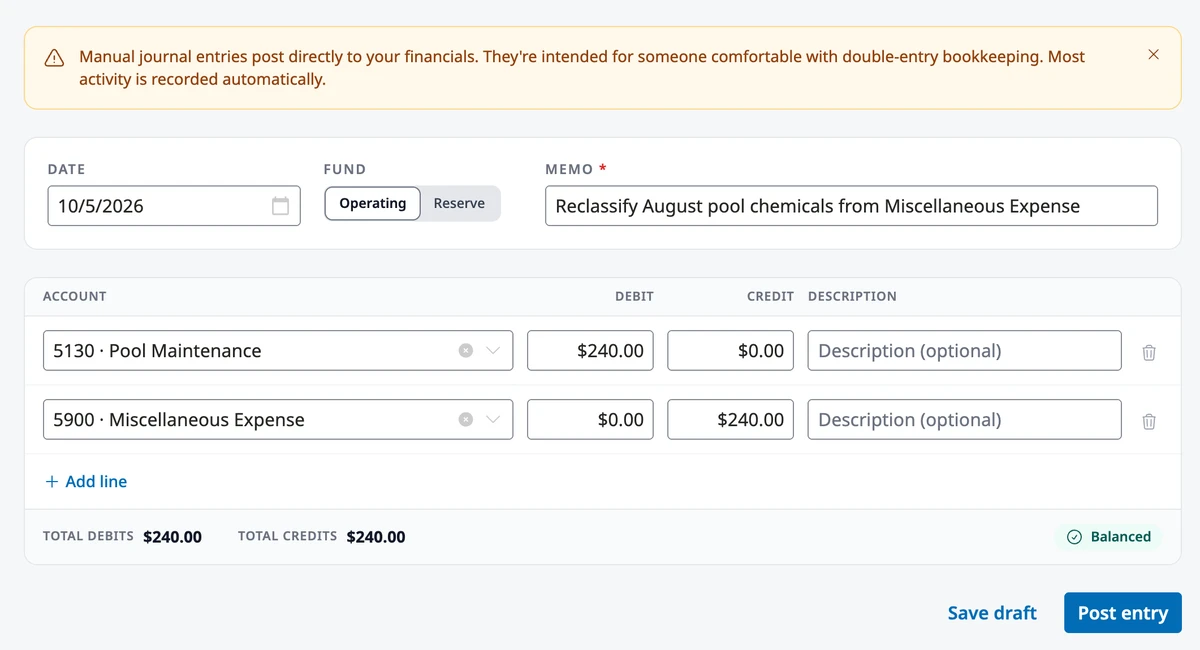
From here you have two options:
- Save draft — keeps it editable so you (or a teammate) can come back and finish it later. Drafts wait in a Drafts list at the top of the Journal Entries page
- Post entry — commits it to the ledger permanently. This only becomes available once the entry balances
A few accounts are off-limits for manual entries, because their own workflows keep them in sync: Accounts Receivable, Undeposited Funds, Stripe Clearing, Accounts Payable, Fund Balance, Opening Balance Equity, and the three interfund accounts (Due from Other Fund, Due to Other Fund, Interfund Transfer). Inactive accounts and accounts with subaccounts aren’t offered either.
The Journal Entries list opens on Manual entries. Switch to System or All to see what bills, deposits, and billing posted automatically.
After it’s posted
Section titled “After it’s posted”Once posted, a journal entry can’t be edited or deleted. If you made a mistake, open it and click Reverse entry, pick a Reversal date, and confirm. This creates a new entry that undoes it exactly, and both entries stay linked so the history is easy to follow.
You can reverse an entry once. Only entries posted from this page — manual, recurring, and interfund transfers — can be reversed here. To undo something a bill or deposit posted, void the bill or deposit instead.
Recurring journal entries
Section titled “Recurring journal entries”For something that repeats on a schedule — an allocation, an accrual — switch to Recurring and click New Recurring Entry. Set up the lines the same way as a regular entry, plus:
- How often it repeats (Monthly, Quarterly, or Annually) and its Start date
- When it ends — Never, On date, or After N occurrences
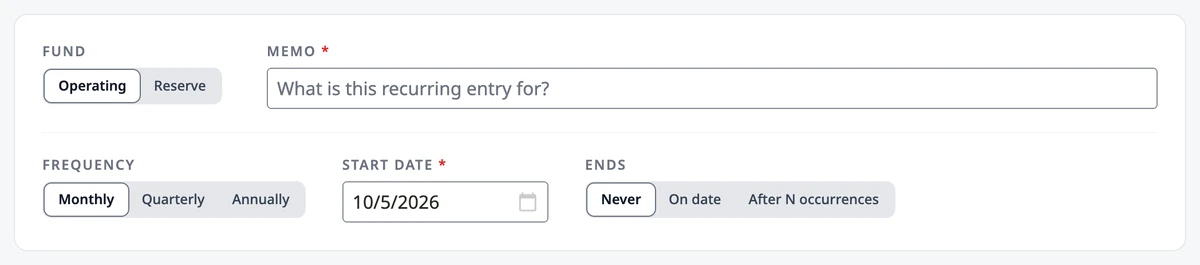
HOA Hub posts a real journal entry automatically each time it’s due. A start date in the past posts every missed entry, each on its own date. Once a recurring entry has posted at least once, its schedule locks — changes to the memo, fund, and lines apply to future entries only.
To stop it, click the cancel icon on its row and confirm with Cancel entry. It stops future postings without affecting anything already posted, and it can’t be restarted.
Interfund transfers
Section titled “Interfund transfers”Moving money between your Operating and Reserve funds — say, an annual reserve contribution — is its own kind of entry. Click the arrow next to New Journal Entry and choose Interfund transfer.
Pick the Method:
- Move cash — real cash moves between a bank account in one fund and a bank account in the other
- Book entry only — no cash moves. The paying fund carries what it owes the other fund until the transfer is funded
Then choose From and To, the Amount, the Date, and a Memo, and click Record transfer. The method choice appears only when both funds have a bank account. To change which method is preset, go to HOA → Settings → Accounting and set Default Transfer Mode: Segregated presets Move cash, and Commingled presets Book entry only.
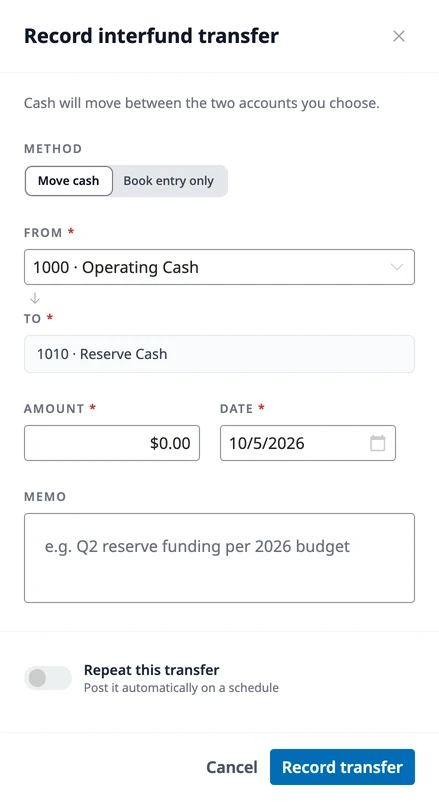
Turn on Repeat this transfer for a scheduled contribution: the button changes to Schedule transfers, and the transfer appears under Recurring.
Either way, it’s still a real, balanced entry in the ledger — just a specialized shortcut for a common transaction.
Where to go next
Section titled “Where to go next”- Setting up your accounts first? See Setting Up Your Chart of Accounts.
- Looking for something posted automatically instead? See Managing Bills and Vendors or Recording Income and Deposits.
- Checking what an entry did to an account? See Reports.