
Choosing Who Sees a Form's Requests
By default, everyone on your request team sees every request. You can limit a custom form so only the team roles you choose — plus your Owners and Admins — see the requests filed on it. Use it to give a committee its own inbox, or to keep sensitive requests, such as a complaint about a staff member, to a few people.
Limit a form
Section titled “Limit a form”Go to Requests → Forms, open a custom form, and switch to Access. Choose Selected roles, tick the roles that should see this form’s requests under Roles, and click Save.
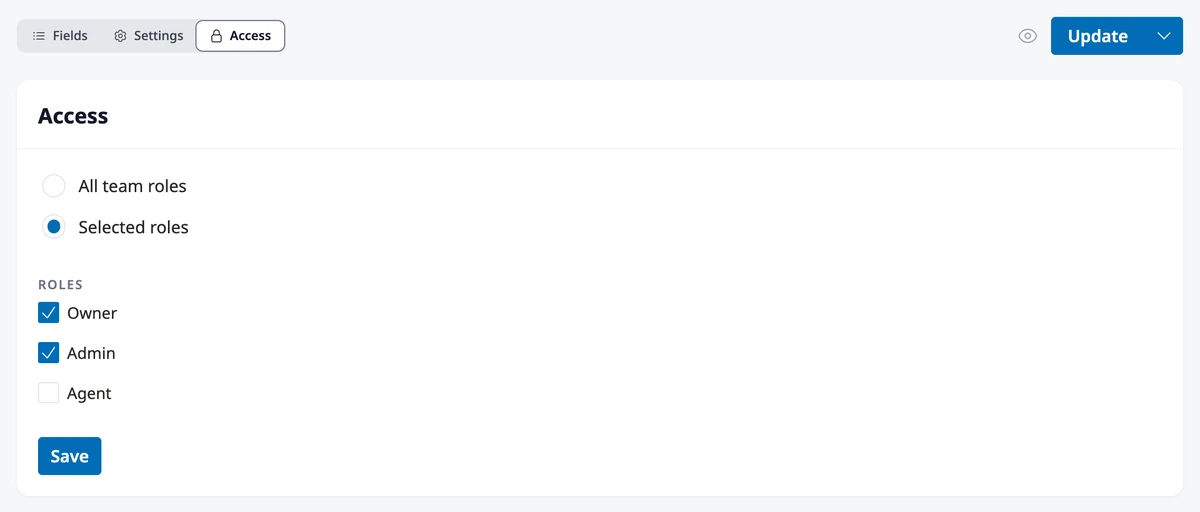
The roles at the top of the list are always checked: Owners, Admins, and any role that manages forms see every request whatever you choose. The other roles listed are the team roles that can work requests, such as Agent or a committee role your association created. Leave them all unticked to keep the form’s requests to Owners and Admins only.
To open the form to the whole team again, choose All team roles and click Save.
A limited form shows a lock icon in the Forms list. Each change to its access appears under Activity on the form’s Fields view.
Default forms
Section titled “Default forms”The access setting is on custom forms only. To limit a default form, such as the Architectural Review Request Form, copy it first with Copy and edit and limit the copy; see Creating Request Forms. Requests filed on the default form before you copied it stay visible to the whole team.
Give a committee only its own requests
Section titled “Give a committee only its own requests”A team role sees every form that is open to all team roles, and every default form. To keep a committee to its own requests:
- Copy each default form you still use, and publish the copies.
- Limit the committee’s form to the committee role.
- Limit every other form to the roles that should work it, leaving the committee role unticked.
A new form starts open to all team roles, so set its access before you publish it.
What changes for the rest of the team
Section titled “What changes for the rest of the team”The change applies at once, to new and existing requests. A team member whose role isn’t selected:
- No longer sees the form’s requests in the Inbox, in search, or in the request lists on contact pages
- Can’t open those requests; a saved link shows “not found”
- Gets no emails about them
- Can’t be assigned to them, and can’t file a request on the form for someone else
Their own requests stay visible to them, like any resident’s, and so do requests they were added to.
Assignments that lose access
Section titled “Assignments that lose access”When someone can no longer see an open request assigned to them, the request goes back to unassigned, and its history shows “name unassigned by admin (no access)”. Nobody is emailed. This happens when:
- You limit a form and the assignee’s role isn’t selected
- Someone loses the role that gave them access, or that role loses access to requests
- A role is deleted and its members move to a role without access
- Someone is deactivated
Closed requests keep their assignee. If one is reopened, the check runs again.
Where to go next
Section titled “Where to go next”- Setting up the committee’s form? See Creating Request Forms.
- Working the requests that come in? See Managing the Request Inbox.
- Giving people the right roles? See Managing Users.