
Managing Violations
Record violations against properties, issue them to the responsible contact, and follow each one until it’s resolved or closed. Go to Violations → Violations.
Before your first violation, the page asks for three things: your rules, whether your state requires mailed notices, and a look at your notice text. See Managing the Rule Library and Violation Settings.
Create a violation
Section titled “Create a violation”Click Add Violation. In the New Violation drawer, choose the Property, the Date Observed (today or earlier), and the Rule the violation breaks; type a code or title to find it. Describe what you saw in Description, add Evidence Photos (JPG, PNG, or PDF, up to 10 MB in total), and click Create Violation.
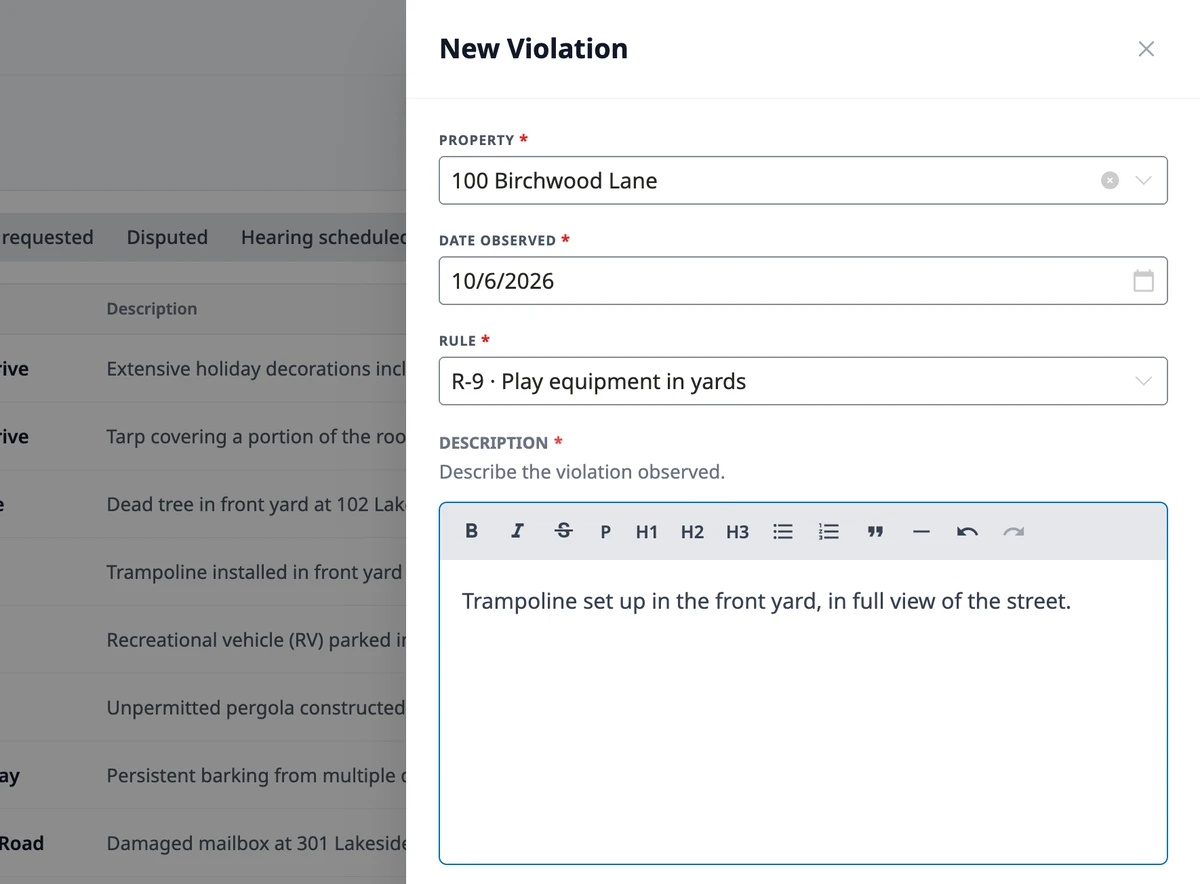
The violation starts as a Draft, and nothing is sent until you issue it. While it’s a draft, click Edit to change the property, date, rule, or description, and use Add evidence to attach more photos.
Issue a violation
Section titled “Issue a violation”Open the draft and click Issue. Leave Responsible contact on the default to send the notice to the property’s billing contact (or its primary contact), or choose someone else. The Correction period is how many days the homeowner gets to fix the problem; it starts at the days your settings give the rule’s category, and you can change it for this violation. Click Issue.
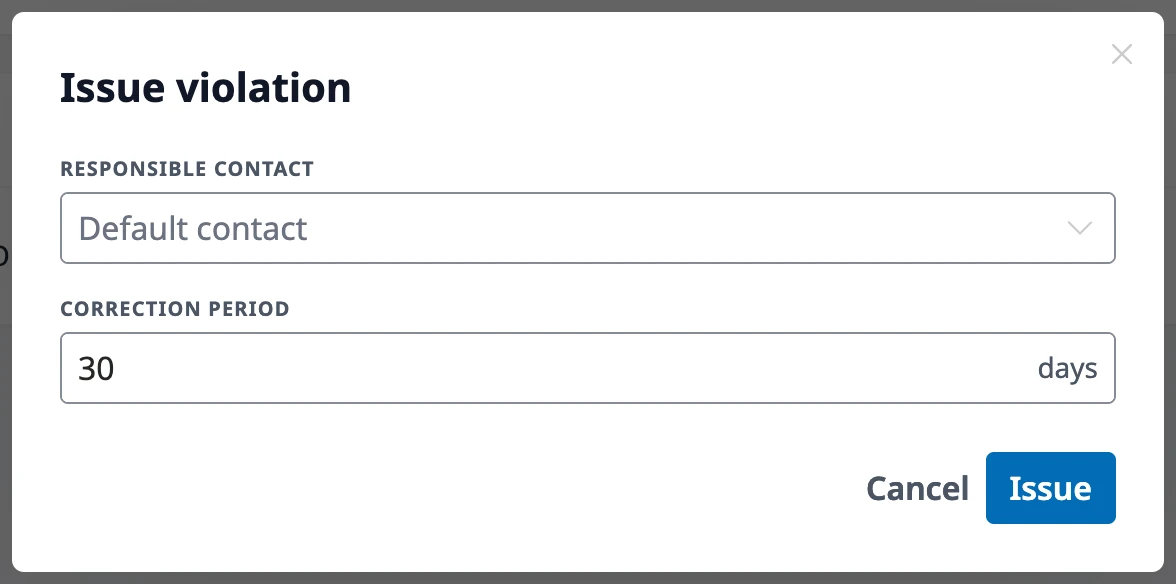
HOA Hub sends the first notice in your sequence by email and in the app, with the deadline and a link to the violation. If the problem isn’t fixed by the deadline, the next notice goes out on its own the following morning, until the sequence runs out. To change the notices or their timing, see Violation Settings.
Follow a violation
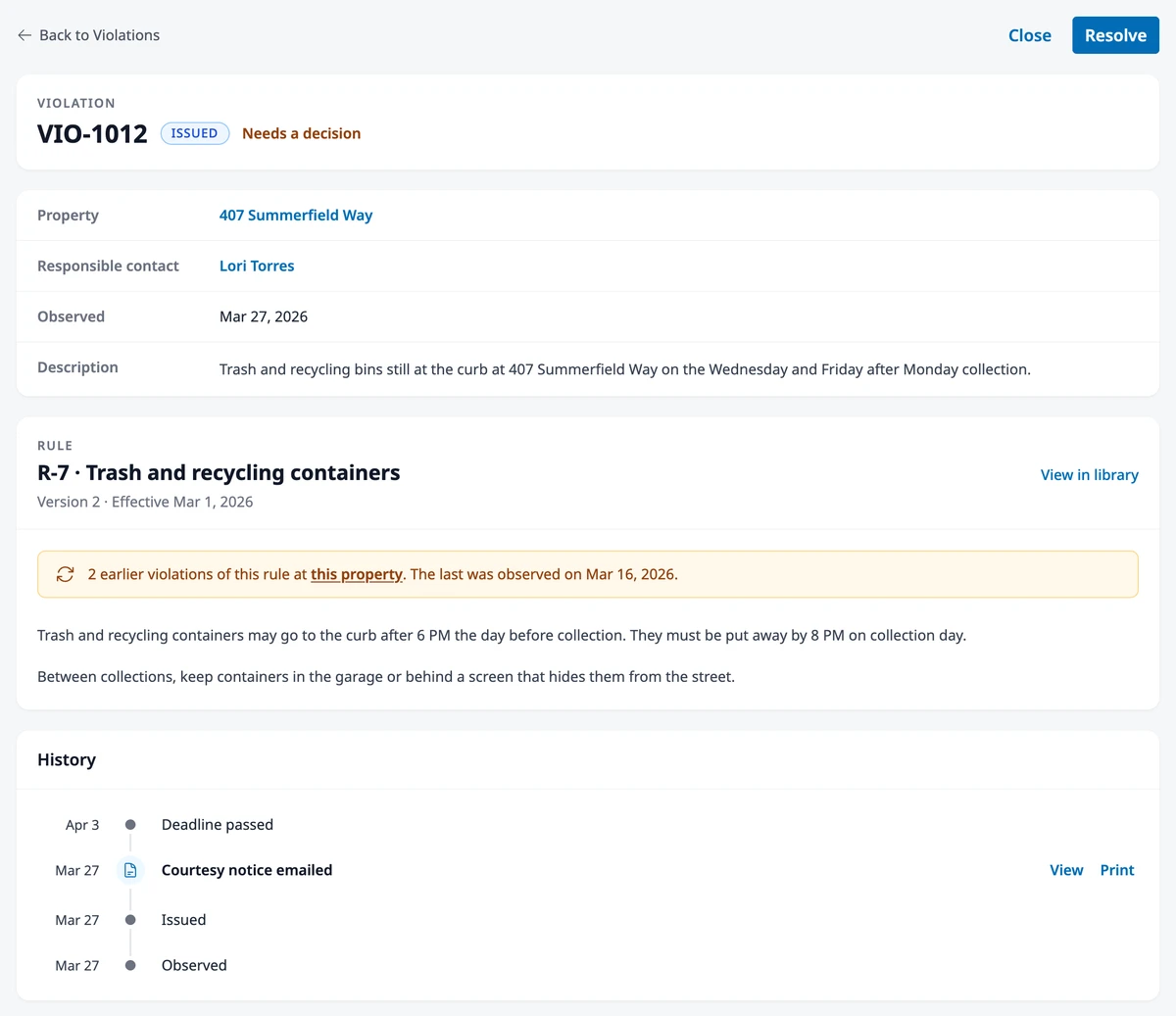
Section titled “Follow a violation”The violation’s page tells you where things stand. Next to the status, Due shows the current deadline. Past due since means the deadline passed and the next notice is on its way. Paused means notices are on hold while a request from the homeowner or a hearing is pending. Needs a decision means the last notice’s deadline passed with no notice left, so it’s up to the board to resolve or close the violation.
The Rule card shows the rule exactly as it read when the violation was recorded. When the property has broken the same rule before, it says how many times and when the last time was.
History lists everything that has happened, newest first: each notice and how it was delivered, deadlines, and the homeowner’s requests. Click View on a notice to see exactly what was sent, or Print to print a copy. If a notice couldn’t reach anyone because the contact has no email, no account, and no mailed letter, History says so; print the notice and deliver it by hand.
Mail printed notices
Section titled “Mail printed notices”If your state requires mailed notices, each notice with Mail turned on also produces a printed letter; see Editing Violation Notices. Waiting letters are listed under Mailings on the Violations page, and the Violations menu shows how many are waiting. Owners and Admins are notified when letters are ready, and again if a letter still waits after 3 days.
Select the letters and click Print selected to open them in a new tab for printing. After you mail them, click Mark as mailed. The letters you selected are included, or every waiting letter if you selected none. Set the Mailing date and the Method, First-class or Certified, add any tracking numbers, click Review, and then click Mark as mailed. The letters move to the Mailed list with their date, method, and tracking number. If you set emails to wait for the letter, they go out now.
Marking a letter mailed records your proof of mailing. It doesn’t change the homeowner’s deadline, which counts from the day the notice was created.
To not mail a letter, click Skip next to it in the violation’s History. An email that was waiting for it goes out then.
Review a homeowner’s report
Section titled “Review a homeowner’s report”When the homeowner reports the problem fixed, the violation shows Report sent with what they did, and notices pause. If the fix checks out, click Resolve. If it doesn’t, click Not fixed and write a note: the homeowner gets your note, and the notices pick up again.
Resolve or close a violation
Section titled “Resolve or close a violation”Click Resolve once the problem is fixed. To end a violation without resolution, for example after the board drops it, click Close and add an optional reason. Both are final: no more notices go out, waiting letters are skipped, and everyone who received a notice is told.
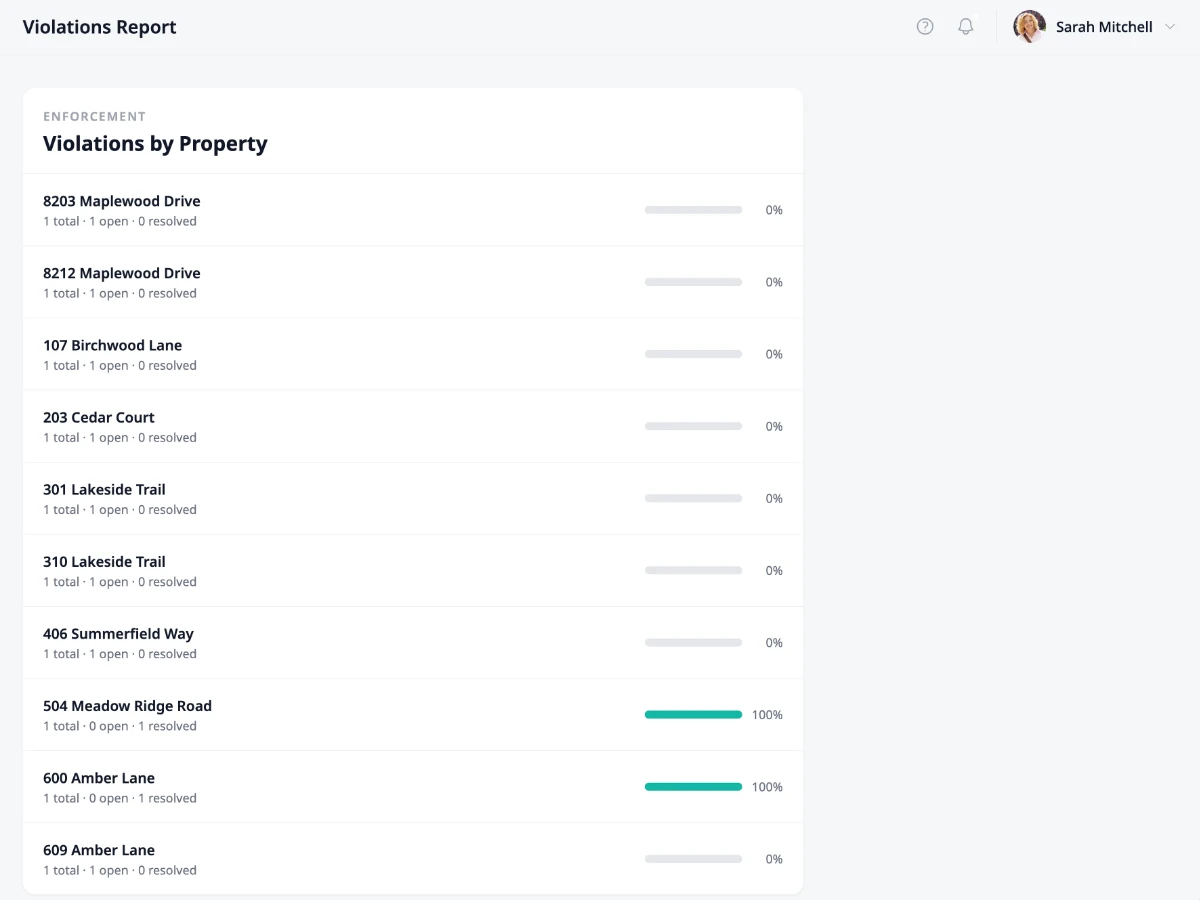
Violations by Property
Section titled “Violations by Property”To see which properties have the most violations and how many are still open, click Report above the list. Click a property in the report to open its page.
Where to go next
Section titled “Where to go next”- Setting up the rules your violations cite? See Managing the Rule Library.
- Changing your notices or deadlines? See Violation Settings.
- Changing what a notice says? See Editing Violation Notices.
- A homeowner asked for more time or disputed a violation? See Extensions & Hearings.
- Wondering what the homeowner sees? See Responding to a Violation.