
Tracking Your Requests
Once you’ve submitted a ticket, you can track its progress, reply to the board, and withdraw it if needed — all from the My Tickets page.
Finding your tickets
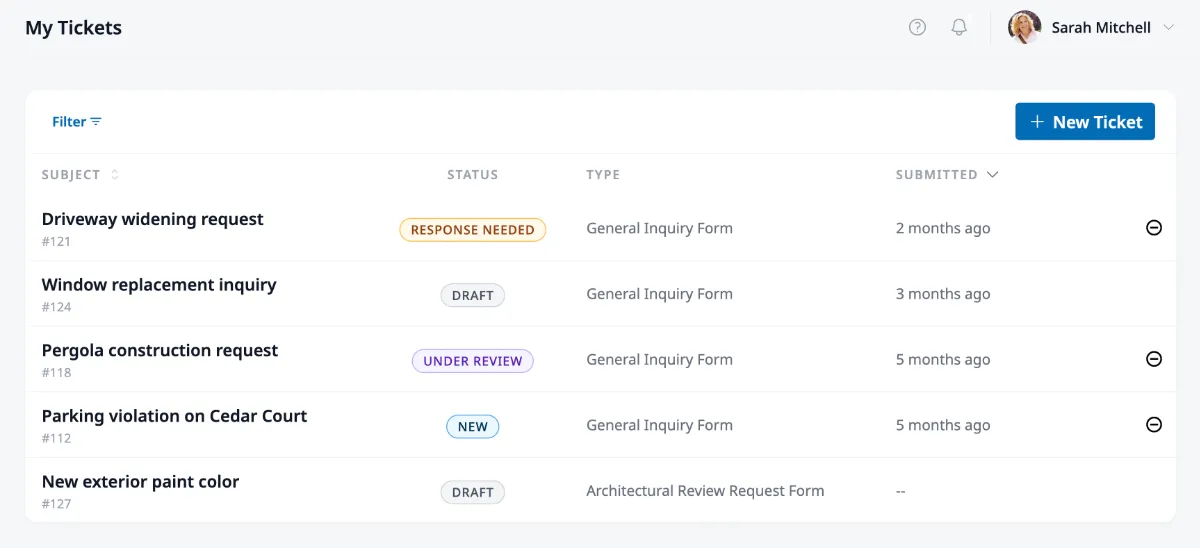
Section titled “Finding your tickets”Go to My Tickets in the sidebar to see everything you’ve submitted. If you’re looking for something specific, you can filter by status, form type, or the month it was submitted. You can also sort by date or status using the column headers.
Understanding where your request stands
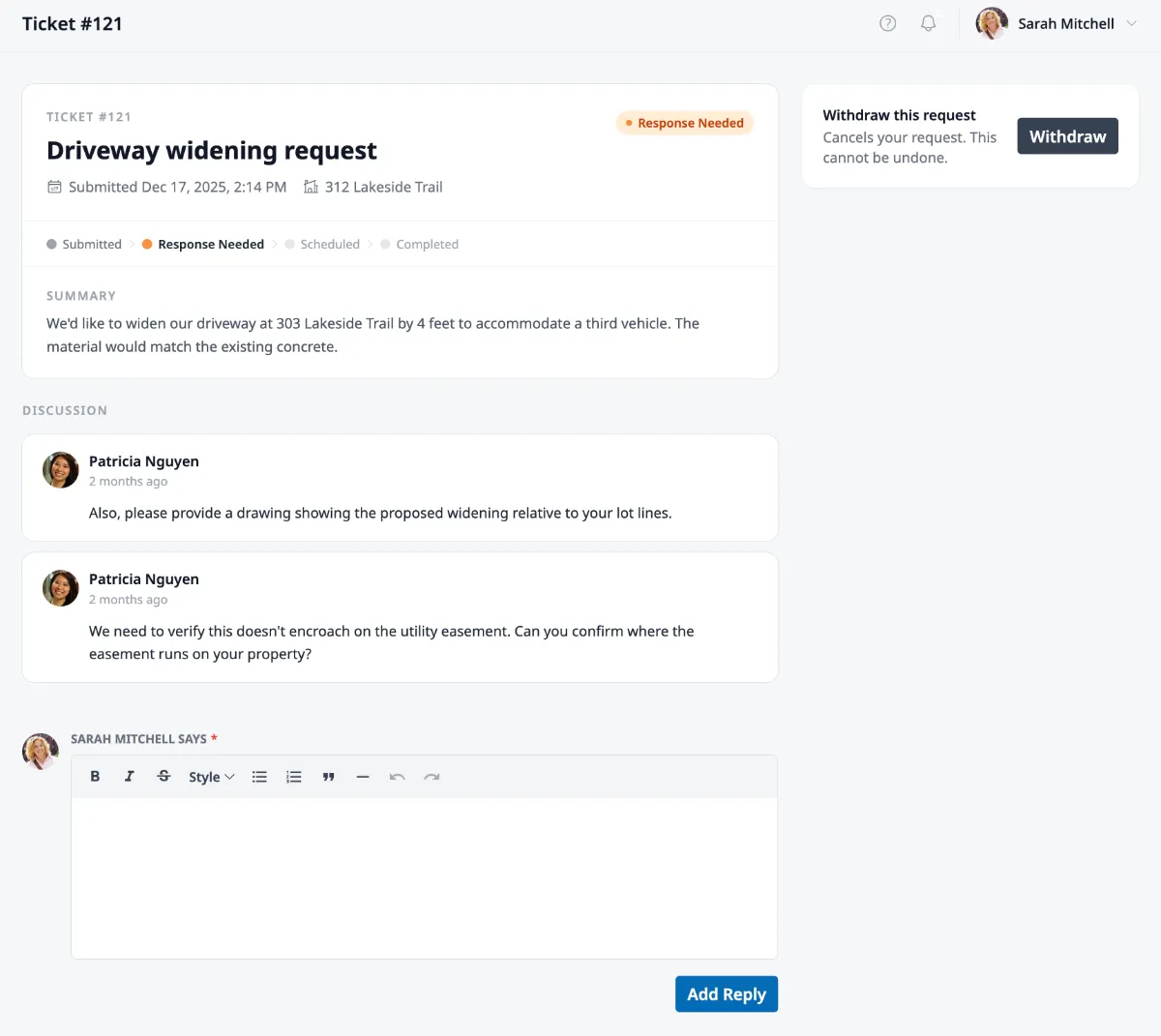
Section titled “Understanding where your request stands”When you open a ticket, a progress bar at the top shows where your request is in the process. Hover over any step for a description. The path depends on the type of request:
For requests that need approval (like architectural reviews): Submitted → Under Review → Awaiting Approval → Approved or Declined
For general requests (like maintenance): Submitted → Under Review → Scheduled → Completed
Here’s what each status means:
| Status | What it means |
|---|---|
| Submitted | Your ticket is in the queue awaiting review. |
| Under Review | Someone from the board is looking into your request. |
| Response Needed | The board has asked a question — they need your input before they can move forward. |
| Scheduled | Work on your request has been scheduled. |
| Approved | Your request has been approved by the board. |
| Declined | Your request was not approved. |
| Completed | Your request has been fulfilled. |
| Withdrawn | You canceled this request. |
Communicating with the board
Section titled “Communicating with the board”Below the ticket details, a Discussion section shows the conversation history between you and the board. If they’ve responded or asked a question, their messages appear here.
To reply, type your message in the editor at the bottom and click Add Reply. You can reply as long as the ticket is still open — once it’s completed, approved, declined, or withdrawn, the conversation is closed.
Withdrawing a ticket
Section titled “Withdrawing a ticket”If you no longer need your request addressed, you can withdraw it from the sidebar of the ticket detail page. Look for Withdraw this request and click Withdraw.
Don’t miss a response
Section titled “Don’t miss a response”If any of your tickets are in Response Needed or Draft status, they also appear in the Attention Needed section of your dashboard, so you won’t lose track of things that need your action.