
Submitting a Request
Tickets are how you communicate requests, questions, and issues to your HOA board. Whether you need to report a maintenance problem, request approval for a home modification, or ask a question — it all starts with a ticket.
Starting a new ticket
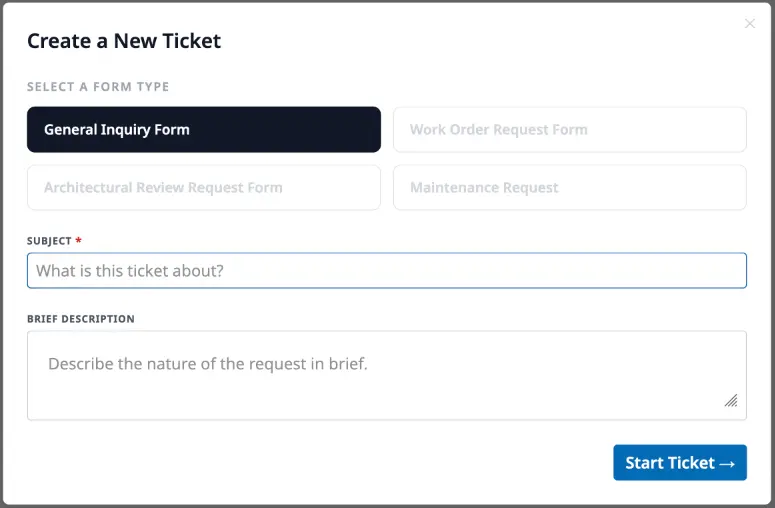
Section titled “Starting a new ticket”Go to My Tickets in the sidebar and click New Ticket. You’ll first choose a form type — these are different request categories your community has set up, like “Maintenance Request” or “Architectural Review.” Pick the one that best matches your request, enter a subject and brief description, and click Start Ticket.
Filling out the details
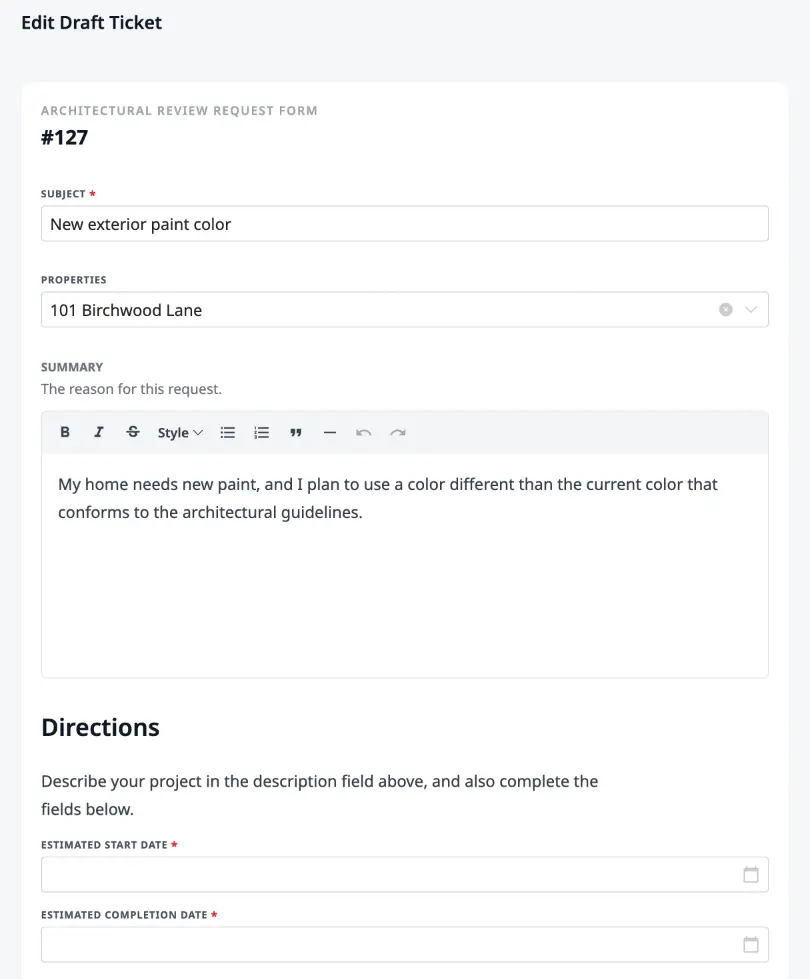
Section titled “Filling out the details”After starting, you’re taken to the full ticket form. The fields you see depend on the form type your admin has set up — some forms ask for just a summary, while others include custom fields like date pickers, multiple choice options, or specific text fields tailored to that type of request.
Every form includes a rich text summary where you can describe your request in detail, plus an attachments area for uploading supporting files like photos or documents. You can also link the ticket to a property in your community and add followers — other contacts who should be notified about updates.
Saving as a draft
Section titled “Saving as a draft”Not ready to submit? Click Save Draft to save your progress. Drafts are only visible to you and can be edited at any time — useful if you need to gather more information or take photos before submitting.
Submitting your ticket
Section titled “Submitting your ticket”Click Submit Ticket to send your request to the board. They’ll be notified, and your ticket enters the review process. You can track its progress from the My Tickets page.