
Managing the Ticket Inbox
The Tickets Inbox is where admins and agents manage all incoming requests from residents. It brings together filtering, assignment, and status tools to keep your community’s requests organized and moving forward.
Finding tickets that need attention
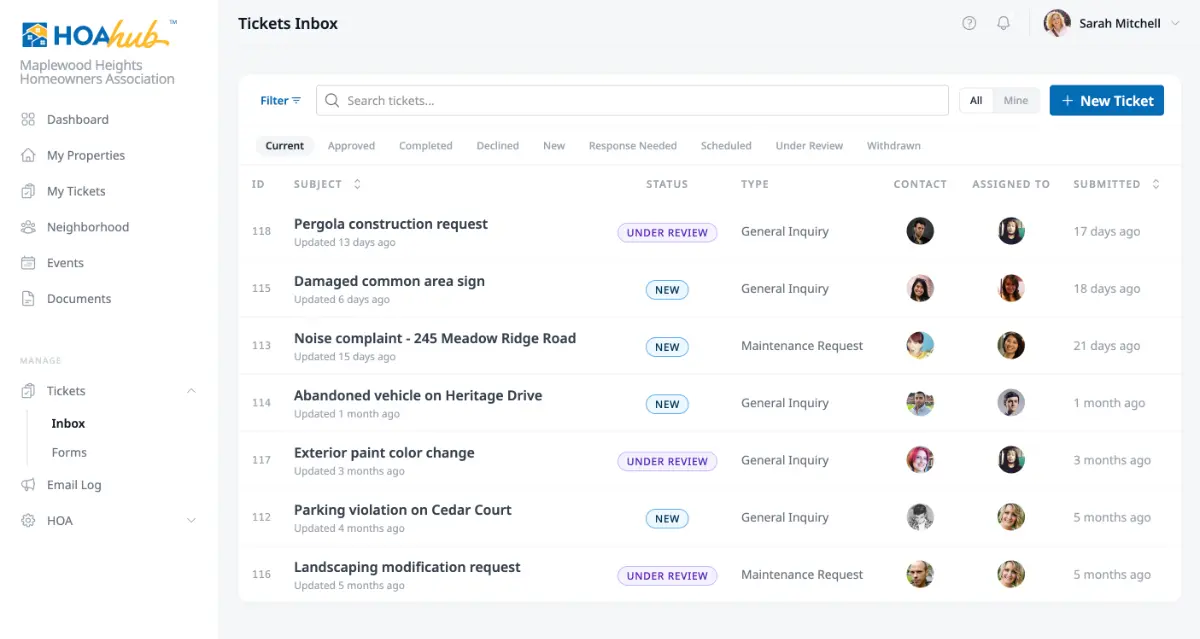
Section titled “Finding tickets that need attention”Navigate to Tickets → Inbox in the admin sidebar. Status tabs across the top let you quickly jump to tickets in a specific state — “Current” shows all active tickets by default. Use the All / Mine toggle to switch between everything and just tickets assigned to you.
For more targeted searches, the Filters menu lets you narrow by form type, submission month, assigned agent, or associated property. The search bar filters across ticket subjects and content.
Creating a ticket on behalf of a resident
Section titled “Creating a ticket on behalf of a resident”Sometimes residents reach out by phone, email, or in person instead of submitting through the platform. You can create a ticket for them so their request is tracked alongside everything else. Click New Ticket, select a form type, and use the Contact field to search for the resident the ticket is for. Fill in the details and submit — the ticket is created under their name. If you don’t select a contact, it’s created under yours.
Working with a ticket
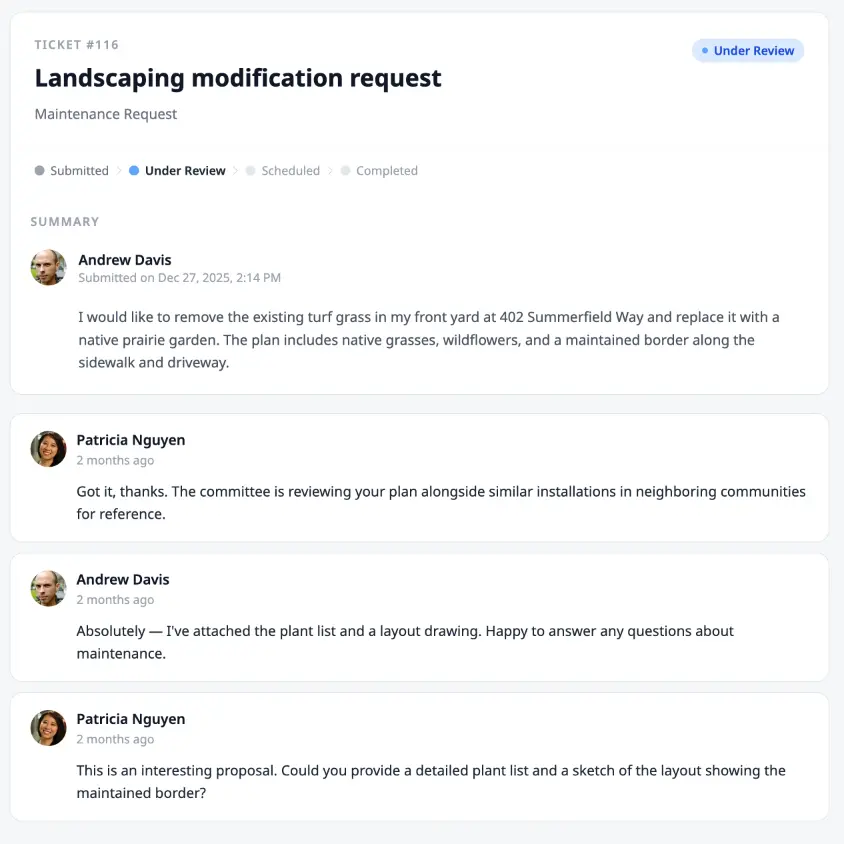
Section titled “Working with a ticket”Click any ticket to open the management view. The main area shows the ticket details — the resident’s original submission, any custom form fields they filled out, and the full conversation thread between them and the board.
Replying to a resident
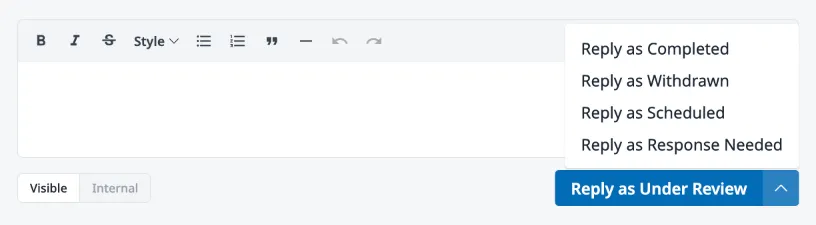
Section titled “Replying to a resident”The reply composer at the bottom lets you send messages back to the resident. Before sending, you have two choices to make:
Visibility — Toggle between Visible and Internal. Visible replies are seen by the resident. Internal replies are only visible to other admins and agents — useful for notes, coordination, or context that shouldn’t go to the resident.
Status — The reply button shows “Reply as [current status].” Click the dropdown arrow to change the status at the same time you send your reply. For example, if you need more information from the resident, select “Reply as Response Needed” — your message goes out and the ticket status updates in one step.
Assignment and metadata
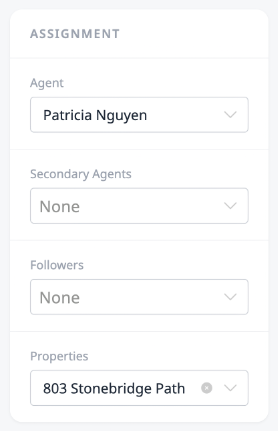
Section titled “Assignment and metadata”The sidebar on the right is where you manage who’s responsible and what’s attached to the ticket. Assign a primary Agent, add Secondary Agents to help, and manage Followers who should receive notifications. You can also link the ticket to Properties in the community, view Attachments the resident uploaded, and review the Audit log — a timeline of every status change and action taken on the ticket.
All sidebar fields auto-save when changed.
Recording a variance from an approved ticket
Section titled “Recording a variance from an approved ticket”When a ticket that requires approval is approved — like an architectural review — a Record a new variance button appears in the sidebar. This lets you create a property variance directly from the approved request, keeping everything connected. See Managing Variances for details.