Viewing Your Property
If your profile is linked to a property, you can view its details, see who else is associated with it, and check any variances that have been granted.
Finding your property
Section titled “Finding your property”Your property is shown on your dashboard in the sidebar under My Property — click View details to open the full property page. You can also navigate to My Properties in the sidebar to see all properties linked to your profile.
Property details
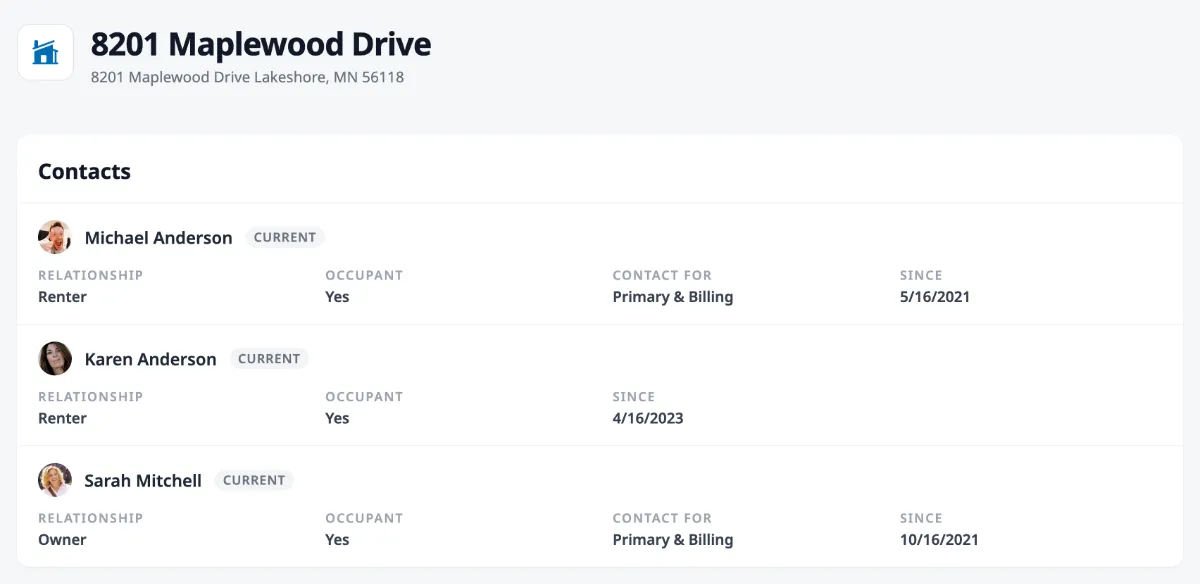
Section titled “Property details”The property page shows the property name and full address at the top.
Contacts
Section titled “Contacts”Below the property details, a Contacts card lists everyone associated with the property — owners, renters, and other contacts on file. For each person, you can see their relationship to the property (owner, renter, etc.), whether they’re an occupant, whether they’re the primary or billing contact, and how long they’ve been associated.
Variances
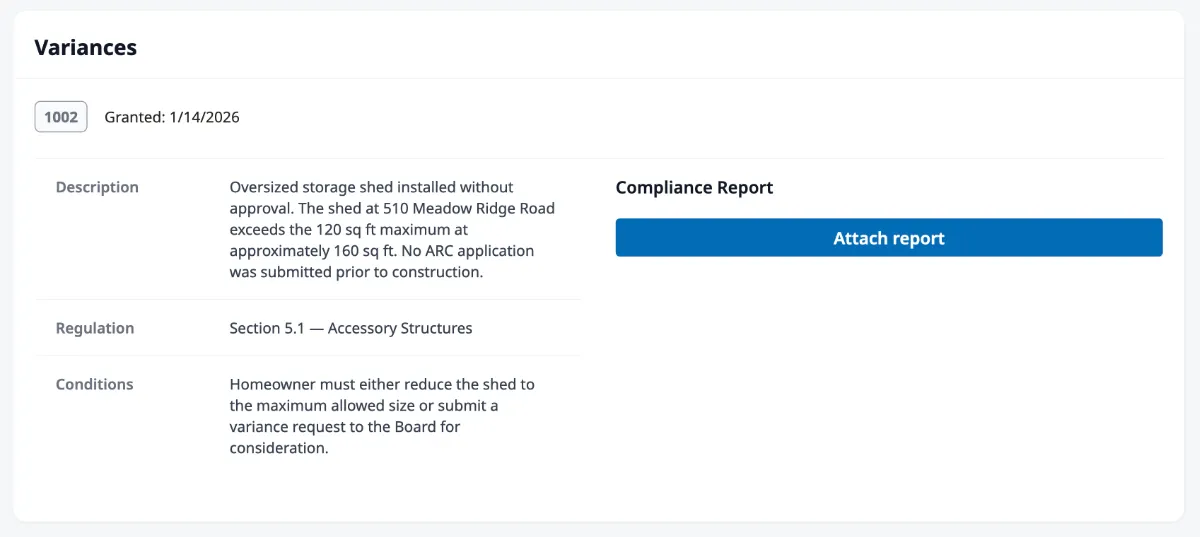
Section titled “Variances”If any variances have been granted for the property — like an exception to a community rule for a fence, shed, or exterior modification — they appear in a Variances card at the bottom of the page. Each variance shows its ID number, a brief summary, the date it was granted, and a link to view the full details.
See Understanding Variances for more on what variances are and how the compliance process works.