
Managing Variances
A variance is a formal exception to a community rule — for example, allowing a homeowner to build a fence that exceeds the standard height limit, or approving an exterior color outside the approved palette. Variances are tied to a specific property and often come with conditions and a compliance deadline.
Viewing variances
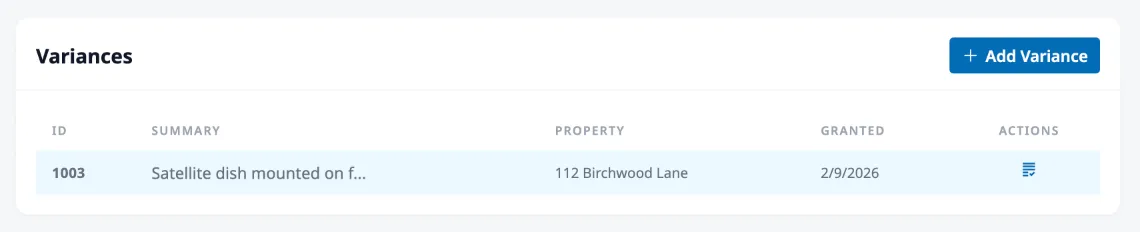
Section titled “Viewing variances”Variances are managed from the property detail page. Open a property and scroll to the Variances card to see all variances granted for that property. Each row shows the variance ID, a brief summary, and the date it was granted. Click any variance to view the full record.
Creating a variance
Section titled “Creating a variance”Click Add Variance on a property’s detail page. The property is pre-selected automatically.
The form asks for:
- Property — Which property the variance applies to
- Date Granted — When the variance was approved
- Description — What the variance is for (e.g., “Approved 6-foot privacy fence along the east property line”)
- HOA Rule/Guideline/Bylaw — A citation or copy of the specific rule being excepted (e.g., “Covenants, Section III, Paragraph 8 — Fencing”). This is optional but helpful for record-keeping.
- Conditions — Any terms the variance is subject to (e.g., “Must use materials from the approved list and complete installation within 90 days”)
- Due Date — The deadline for the property owner to complete the work and file a compliance report
The description, rule citation, and conditions fields all support rich text formatting.
Variance details
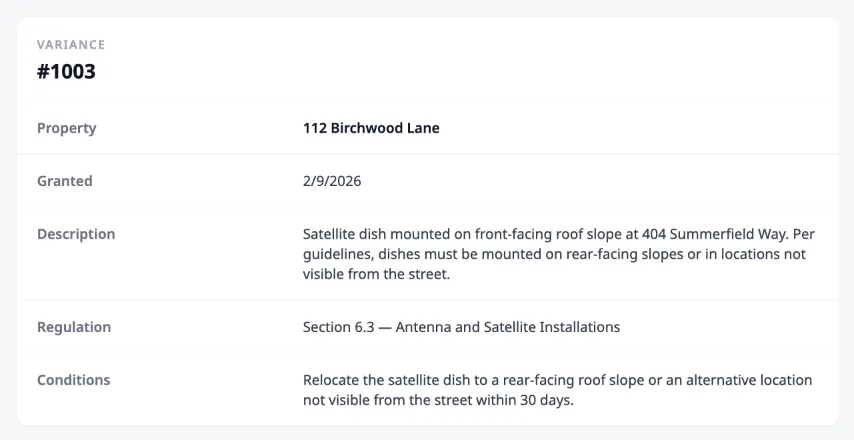
Section titled “Variance details”Click any variance to see the full record. The main area shows the variance ID, the linked property, the granted date, and the full description, rule citation, and conditions. If the property owner has uploaded compliance attachments (like photos of completed work), those appear in an Attachments section.
Tracking compliance
Section titled “Tracking compliance”When a variance is granted, the property owner is expected to complete the work and file a compliance report by the due date. The compliance status appears in the sidebar of the variance detail page and progresses through three stages:
No report filed
Section titled “No report filed”The property owner hasn’t submitted a compliance report yet. The sidebar shows a neutral status indicating no report is on file.
Awaiting acceptance
Section titled “Awaiting acceptance”The property owner has filed a compliance report with a completion date and details about the work. The admin can review the report, look at any uploaded attachments, and decide whether the work meets the variance conditions.
To accept the report, select a Record Acceptance date and click Accept Compliance.
Accepted
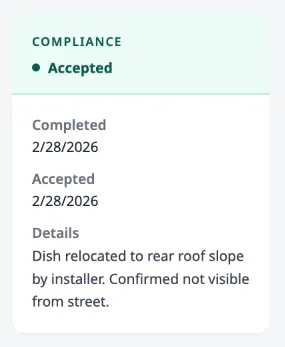
Section titled “Accepted”The compliance report has been accepted. The sidebar shows the completion date, acceptance date, and the details the property owner provided. No further action is needed.
Variance ID settings
Section titled “Variance ID settings”You can customize how variance IDs are generated for your community. From HOA → Settings, switch to the Variances tab and set a prefix and starting number for variance IDs. For example, with a prefix of “VAR” and a starting number of “001”, new variances would be numbered VAR001, VAR002, and so on.