
Managing the Directory
Admins can create contacts, organize them into groups, manage their property relationships, and link them to households and companies — all from the Neighborhood page and the contact detail view.
Adding a contact
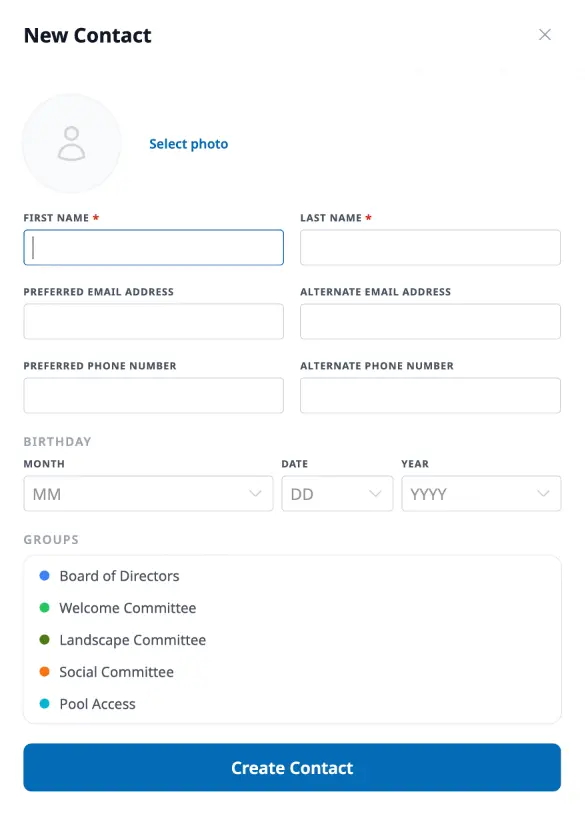
Section titled “Adding a contact”From the Neighborhood page, click Add Contact. A drawer opens where you can enter the person’s name, contact information, birthday, and group memberships. Only the name is required — you can fill in the rest later.
The contact detail page
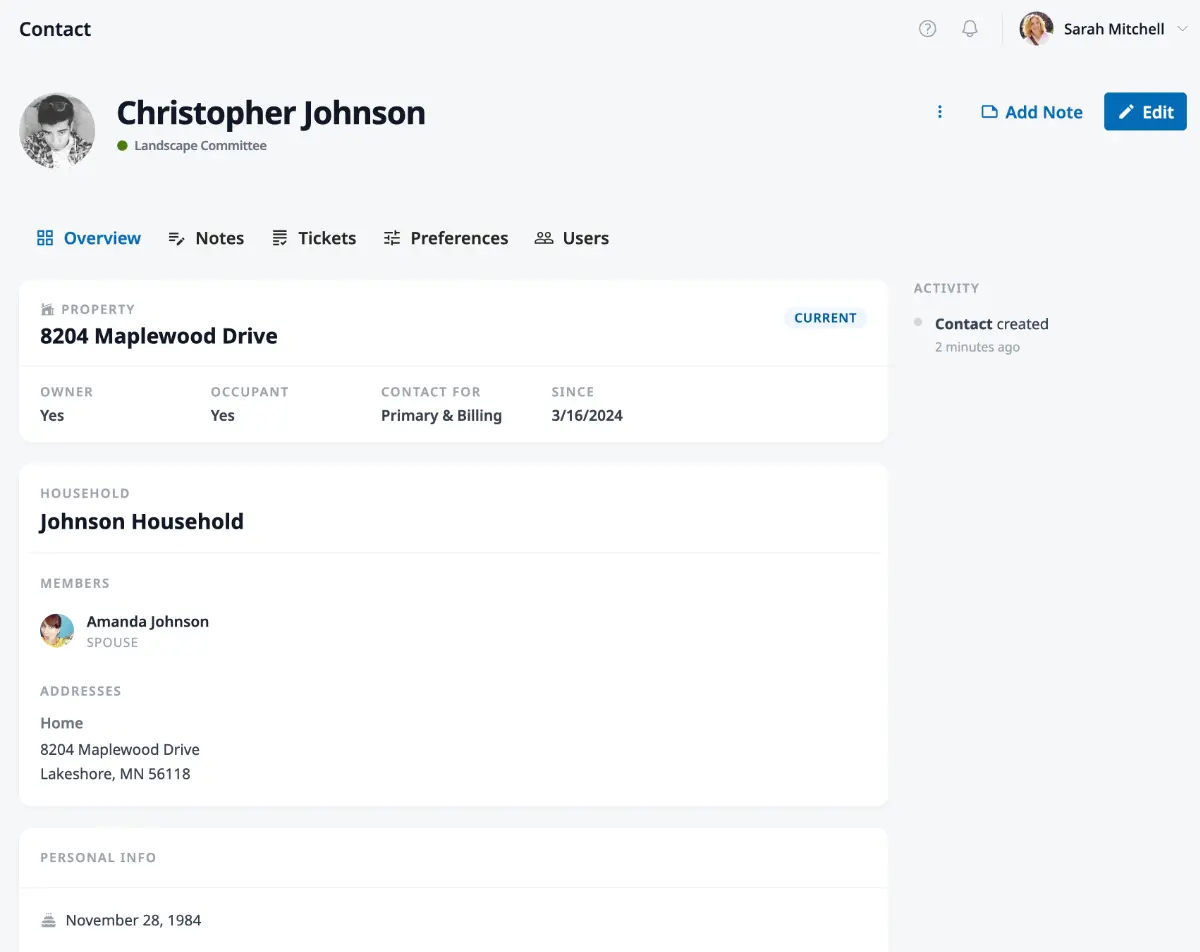
Section titled “The contact detail page”Click any contact from the directory to open their detail page. The header shows their name, photo, company affiliation (if any), and group tags. Below that, five tabs organize everything about the contact.
Overview
Section titled “Overview”The overview tab shows the contact’s property affiliations, company and household associations, and personal information like phone numbers and email addresses. An audit log in the sidebar tracks changes made to the contact record.
A place to keep internal notes about a contact. Click Add Note in the header to write one. Notes can be marked as private so only admins see them — useful for board-related context that shouldn’t be visible to other users managing the contact.
Tickets
Section titled “Tickets”Shows all tickets submitted by or associated with this contact, with their subject, ID, status, and dates.
Preferences
Section titled “Preferences”Display and notification preferences for the contact — their timezone and which notifications they receive by email or on the website.
Shows which user accounts are linked to this contact. From here you can invite someone to create an account to manage the contact — see Managing Users for details.
Organizing contacts into groups
Section titled “Organizing contacts into groups”Groups are colored tags you can assign to contacts — things like “Board Member,” “Welcome Committee,” or “Architectural Review.” They show up on contact cards in the directory and can be used to filter the list.
To manage groups, click Manage Groups on the Neighborhood page (visible when in People mode). From the modal you can create new groups with custom colors, rename existing ones, or delete groups you no longer need.
Managing property relationships
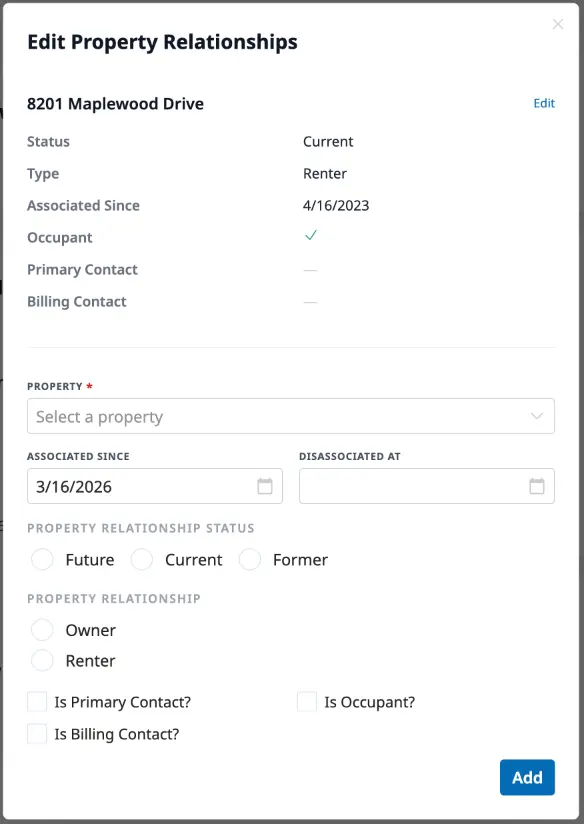
Section titled “Managing property relationships”To link a contact to a property, click the More menu on their detail page and select Edit Properties. The modal shows all properties the contact is currently associated with and lets you add new ones.
For each property relationship, you can set:
- Relationship status — Future, current, or former
- Property relationship — Owner or renter
- Occupant — Whether they live at the property
- Primary contact and Billing contact — Whether they’re the main point of contact or responsible for billing
- Associated since and Disassociated at — When the relationship started and ended
Changes save automatically.
Households and companies
Section titled “Households and companies”Contacts can be grouped into households (families living together) and companies (business entities). These associations appear on the contact’s overview tab.
To add or edit either one, click the More menu on the contact detail page:
- Household — Set a household name, add members, and define relationships (spouse, child, parent, etc.). You can also manage shared addresses.
- Company — Set a company name, phone number, and tax ID. Add members with their roles or titles.
Merging duplicate contacts
Section titled “Merging duplicate contacts”If the same person appears as two separate contacts, you can merge them. Click the More menu on the contact detail page and select Merge Contact. Choose which contact record to keep as the primary, select the duplicate to merge in, and confirm. The merged contact inherits all data from both records.