Finding Your Neighbors
The Neighborhood page is your community directory. It’s where you can look up who lives in your community and browse the properties.
People
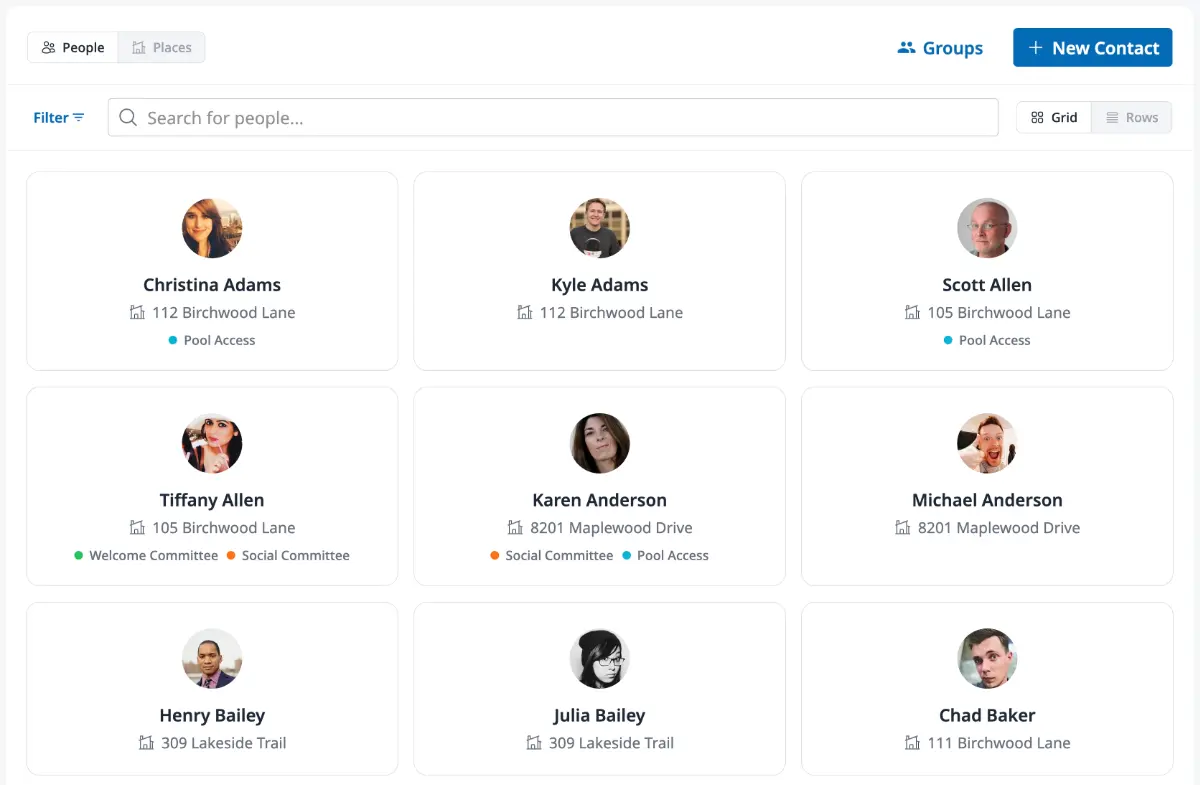
Section titled “People”When you open Neighborhood from the sidebar, you’ll see the People view by default. This shows everyone in the community as a grid of contact cards — each displaying their name, photo, property or company affiliation, and any group tags (like “Board Member” or “Welcome Committee”) with colored dots.
You can switch to a row-based layout using the view toggle if you prefer a more compact list.
Searching and filtering
Section titled “Searching and filtering”The search bar filters contacts by name as you type. If you’re looking for people in a specific group, open the Filters menu and select a group from the dropdown.
Places
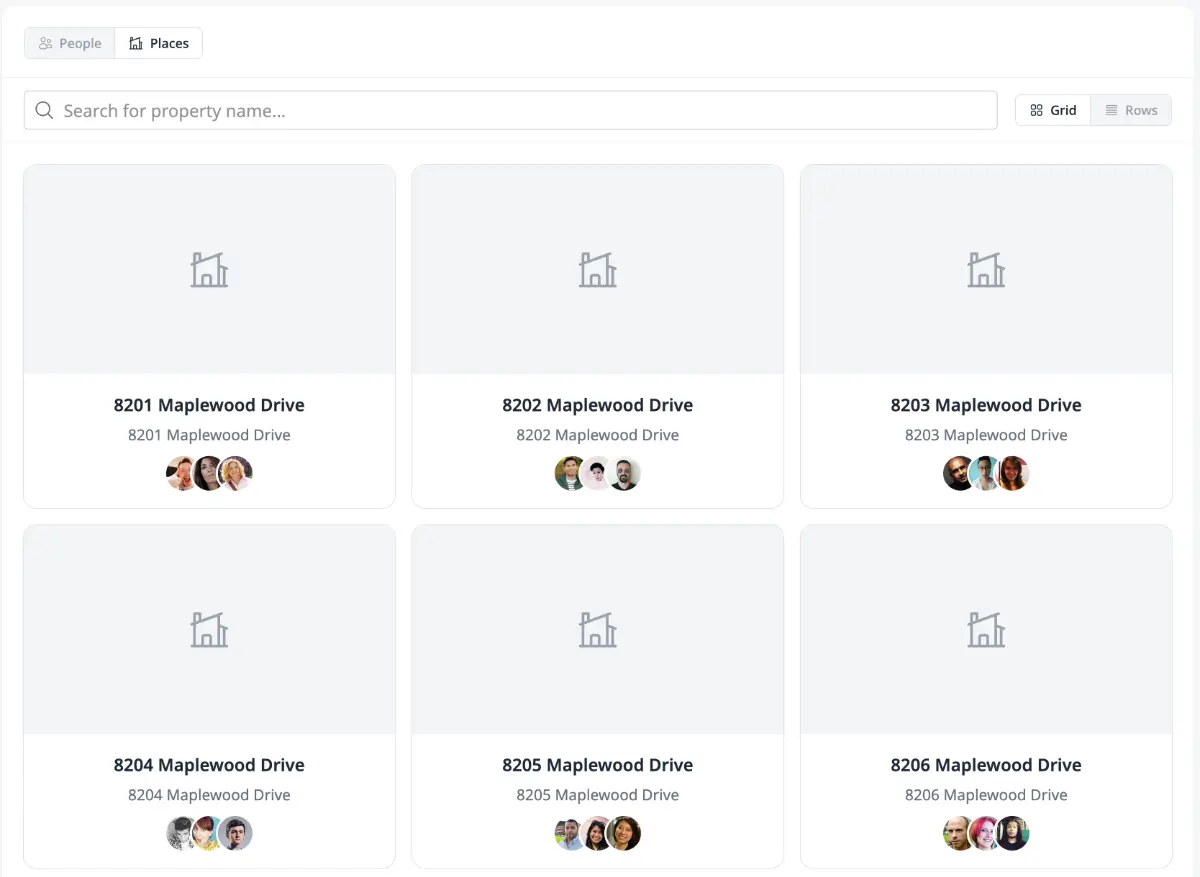
Section titled “Places”Switch to the Places tab to browse properties in the community. Each property card shows the property name and address. You can search by property name to find a specific home or unit.
Click any property to see its full details, including who’s associated with it.
Viewing more details
Section titled “Viewing more details”Depending on your permissions, you may be able to click a contact’s name or a property to view its full detail page. If you don’t see clickable links, the directory is set to display-only for your role — you can still browse and search, but detailed pages are reserved for users with additional access.