
Viewing Community Events
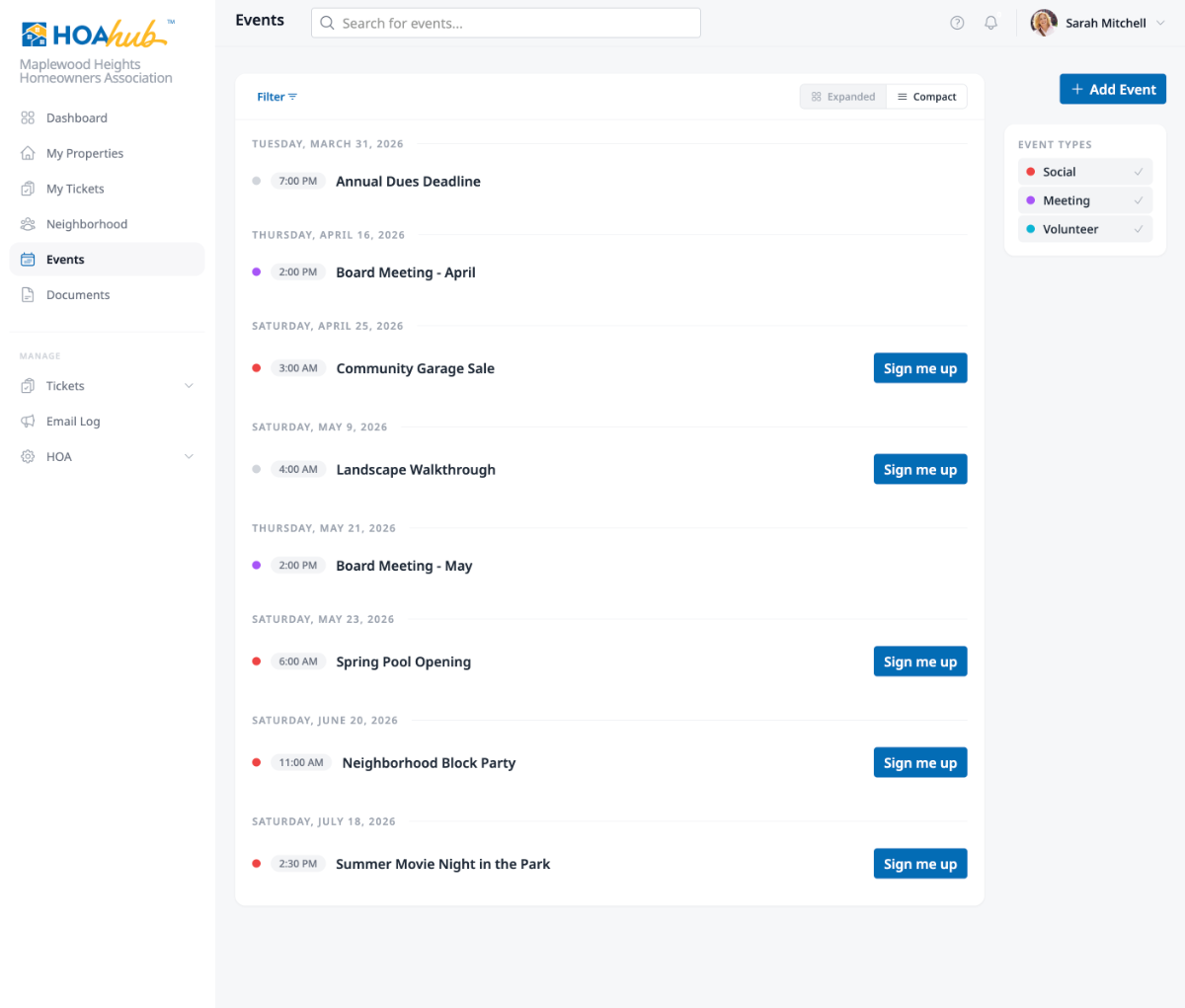
The Events page shows everything happening in your community — meetings, social gatherings, maintenance schedules, and more. You can find it in the sidebar under Events.
Finding a specific event
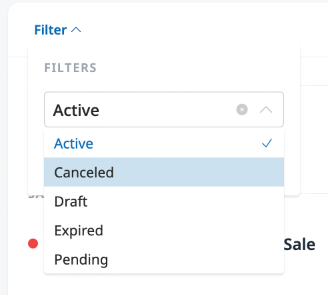
Section titled “Finding a specific event”If you’re looking for something in particular, the search bar at the top filters events by name as you type. You can also narrow things down with the Filters button:
- Status — By default you see active events, but you can switch to show past, pending, or canceled events too
- Month — Jump to a specific month to see what happened or what’s coming up
Browsing by event type
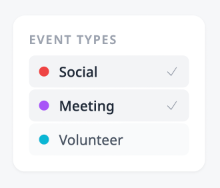
Section titled “Browsing by event type”A sidebar on the right lists all event types in your community — things like Meeting, Social, or Maintenance — each with a colored dot. Click any type to show or hide those events. This is handy when you only care about one kind of event, like upcoming board meetings.
Compact and expanded views
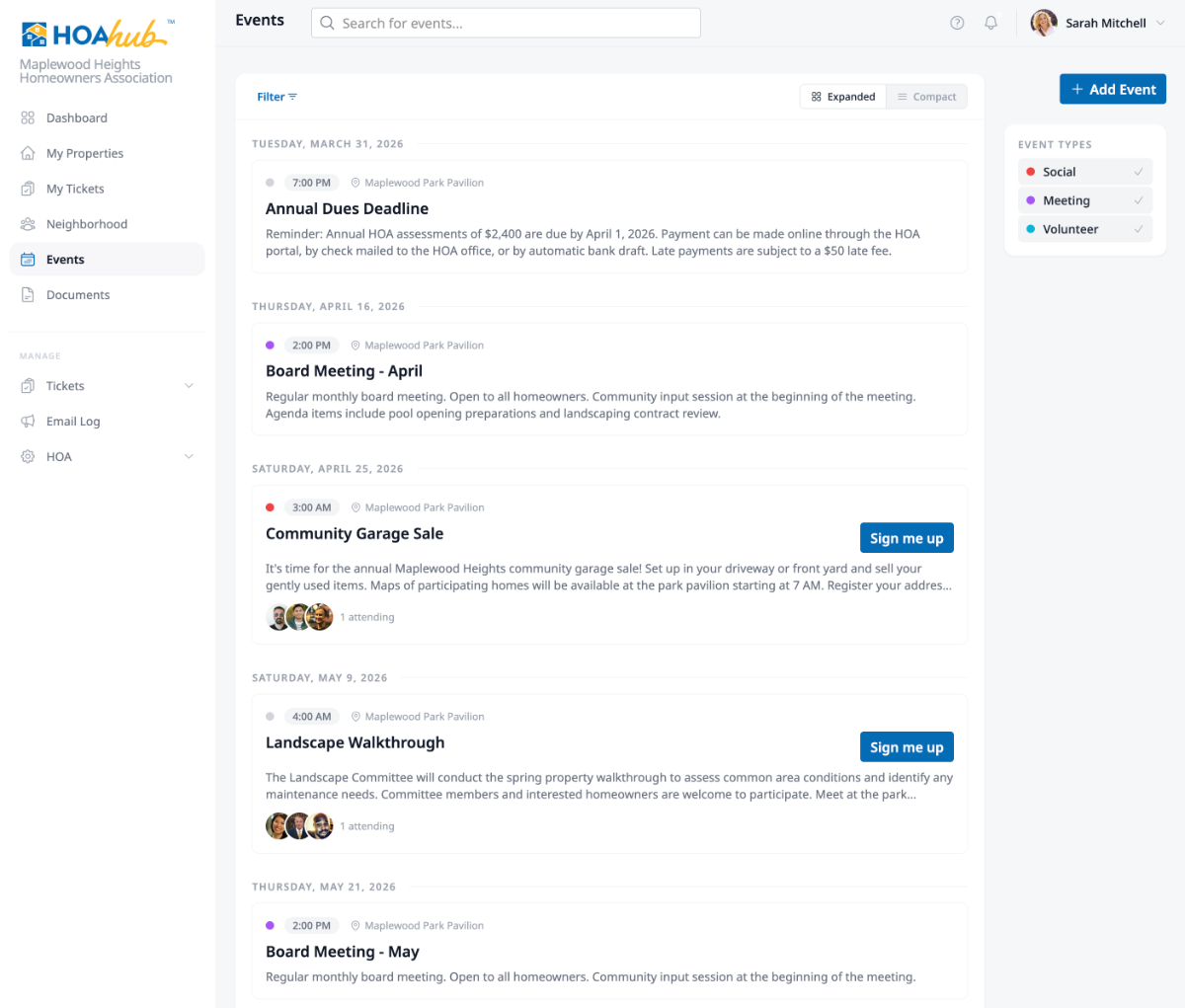
Section titled “Compact and expanded views”You can switch between two layouts using the toggle in the top-right corner. Compact view shows just the essentials — date, name, time, and attendee count — so you can scan quickly. Expanded view gives more detail per event if you want to browse at a slower pace.
Opening an event
Section titled “Opening an event”Click any event to see its full details — description, location, host, attached files, and guest list. From the detail page you can also RSVP. See RSVPing to an Event for how to sign up.