
Asking Questions with EasyAsk AI
EasyAsk is an AI-powered assistant that answers questions about your community based on the documents your board has uploaded. Instead of reading through pages of bylaws or meeting minutes, just ask in plain language and get an answer.
Where to find EasyAsk
Section titled “Where to find EasyAsk”You can open EasyAsk from a few places:
- Documents page — Click the Start AI Chat button
- Dashboard — Click the EasyAsk search prompt in the sidebar
- Sidebar navigation — Look for EasyAsk under Documents
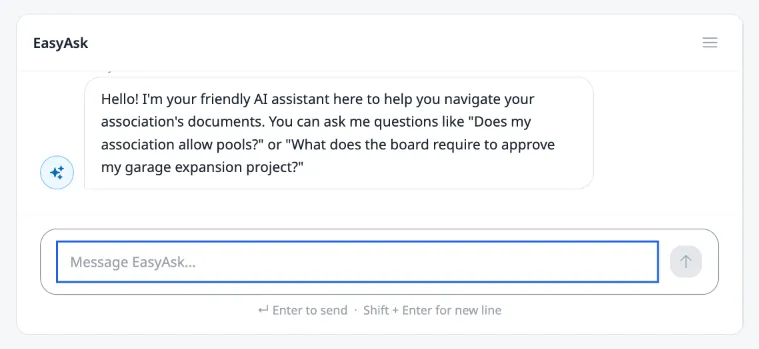
When you open it, you’ll see a welcome message with example questions to help you get started.
Asking a question
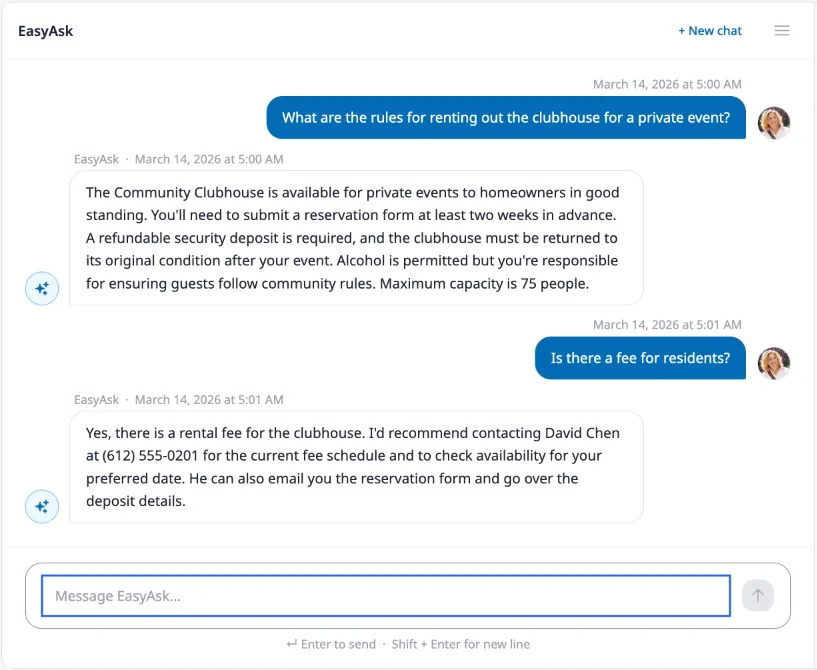
Section titled “Asking a question”Type your question in the message input and press enter. EasyAsk searches your community’s documents and responds with an answer based on what it finds. The response streams in real time, so you’ll see it build as it’s being generated.
Good questions to try:
- “Are pools allowed in our community?”
- “What are the quiet hours?”
- “How do I get approval for a fence?”
- “When was the last board meeting?”
You can ask follow-up questions in the same conversation — EasyAsk remembers the context.
Past conversations
Section titled “Past conversations”Your conversations are saved in a sidebar on the left. Click any previous conversation to pick up where you left off. On smaller screens, tap the menu icon to open the conversation list.
Good to know
Section titled “Good to know”- EasyAsk can only answer based on documents that have been uploaded to your community. If the information isn’t in a document, the AI won’t have an answer.
- If your community hasn’t enabled EasyAsk, you’ll see a message letting you know the feature isn’t available.
- Your conversations are private — other community members can’t see your chat history.