
Browsing Community Documents
The Documents page is your community’s library — bylaws, meeting minutes, budgets, architectural guidelines, and anything else your board has shared. You’ll find it under Documents in the sidebar.
Finding what you need
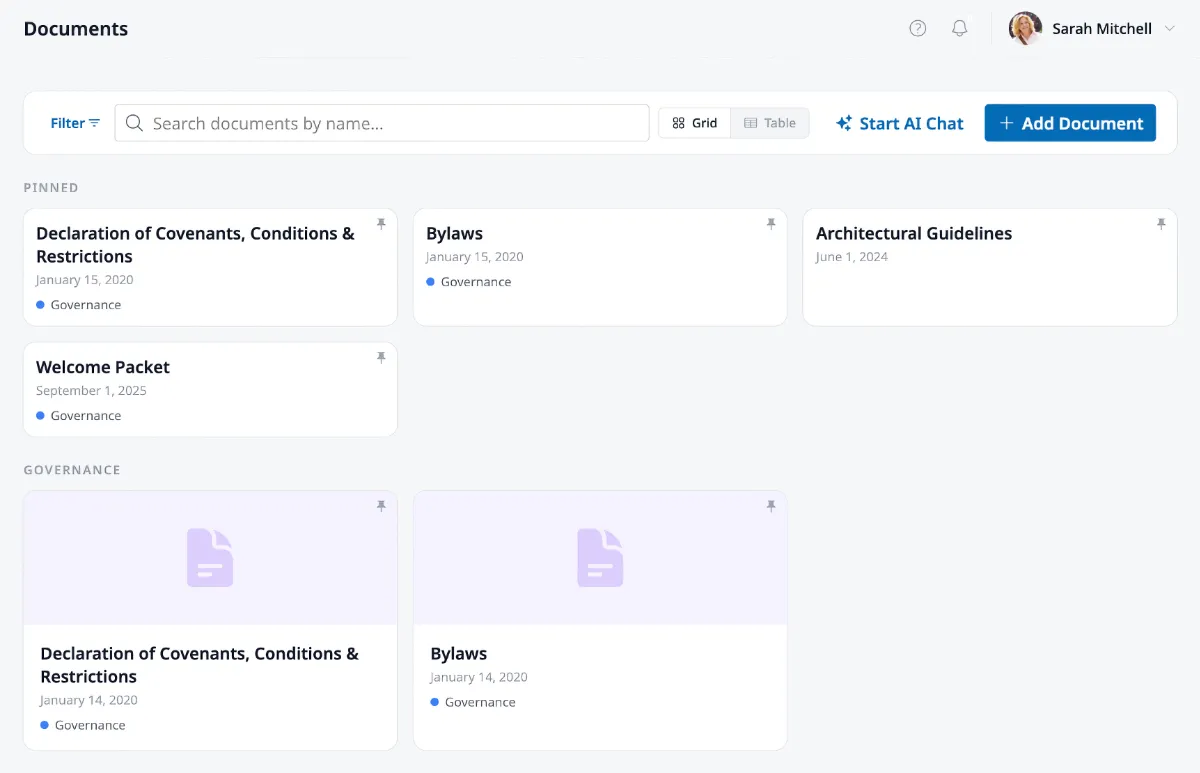
Section titled “Finding what you need”Documents can be displayed in either a grid or table layout — use the toggle in the toolbar to switch. The search bar filters by document name as you type.
If you’re looking for a specific category, click Filters to narrow by Collection (like Bylaws or Meeting Minutes) or Publication Year. You can also toggle the Show Pinned Documents filter to show or hide the pinned section.
Pinned documents
Section titled “Pinned documents”Your community’s most important documents — like bylaws or community rules — may be pinned by an admin. Pinned documents appear in a dedicated section at the top of the page so they’re always easy to find.
Reading a document
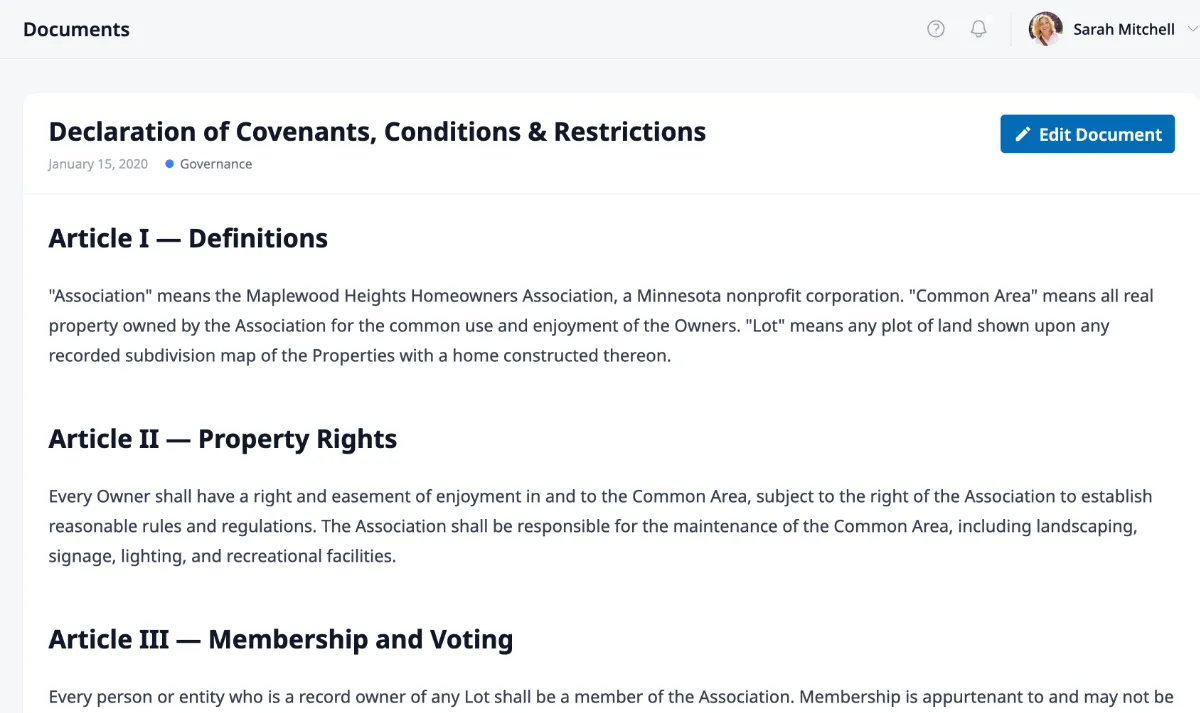
Section titled “Reading a document”Click any document to open it. You’ll see the document name, publication date, collection tags, and the full content rendered inline. If you’re an admin, an Edit Document button appears in the top-right corner.
Getting answers with AI
Section titled “Getting answers with AI”Don’t want to read through an entire document? Click Start AI Chat from the Documents page to open EasyAsk — an AI assistant that answers questions based on your community’s documents. See Asking Questions with EasyAsk AI for details.